This feature is currently available in Labs. Enable the feature in labs to connect multiple Facebook pages to your account.
TABLE OF CONTENTS
- What can I achieve with this feature?
- How do I connect multiple pages?
- Facebook Integrations - Manage pages
- Facebook Integrations - Settings
What can I achieve with this feature?
- Leads Sync: Sync leads automatically from Facebook Lead Ads across multiple pages with clear attribution to the source
- Conversations: Chat with customers across multiple Facebook pages using Facebook and Instagram chat integrations
- Automation: Build customised workflows to automate customer engagement across multiple Facebook pages
- Reputation: Manage reviews and your review responses across multiple Facebook pages
How do I connect multiple pages?
Step 1: After enabling the feature in Labs, navigate to Settings > Integrations.

Step 2: Click on 'Connect', login to your Facebook account and approve all required permissions for Link+ to integrate with your Facebook account.
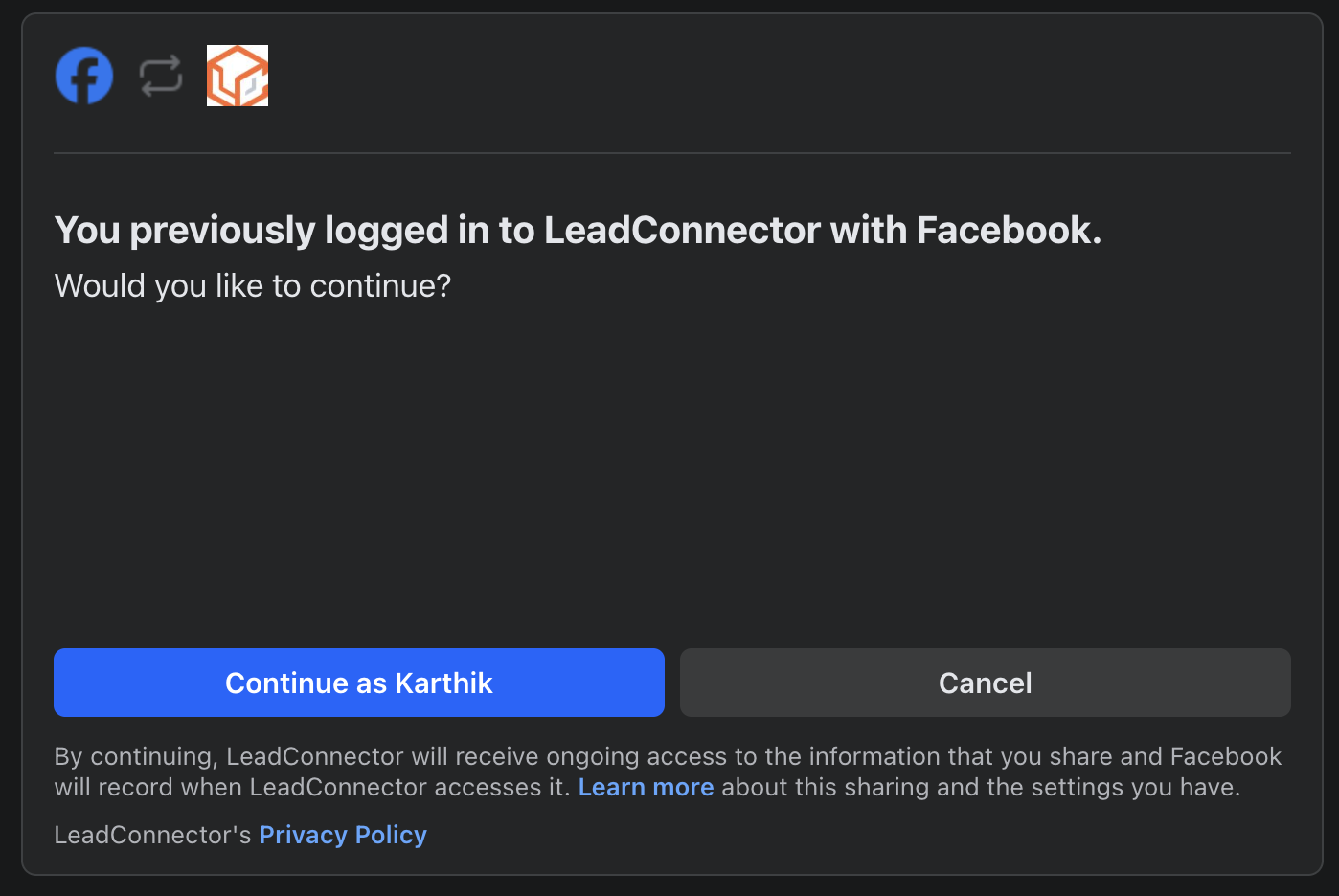
Step 3: Select the pages that you wish to integrate.
You may choose to sync new leads only, or also sync previous 90 days' leads to start with.

Step 4: Map your Facebook Lead Ad form fields to Contacts' custom fields.


Facebook Integrations - Manage pages
You can manage the pages that wish you integrate by clicking on Manage pages and selecting/unselecting as per your preference. For example, if you don't wish to integrate one of the pages, you can unselect them in the Manage Pages menu.


Facebook Integrations - Settings
You can manage the messaging capability across your integrated pages using the settings button. For example, if you don't wish to use one of the pages for messaging/chat, you can choose to disable the setting on that page.

