
Gift Cards let customers purchase prepaid balances for themselves or someone else. You can sell them through dedicated checkout links, embedded checkouts, QR codes, and supported payment experiences, including Forms, Funnels, Stores, Websites, Payment Links, Invoices, and Calendars. Buyers can choose immediate or scheduled delivery where supported. This guide explains each selling method, the customer purchase experience, and important delivery and redemption behavior.
TABLE OF CONTENTS
- What Is Selling Gift Cards?
- Key Benefits of Selling Gift Cards
- Prerequisites and Limitations
- Test Mode vs. Live Mode
- Supported Channels
- Selling Gift Cards Using the Dedicated Checkout Link
- How to Access the Live Dedicated Checkout Link
- How to Access the Test Mode Checkout Link
- Customer Experience in the Dedicated Checkout
- Selling Gift Cards Using the Embed Code
- Selling Gift Cards Using QR Codes
- Download the QR Code
- Selling Gift Cards Through Existing Checkouts
- Frequently Asked Questions
- Need Help?
What Is Selling Gift Cards?
Selling Gift Cards is the process of offering a prepaid balance as a Gift Card Product. Customers can purchase gift cards for themselves or send them to someone else.
A Gift Card Product can have its own checkout page or be added to supported payment experiences, including Funnels, Forms, Stores, Websites, Payment Links, Invoices, and Calendars.
When a customer completes a successful gift card purchase, the system creates a Gift Card Order. The gift card is delivered according to the delivery option selected during checkout, such as immediate or scheduled delivery.
Each Gift Card Product supports:
- Dedicated Checkout Link: A standalone checkout for the gift card.
- Embed Code: Code for displaying the checkout on a website.
- QR Code: A scannable link to the dedicated checkout.
- Existing Checkouts: The ability to add the gift card to supported checkouts that allow product selection.
Key Benefits of Selling Gift Cards
Gift Cards provide flexible ways to offer prepaid value through existing payment experiences. You can use different sales channels while managing the Gift Card Product and its available denominations.
- Multiple Sales Channels: Sell gift cards using dedicated links, embedded checkouts, QR codes, or supported existing checkouts.
- Gifting Built In: Buyers can choose Myself or Someone Else during a supported gift card checkout.
- Scheduled Delivery: Allow buyers to deliver gift cards immediately or schedule delivery for a future date.
- Separate Testing: Use Test Mode checkout links to check the purchase and delivery experience without creating live gift card balances.
- Payment at Purchase: Collect payment when the gift card is purchased, before the recipient redeems its balance.
- Custom Gift Card Design: Upload artwork or use supported gradient options to match the gift card to your business branding.
Prerequisites and Limitations
Before selling gift cards, create an active Gift Card Product and confirm that a supported payment connection is available. These requirements allow customers to complete purchases through the selected checkout.
Prerequisites
Prepare the required Gift Card Product and payment configuration before sharing a checkout.
- An Active Gift Card Product: Create and activate at least one Gift Card Product. Go to Payments > Gift Cards > Create Gift Card.
- A Connected Payment Provider: Configure a supported payment connection to collect payment for gift card purchases.
- A Supported Checkout: Use the dedicated checkout or configure one of the supported existing selling channels.
- Product Configuration: Review the available denominations, artwork, expiry settings, and other relevant product details before making the gift card available.
Limitations
Gift card behavior depends on the selected selling channel, checkout mode, payment provider, and product configuration.
- Test and Live Modes: Test gift cards can be redeemed only in Test Mode. Live gift cards can be redeemed only in Live Mode.
- Checkout Availability: Gift Card Products can be sold only through supported payment experiences.
- Redemption Compatibility: Support for gift card redemption varies by payment provider and purchase type.
- Gift Card Purchases: A customer cannot use a gift card balance to purchase another gift card.
- Deactivated Products: Deactivation stops the dedicated Sell flow and store availability. Previously configured product selections in other checkouts may require manual removal.
Test Mode vs. Live Mode
Test Mode and Live Mode let you separate simulated purchases from real transactions. Use the appropriate mode when reviewing checkout behavior or sharing gift card purchase links.
Test Mode
Test Mode provides a separate checkout experience using test payment credentials and gift card balances.
Use it to:
- Simulate gift card purchases.
- Review available denominations.
- Check checkout and inventory behavior.
- Preview gift card delivery messages.
- Test redemption through supported Test Mode checkouts.
A gift card purchased in Test Mode can be redeemed only through a compatible Test Mode checkout.
Live Mode
Live Mode processes real gift card purchases through the configured payment provider.
A gift card purchased in Live Mode can be redeemed only through a compatible Live Mode checkout.
Important: The separate Send feature, which issues a gift card without collecting payment, currently works in Live Mode only.
Supported Channels
Gift Card Products can be offered through several selling channels. Choose the method that matches how customers interact with your business, or use multiple supported channels for the same product.
- Dedicated Checkout Link: Share a standalone checkout page for a Gift Card Product.
- Embed Code: Display the gift card checkout directly on a website page.
- QR Code: Share a scannable code that opens the dedicated checkout link.
- Existing Checkouts:Add a Gift Card Product to supported selling experiences:
For websites, use a supported embedded checkout or add a link or button that opens the dedicated gift card checkout.
Selling Gift Cards Using the Dedicated Checkout Link
Every Gift Card Product has a dedicated checkout page. This is a convenient way to sell gift cards through email, SMS, social posts, or website buttons without creating a separate form or funnel.
Each Gift Card Product has its own checkout link for Test Mode and Live Mode.
How to Access the Live Dedicated Checkout Link
Copy the Live Mode checkout link when you want customers to make real gift card purchases.
Step 1: Navigate to Gift Cards
- Click Payments in the main navigation.
- Select Gift Cards from the top navigation.

Step 2: Choose a Gift Card
- Find the Gift Card Product you want to sell.
- On its tile, click Sell.
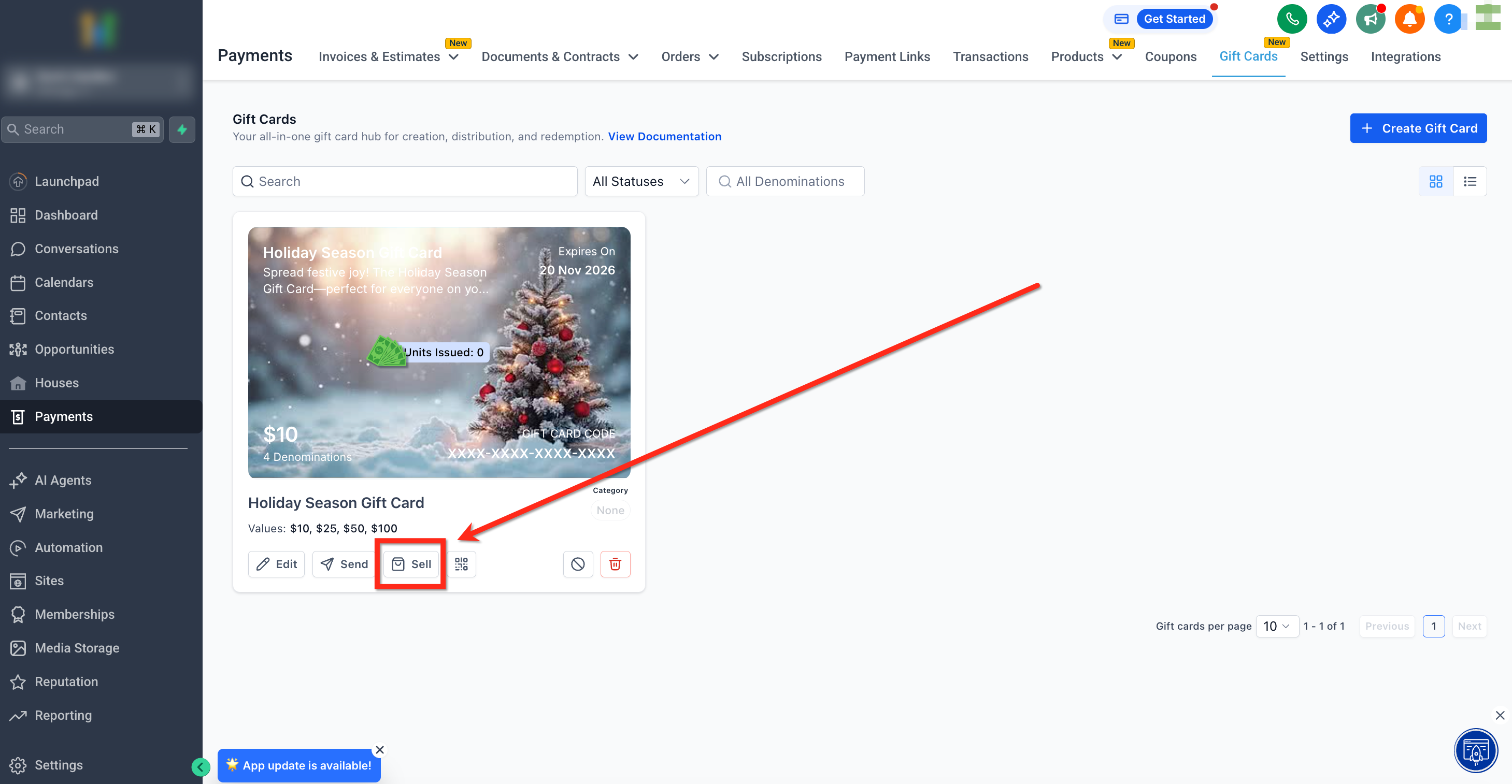
Step 3: Copy the Dedicated Checkout Link
- Locate the Live Mode Checkout Link.
- Click the Copy icon.
- Share the copied checkout link with customers.
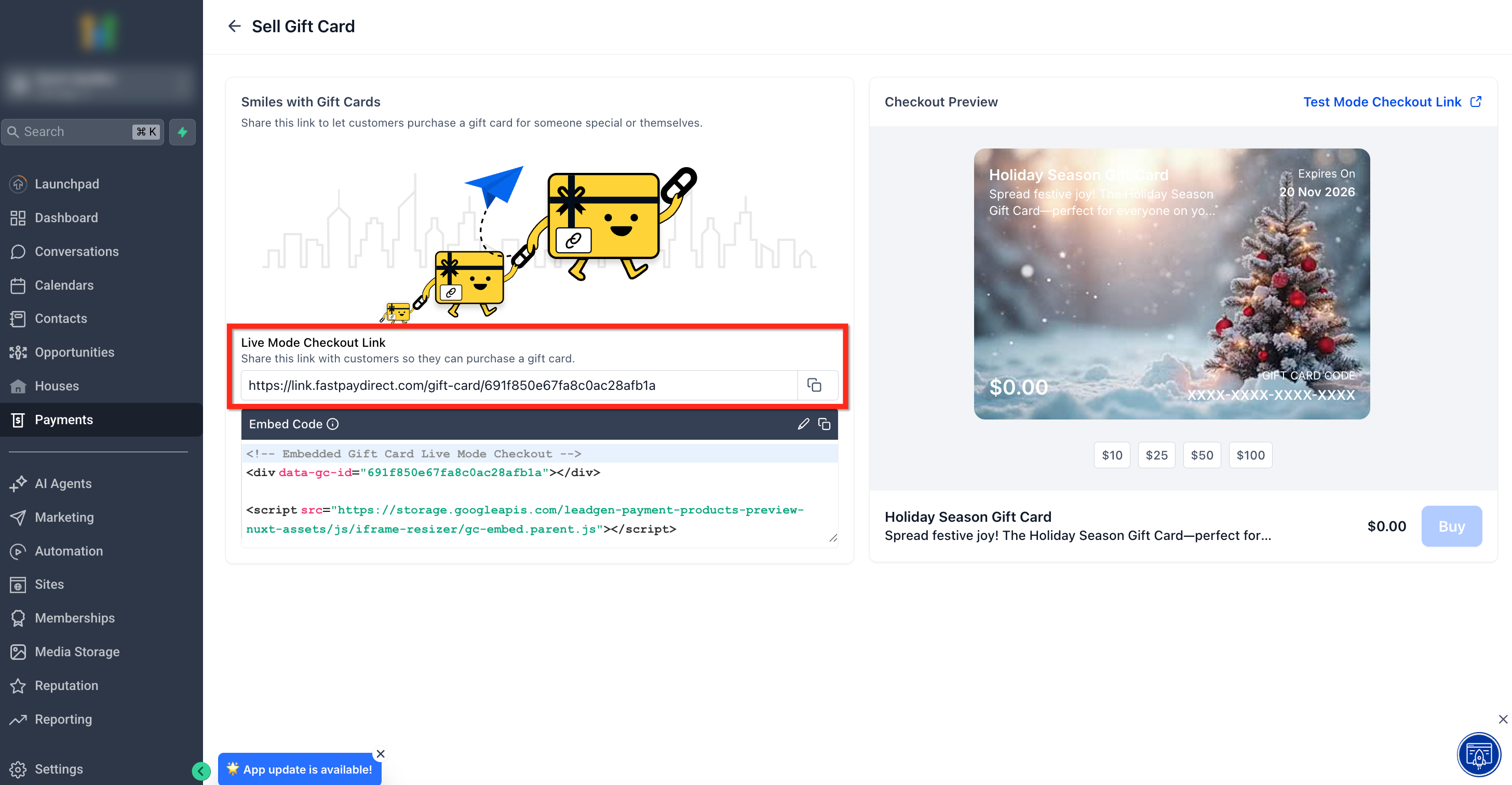
Customers can use the Live Mode link to purchase the Gift Card Product through its dedicated checkout.
How to Access the Test Mode Checkout Link
Use the Test Mode checkout link when you want to simulate the gift card purchase process without creating a real gift card balance.
Step 1: Navigate to Gift Cards
- Click Payments.
- Select Gift Cards.

Step 2: Choose a Gift Card
- Find the Gift Card Product you want to test.
- Click Sell.
Step 3: Open the Test Mode Checkout Link
- Click Test Mode Checkout Link in the upper-right corner.
- Use the Test Mode checkout page for internal testing.

Customer Experience in the Dedicated Checkout
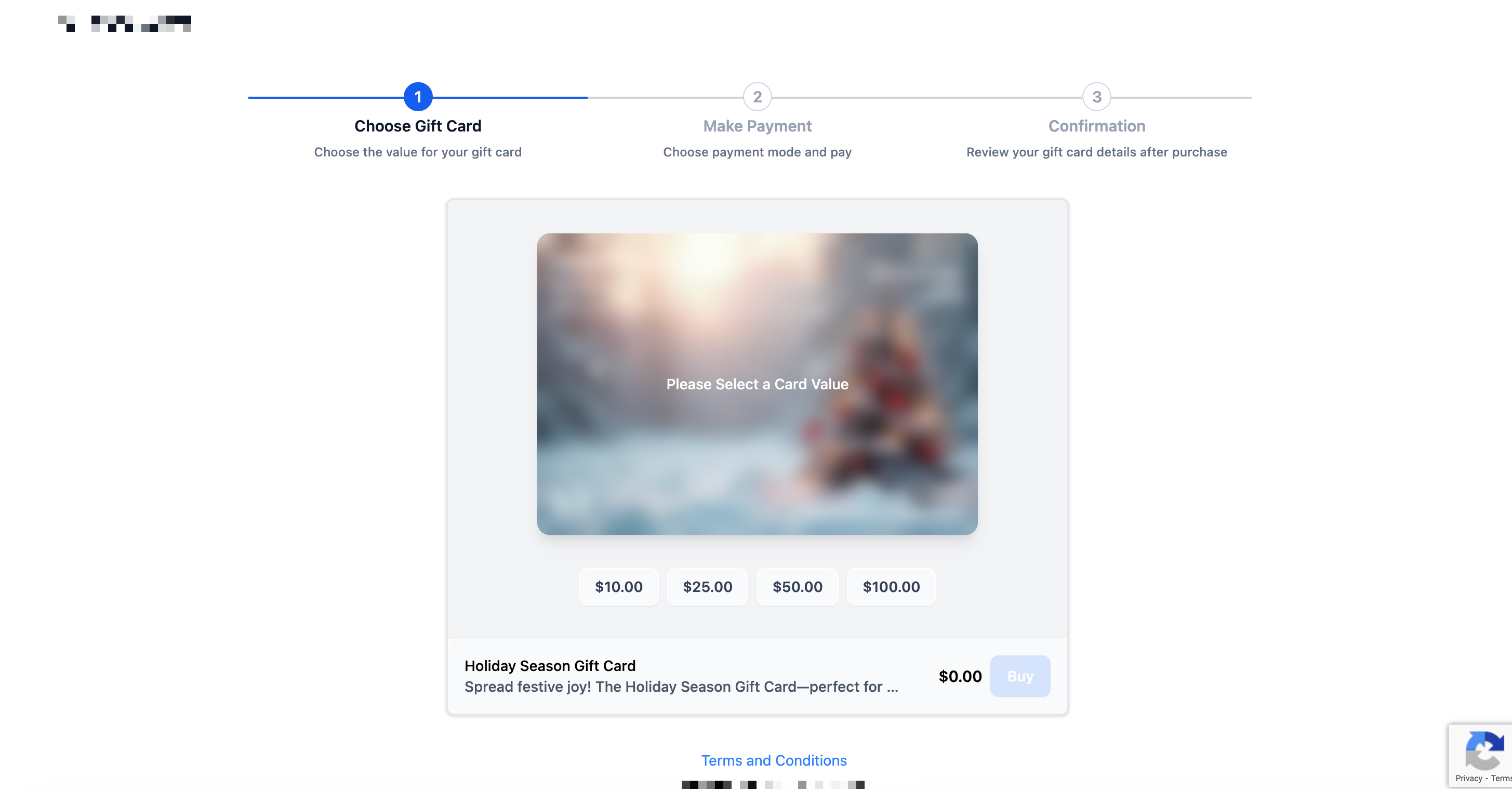
The dedicated checkout lets buyers choose the gift card denomination, select a recipient, configure delivery, and complete payment. Review the following steps to understand what customers experience.
Step 1: Select a Denomination
The buyer selects one of the denominations configured for the Gift Card Product.
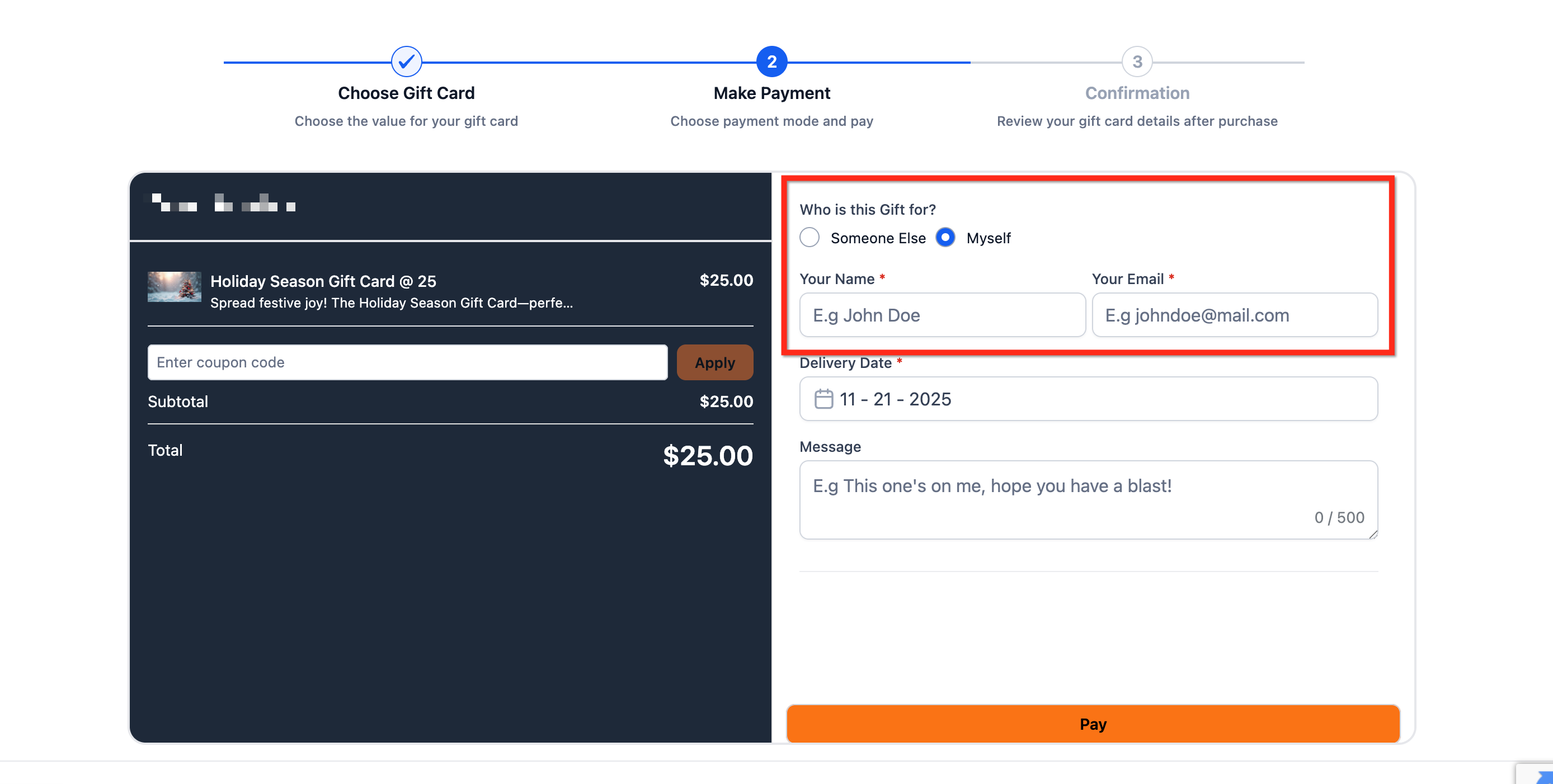
Step 2: Choose Who the Gift Card Is For
The buyer selects either Myself or Someone Else.
If the gift card is for someone else: The checkout collects the recipient's name and email address, along with the sender's name and email address.
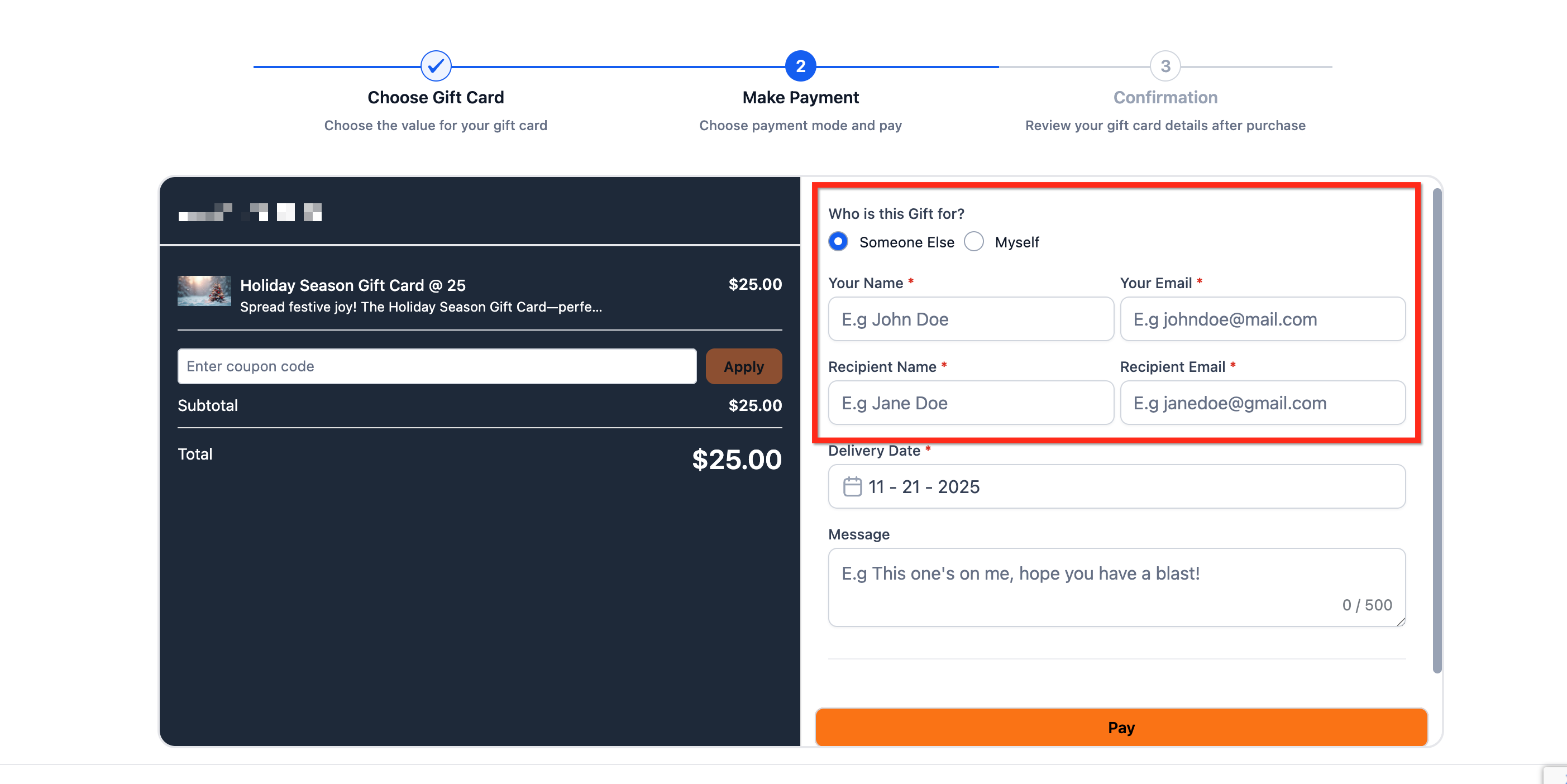
If the gift card is for the buyer: The checkout collects the buyer's name and email address.
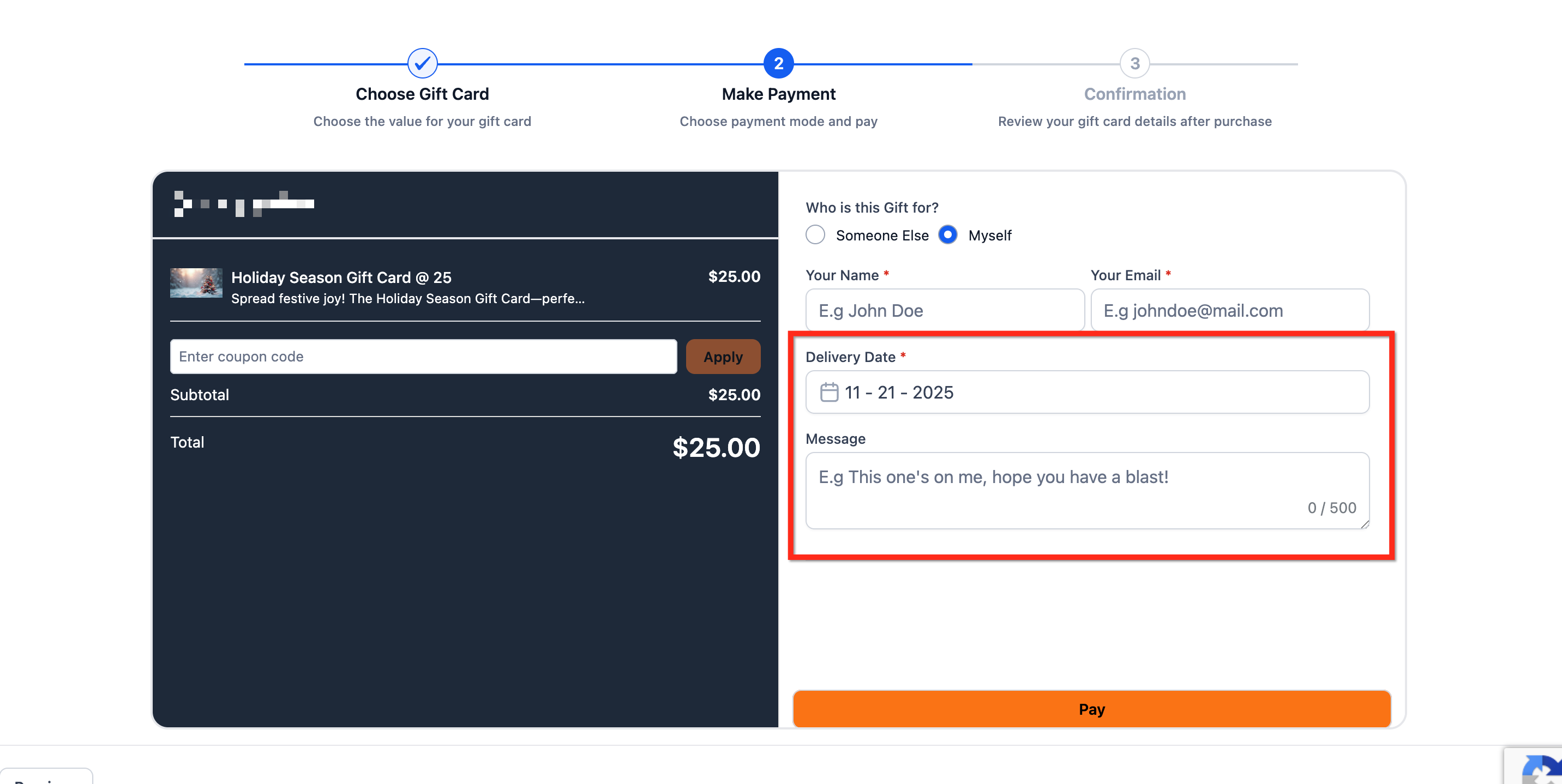
Step 3: Choose the Delivery Date
The buyer chooses how the gift card should be delivered.
- Deliver Now: Deliver the gift card immediately.
- Schedule for Later: Select a future delivery date and, when available, a delivery time.
- Optional Message: Add a personal message for the recipient.
Important: Scheduling controls when the gift card is delivered, not necessarily when it becomes valid for redemption. If someone obtains the gift card code before its scheduled delivery, the code may still work at a supported checkout.
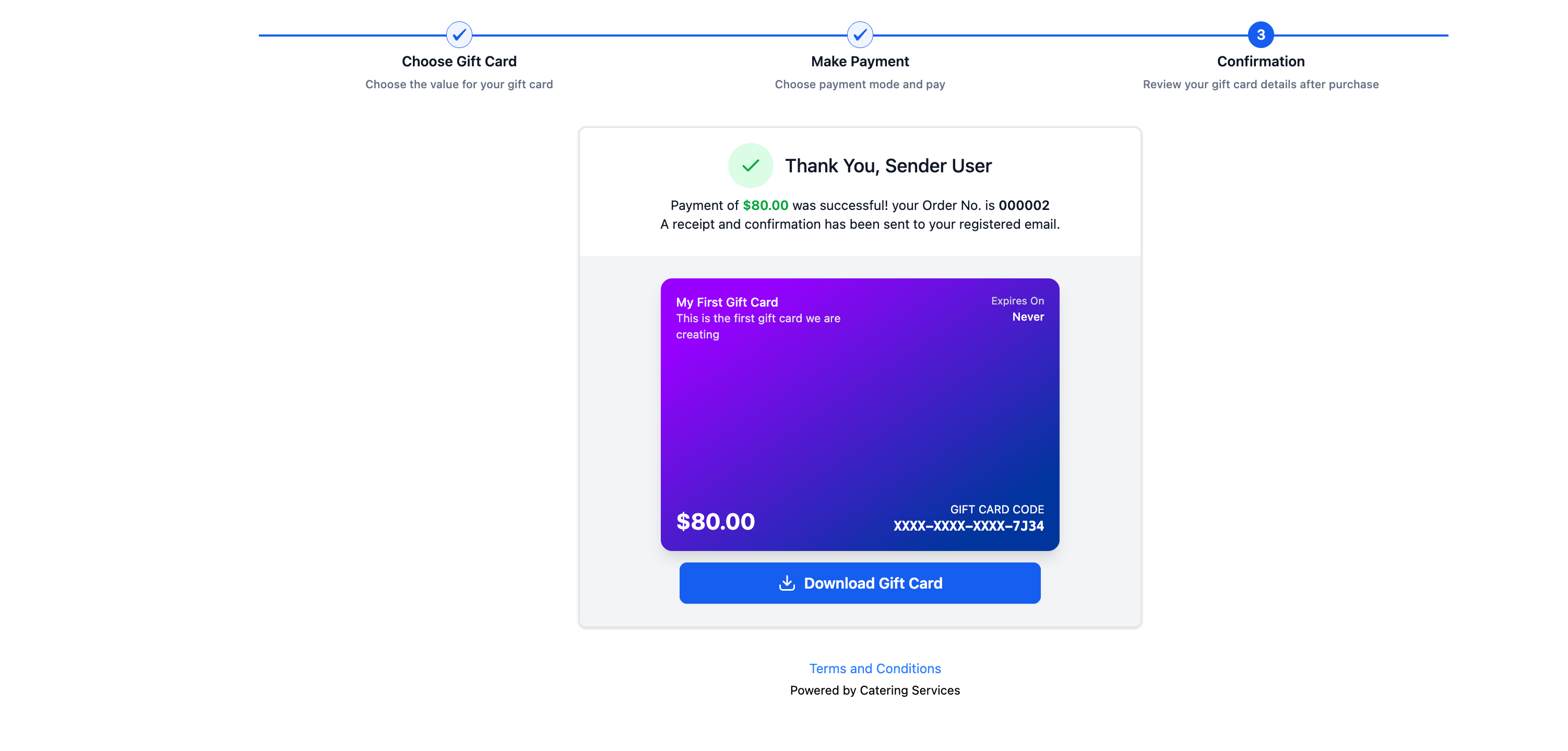
Step 4: Complete Payment and Confirmation
The buyer completes the purchase using an available payment method.
- Select a supported payment method.
- Click Pay.
- Wait for the payment confirmation.
- Download the gift card from the confirmation screen when the purchase succeeds.
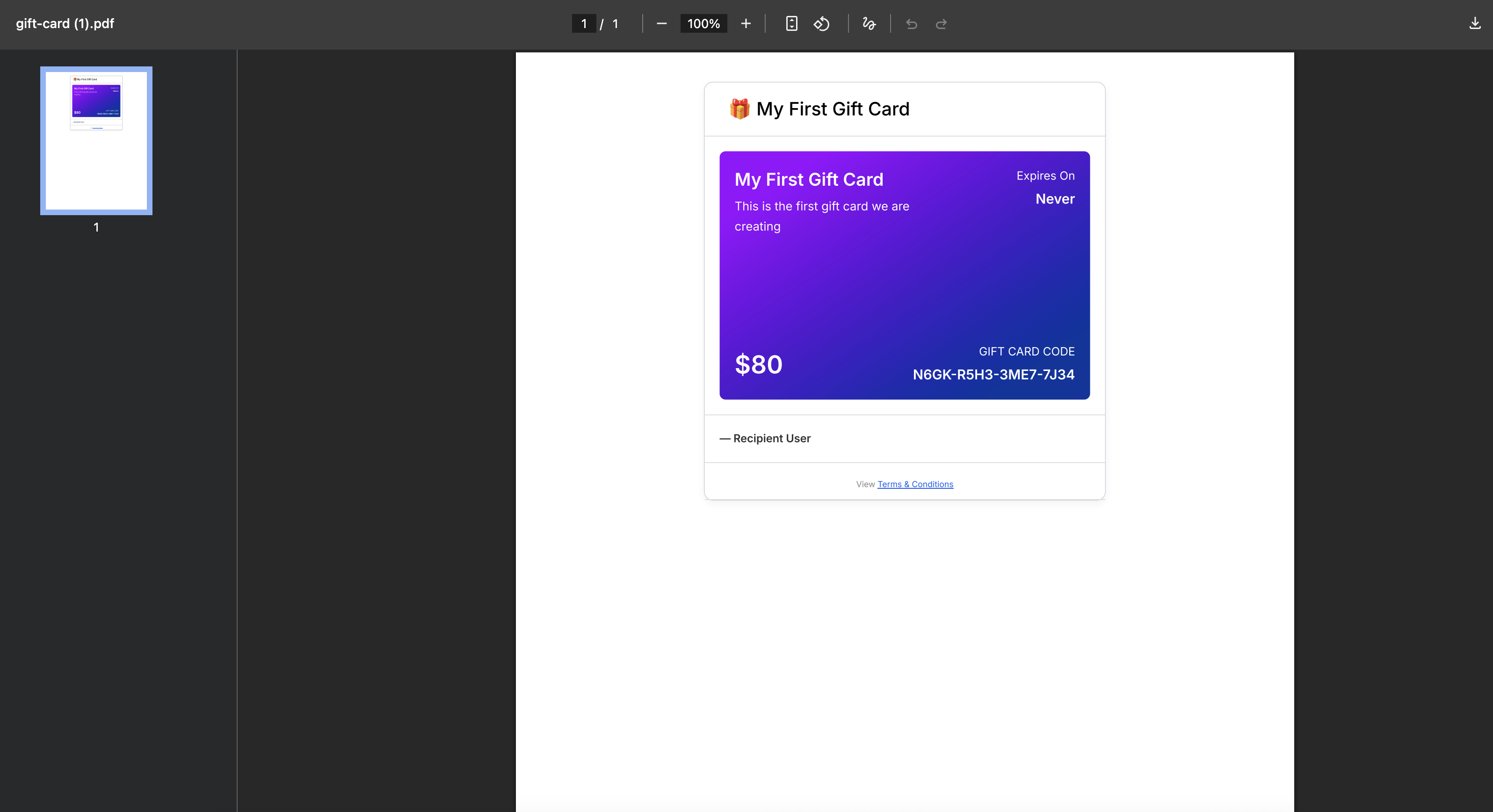
Step 5: Delivery
When the gift card is purchased for someone else, the recipient receives it by email according to the selected delivery schedule.
For supported localized communications, gift card purchase confirmations and recipient emails use translated text based on the selected locale.
Selling Gift Cards Using the Embed Code
The embed code lets you display a gift card checkout directly on a webpage. Customers can complete the purchase without navigating to a separate checkout page.
Supported examples of pages where the embed code can be placed include:
- WordPress websites.
- HTML landing pages.
- Blog pages.
- Custom portals.
- Link-in-bio pages that support embedded content.
Step 1: Navigate to Gift Cards
- Click Payments.
- Select Gift Cards.

Step 2: Click Sell
- Find the Gift Card Product whose checkout you want to embed.
- Click Sell on its tile.

Step 3: Copy the Embed Code
- Find the available embed code for the selected Gift Card Product.
- Click Copy to copy the code.
- Open the webpage where you want to display the checkout.
- Paste the copied embed code into the page's supported embed or HTML area.
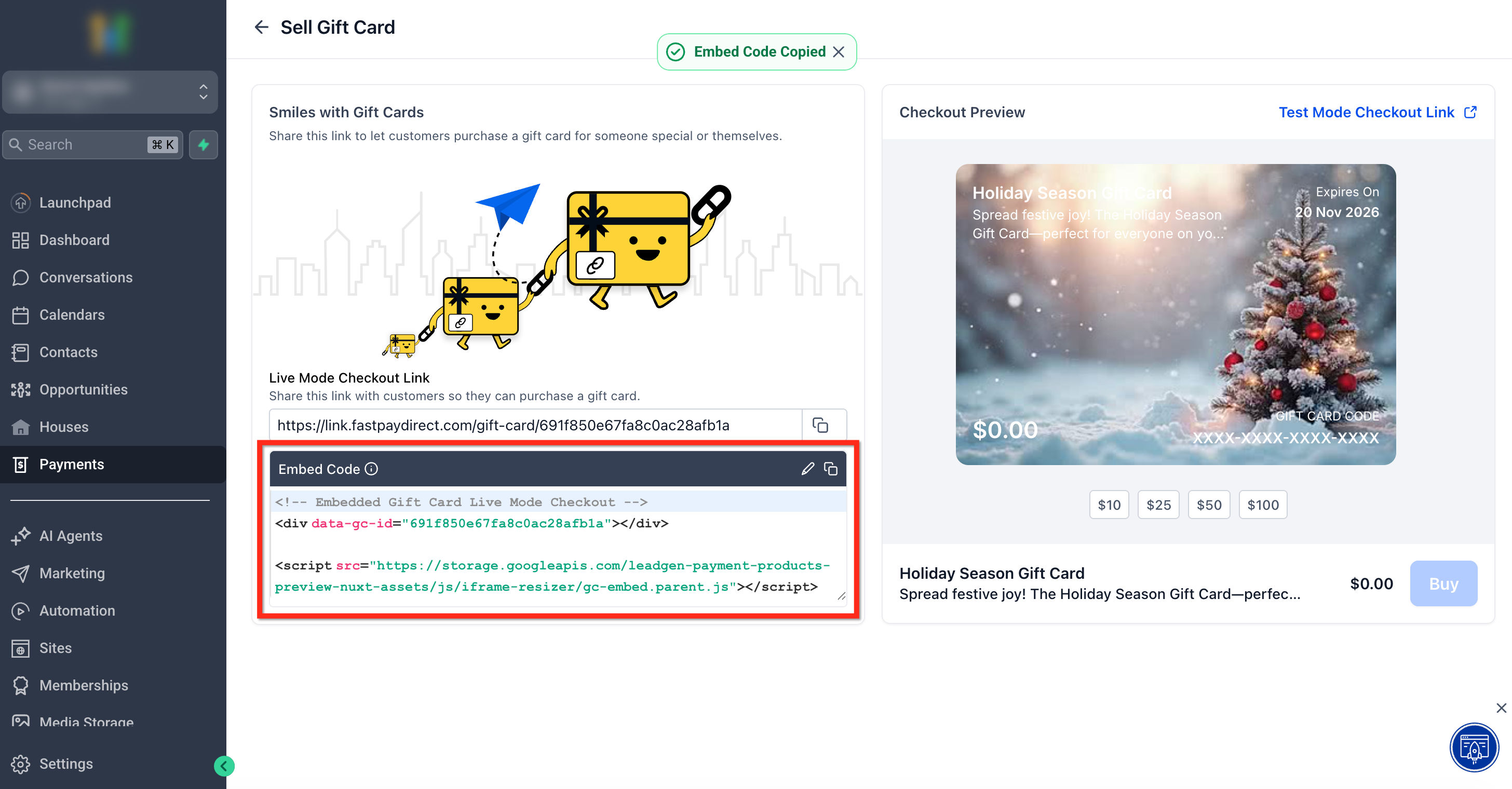
Review the embedded checkout on the webpage before sharing it with customers.
Selling Gift Cards Using QR Codes
QR codes let customers open a gift card checkout by scanning a printed or displayed code. They are useful for in-person sales, displays, brochures, and other materials that do not have clickable links.
The QR code opens the Gift Card Product's dedicated checkout.
Step 1: Navigate to Gift Cards
- Click Payments.
- Select Gift Cards.
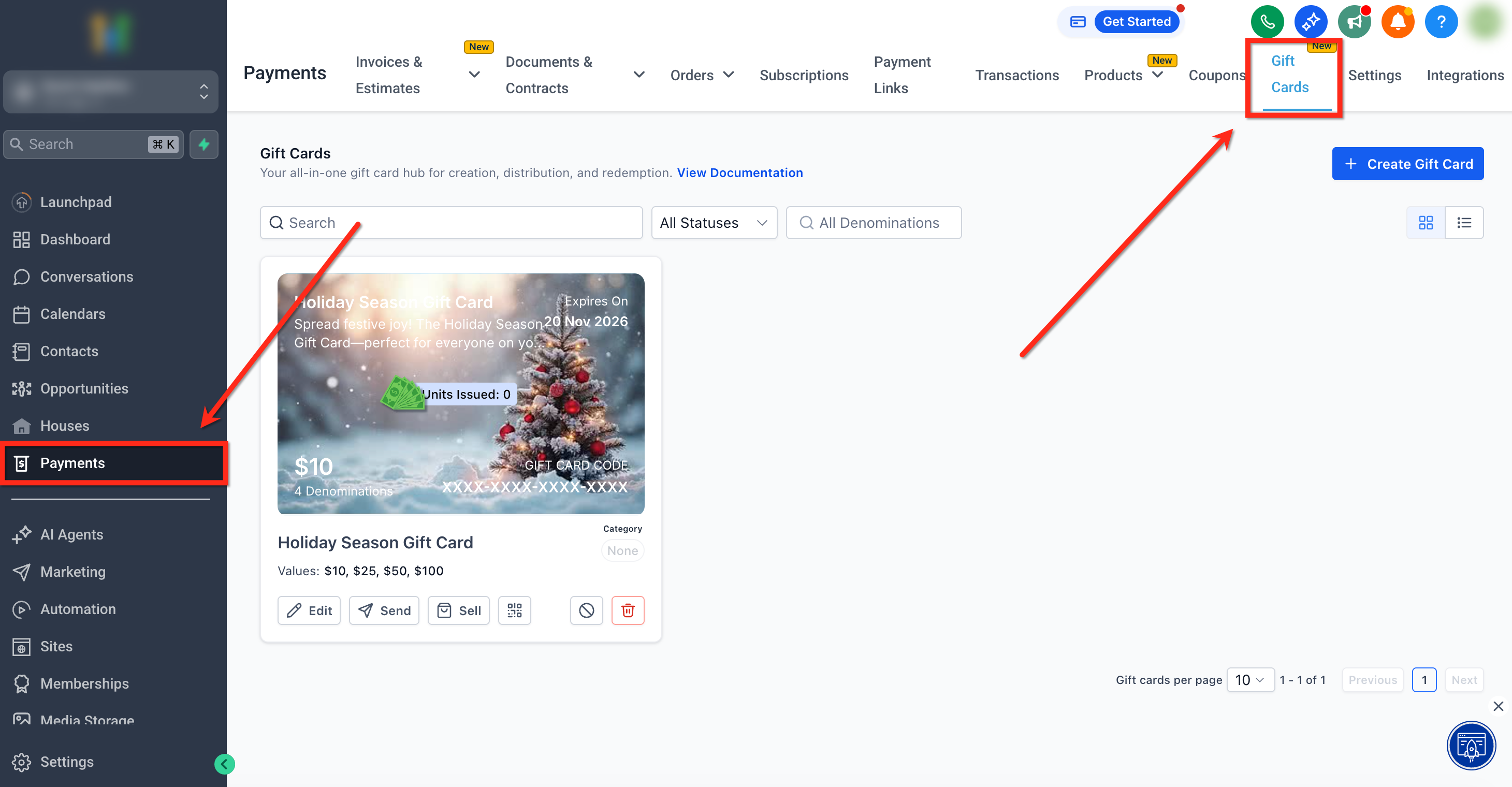
Step 2: Open QR Code
- Find the Gift Card Product.
- On its tile, click QR Code.
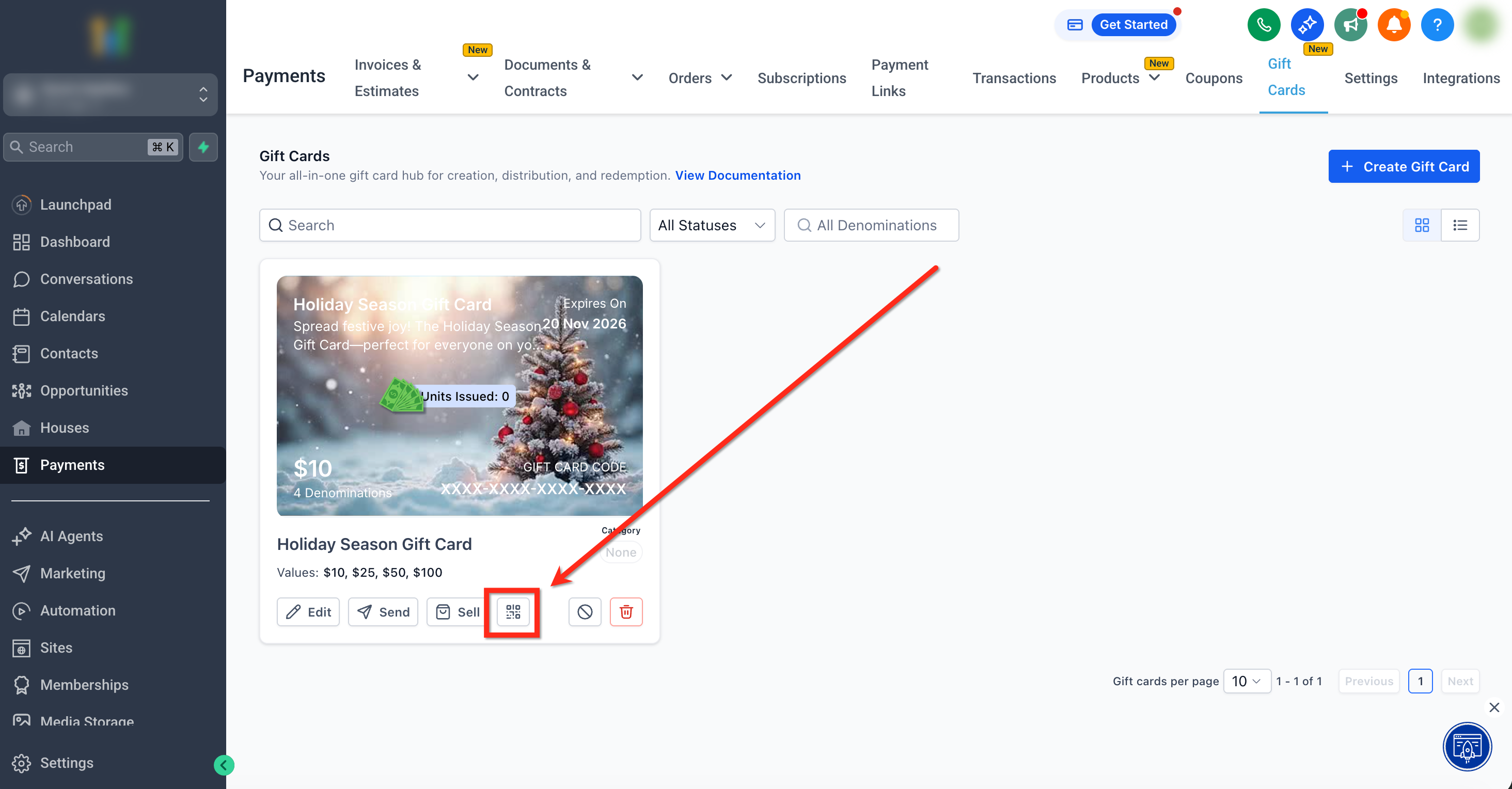
Step 3: Download or Share the QR Code
Choose how you want to distribute the QR code.
Download the QR Code
- Click Download.
- Save the QR-code image.
- Use the downloaded image in supported printed or digital materials.

Share the QR Code Link
- Click Share.
- Select Copy from the menu.
- Share the copied link with customers.

Selling Gift Cards Through Existing Checkouts
Gift Card Products can be added to supported checkouts alongside other available products. This lets customers purchase gift cards through payment experiences already used by your business.
Supported channels include Forms, Funnels, Stores, Payment Links, Websites, Invoices, and Calendars that support product-based payments.
Selling Through Forms
Forms support gift card purchases using the Sell Products element. This allows a form to collect customer information and payment as part of one submission.
Step 1: Open or Create a Form
- Go to Sites > Forms.
- Open an existing form or create a new form.
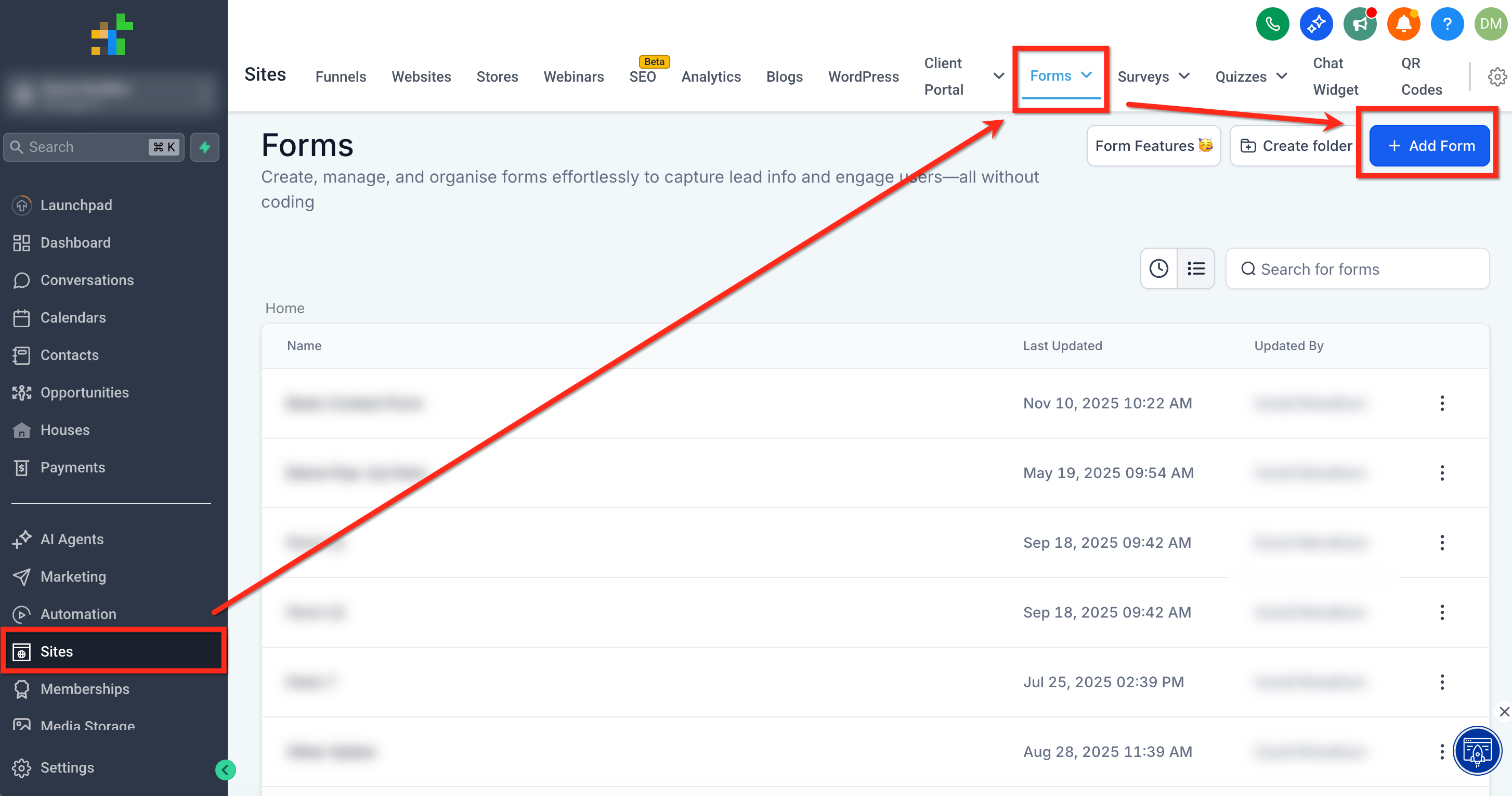
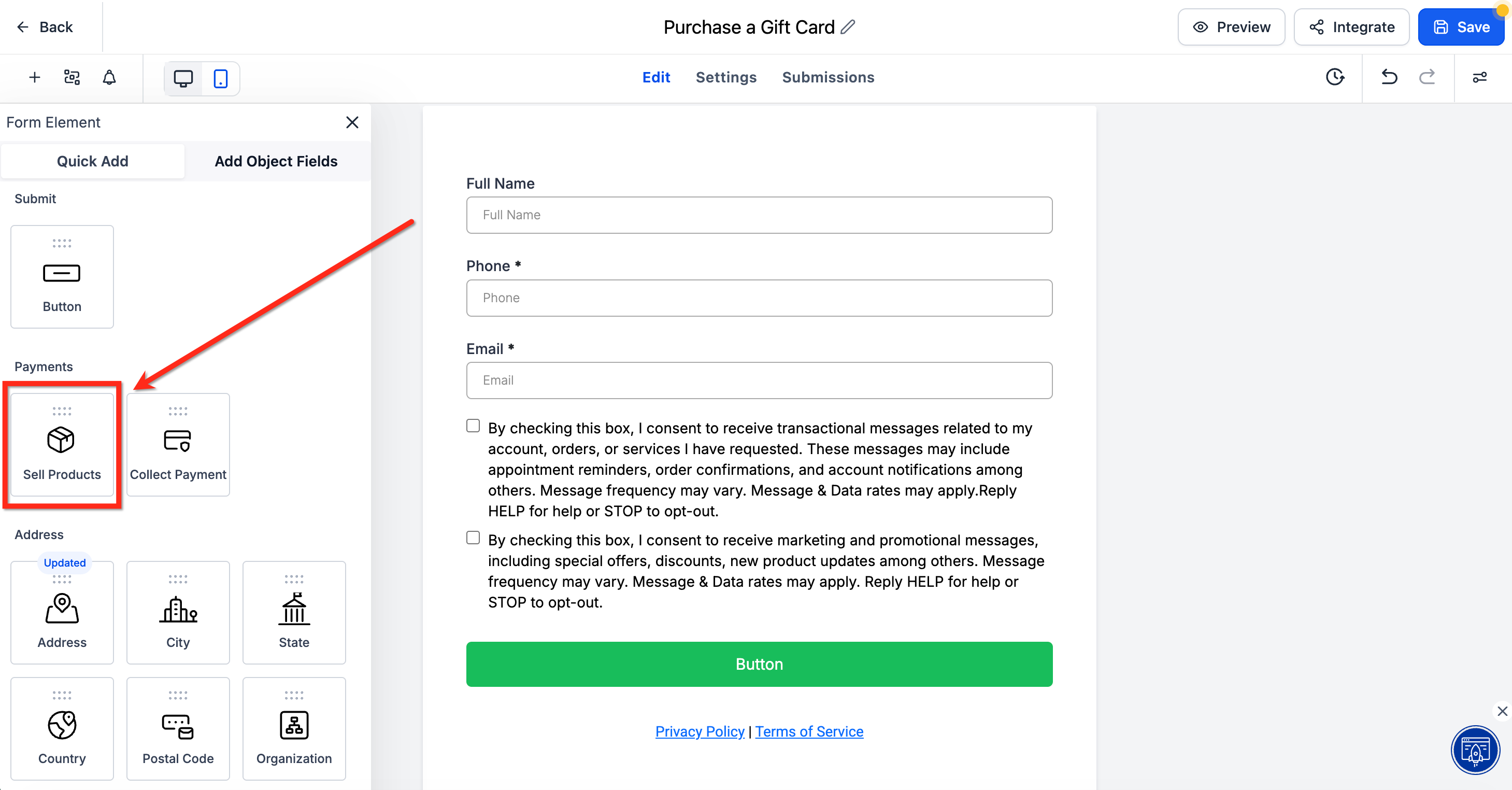
Step 2: Add the Sell Products Element
- In the form builder, find the Payments elements.
- Locate Sell Products.
- Drag the element into the form.
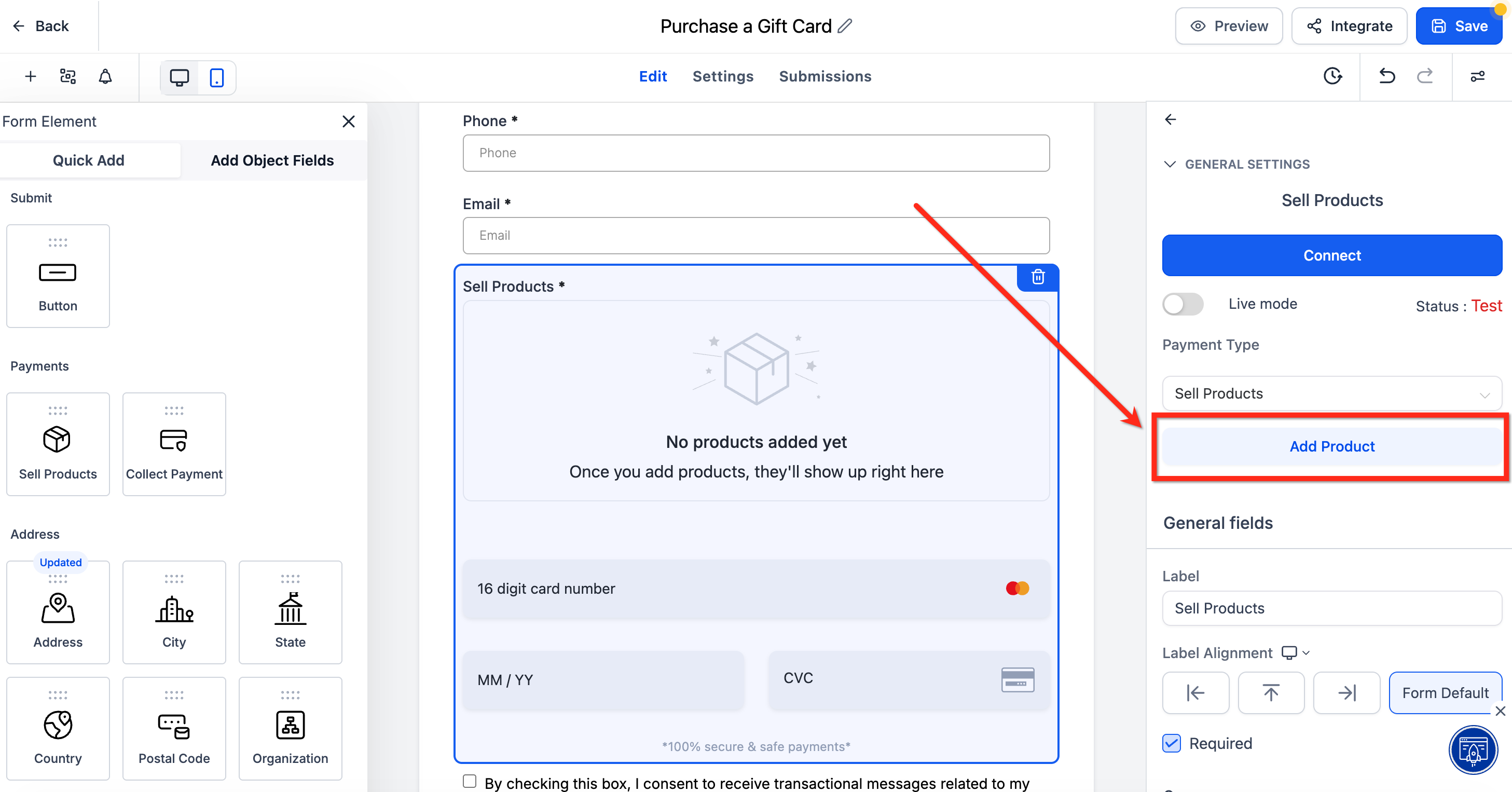
Step 3: Choose the Gift Card Product
- Click the Sell Products element.
- Open its settings.
- Click Add Product.
- Select the Gift Card Product from the list.
- Click Save after completing the configuration.
Selling Through Funnels
Funnels can use forms with payment elements to sell gift cards. This allows customers to complete a gift card purchase through a funnel page.
Tip: Gift cards purchased through a Test Mode funnel are Test Mode gift cards and cannot be redeemed in Live Mode.
Step 1: Open Your Funnel
- Go to Sites > Funnels.
- Open an existing funnel or create a new one.
- Open the page where customers will purchase the gift card.

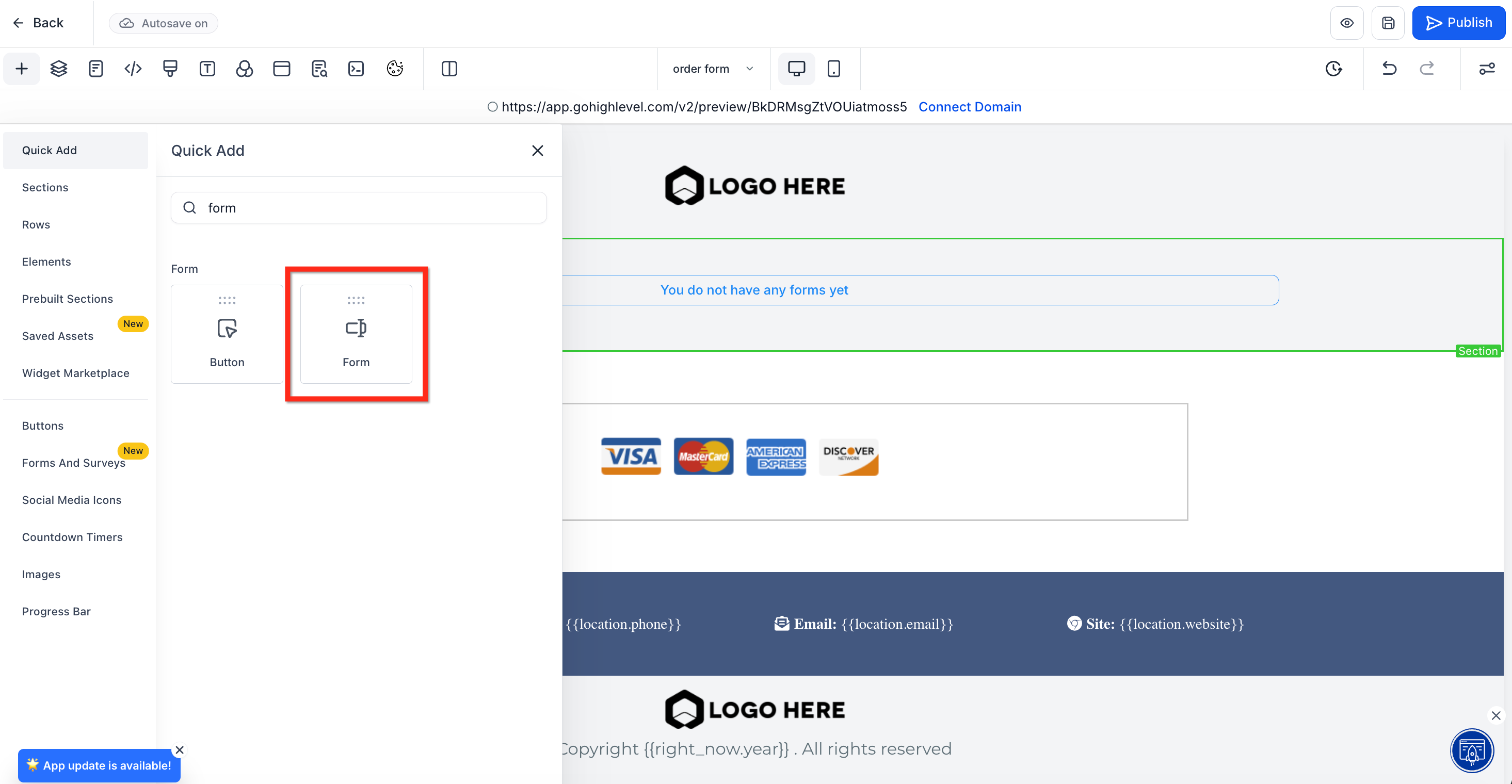
Step 2: Add the Form Element
- In the funnel page builder, locate the Form element.
- Drag the element onto the page.
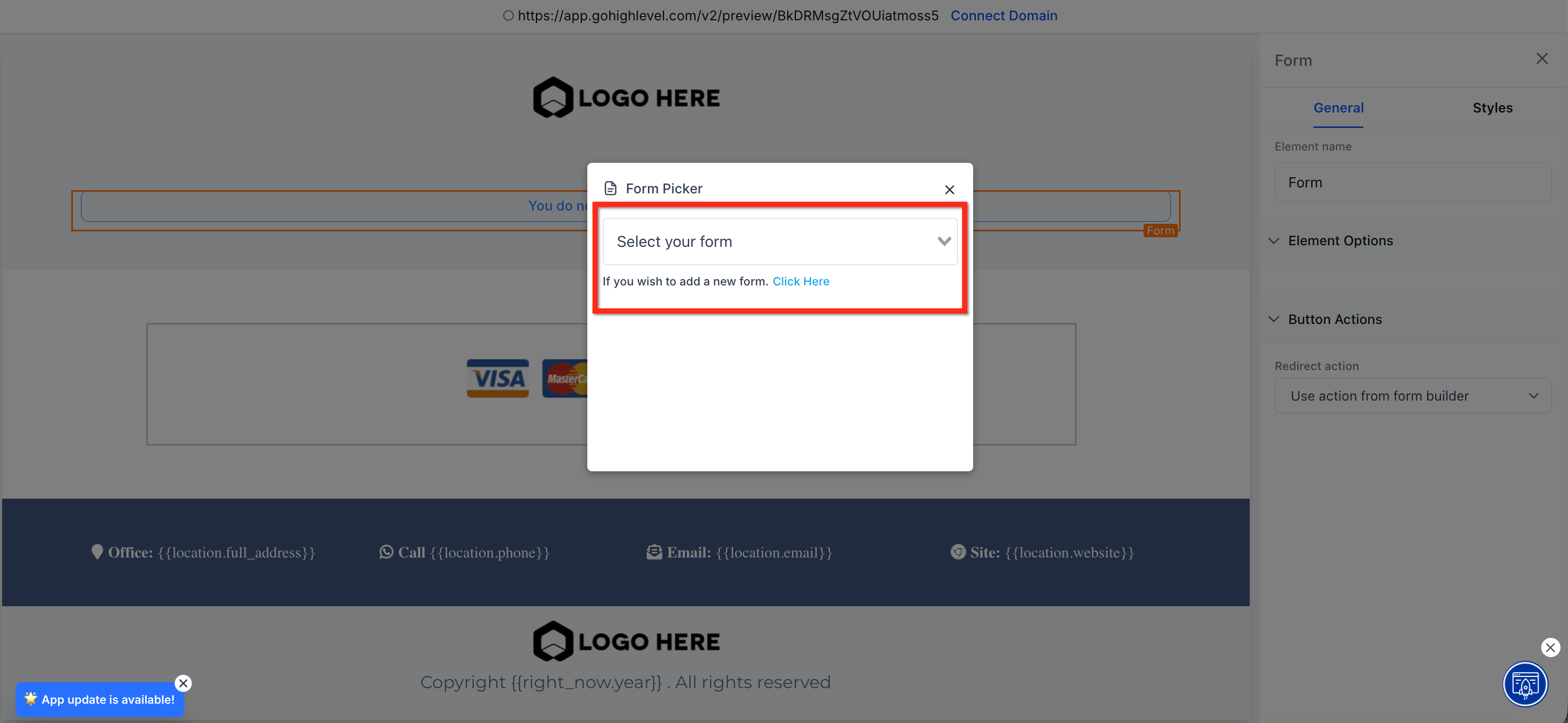
Step 3: Select the Form
- Click the Form element.
- Open the form-selection dropdown.
- Select the form configured to sell the Gift Card Product.
- If you have not created that form, follow the Selling Through Forms instructions above.
- Complete any remaining page edits.
- Publish the funnel.
Selling Through Stores
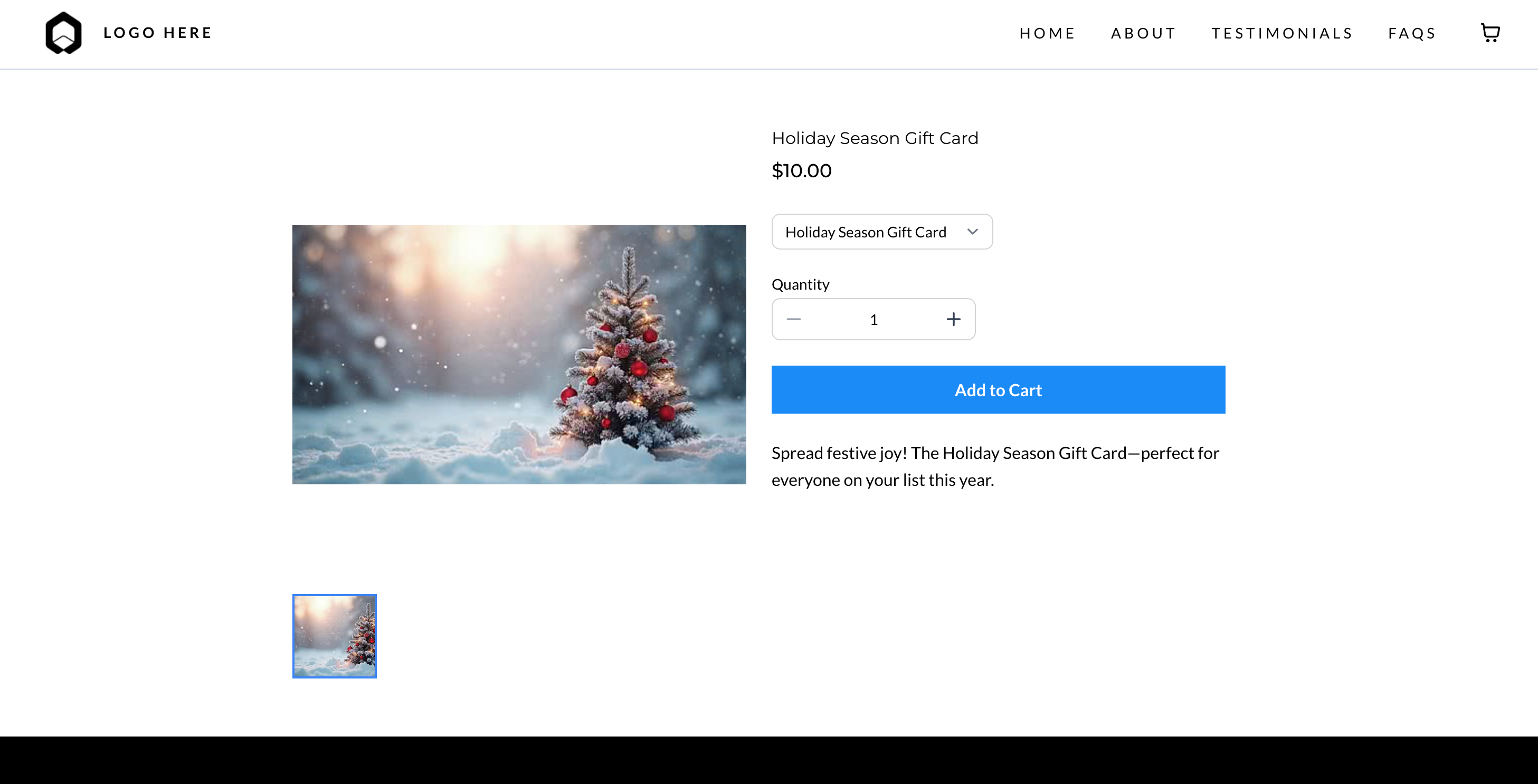
Stores can display Gift Card Products in the storefront so customers can browse and purchase them alongside other products.
Step 1: Open or Create a Store
- Go to Sites > Stores.
- Open an existing store or create a new one.

Step 2: Navigate to Products
- Open the selected store.
- Select the Products tab.

Step 3: Add the Gift Card to the Store
- Find the Gift Card Product.
- Select the checkbox beside the product.
- Click Bulk Actions.
- Choose Include in this store.

Step 4: Preview the Storefront
Open the storefront and review how the Gift Card Product appears to customers.
Customers can browse the gift card and purchase it through the store checkout.
Selling Through Payment Links
Payment Links provide a shareable checkout that can include Gift Card Products. They are useful when you want customers to complete a purchase from a link sent by email or chat.
Step 1: Create a Payment Link
- Go to Payments > Payment Links.
- Create a new Payment Link.

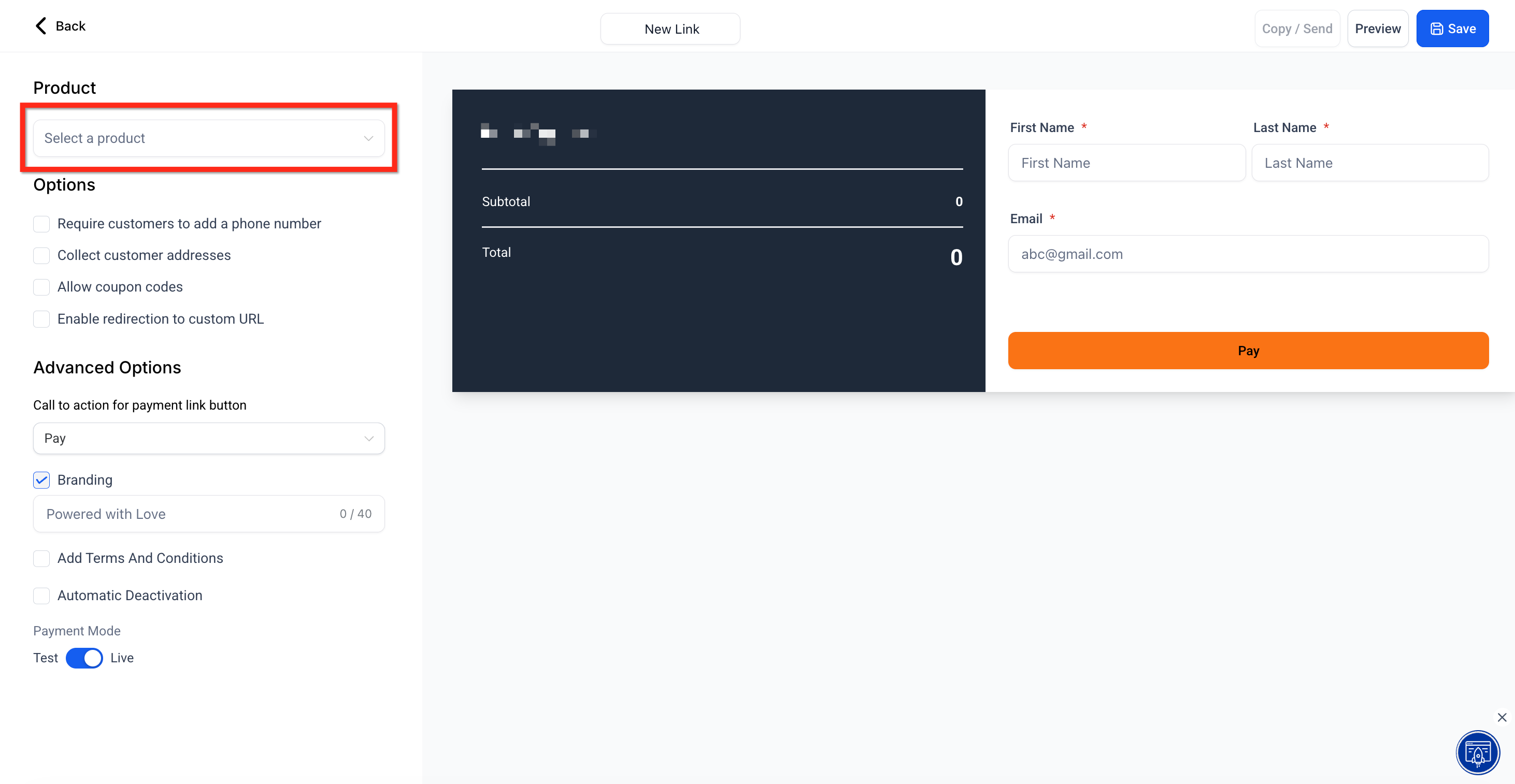
Step 2: Add the Gift Card Product
- Click Select a Product.
- Choose the Gift Card Product from the list.
- Click Save.
Step 3: Share the Payment Link
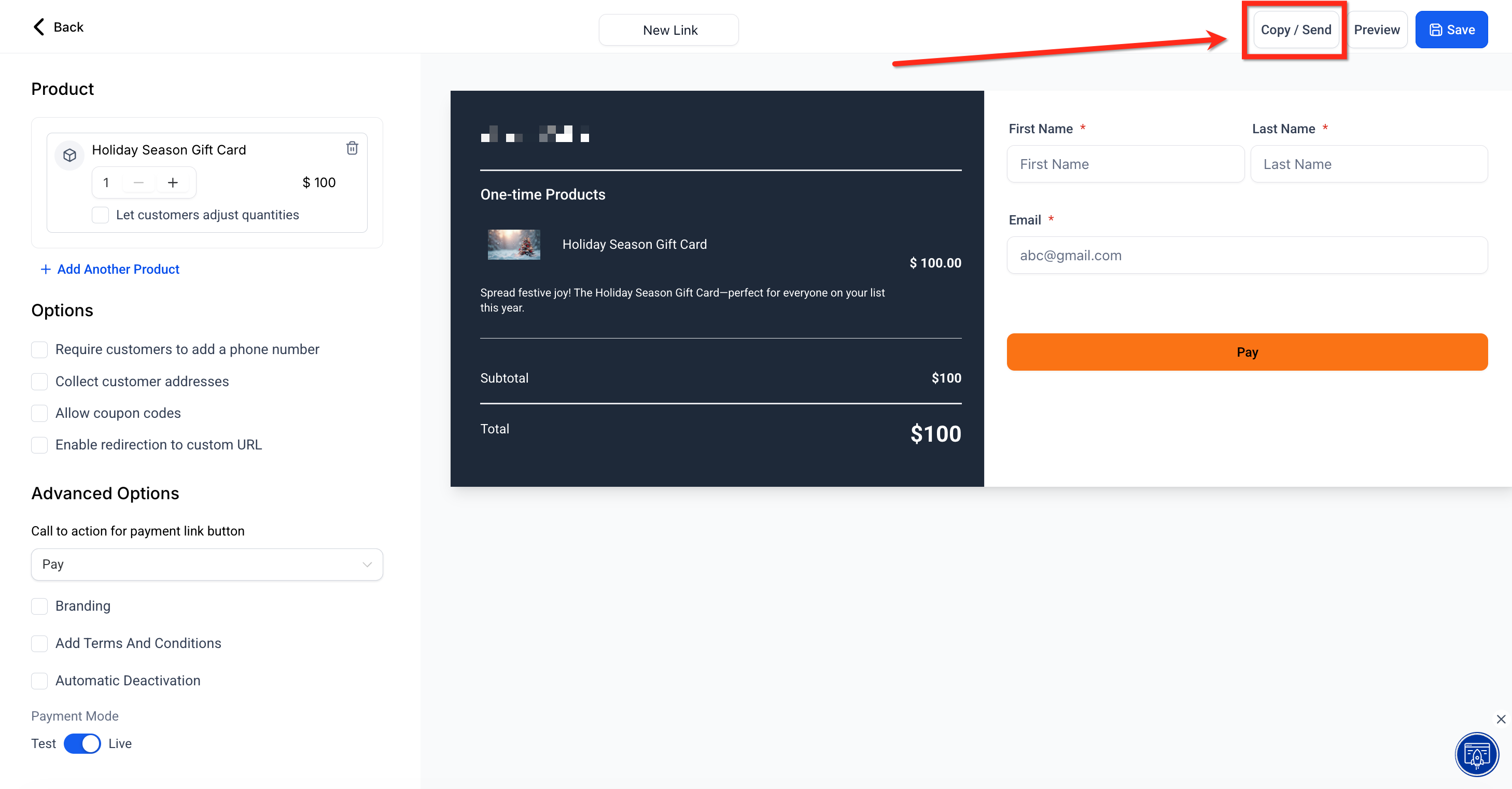
- Find the newly created Payment Link.
- Click Copy/Send.
- Copy the shareable link.
- Share it with customers.
Selling Through Invoices
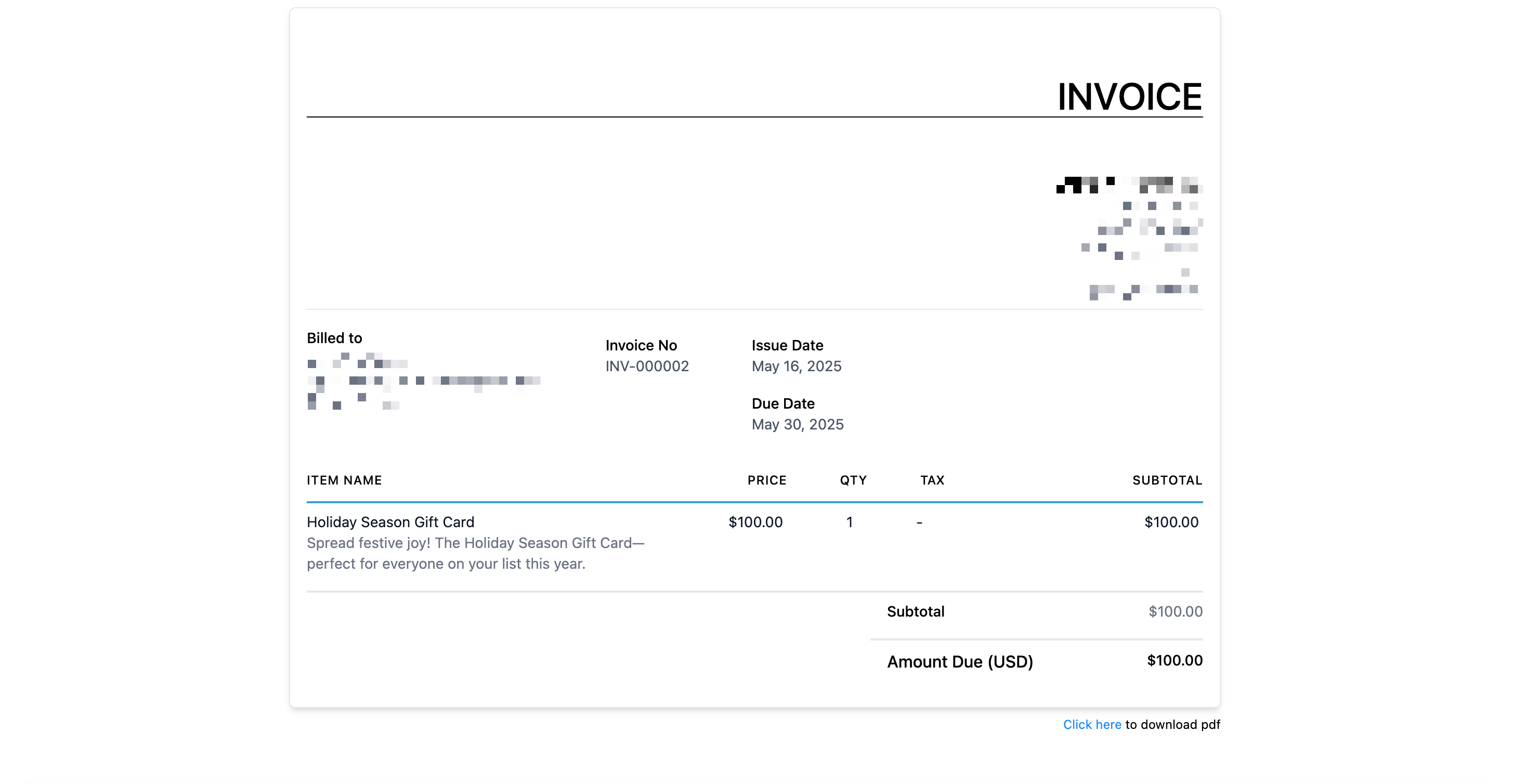
Invoices allow customers to purchase Gift Card Products through a standard invoice payment process. When the invoice is paid, a Gift Card Order is created.
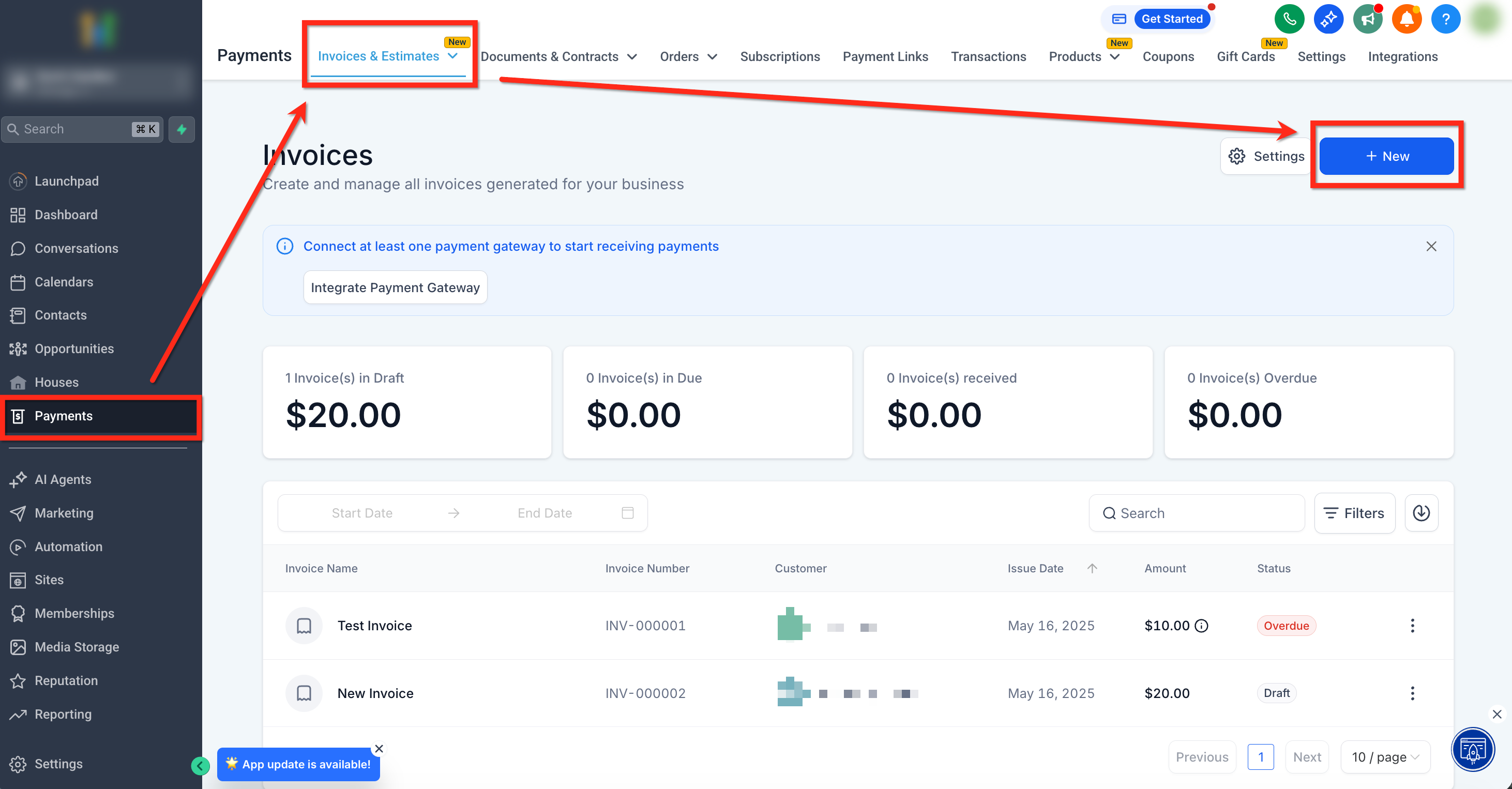
Step 1: Open or Create an Invoice
- Go to Payments > Invoices & Estimates.
- Open an existing invoice or create a new one.
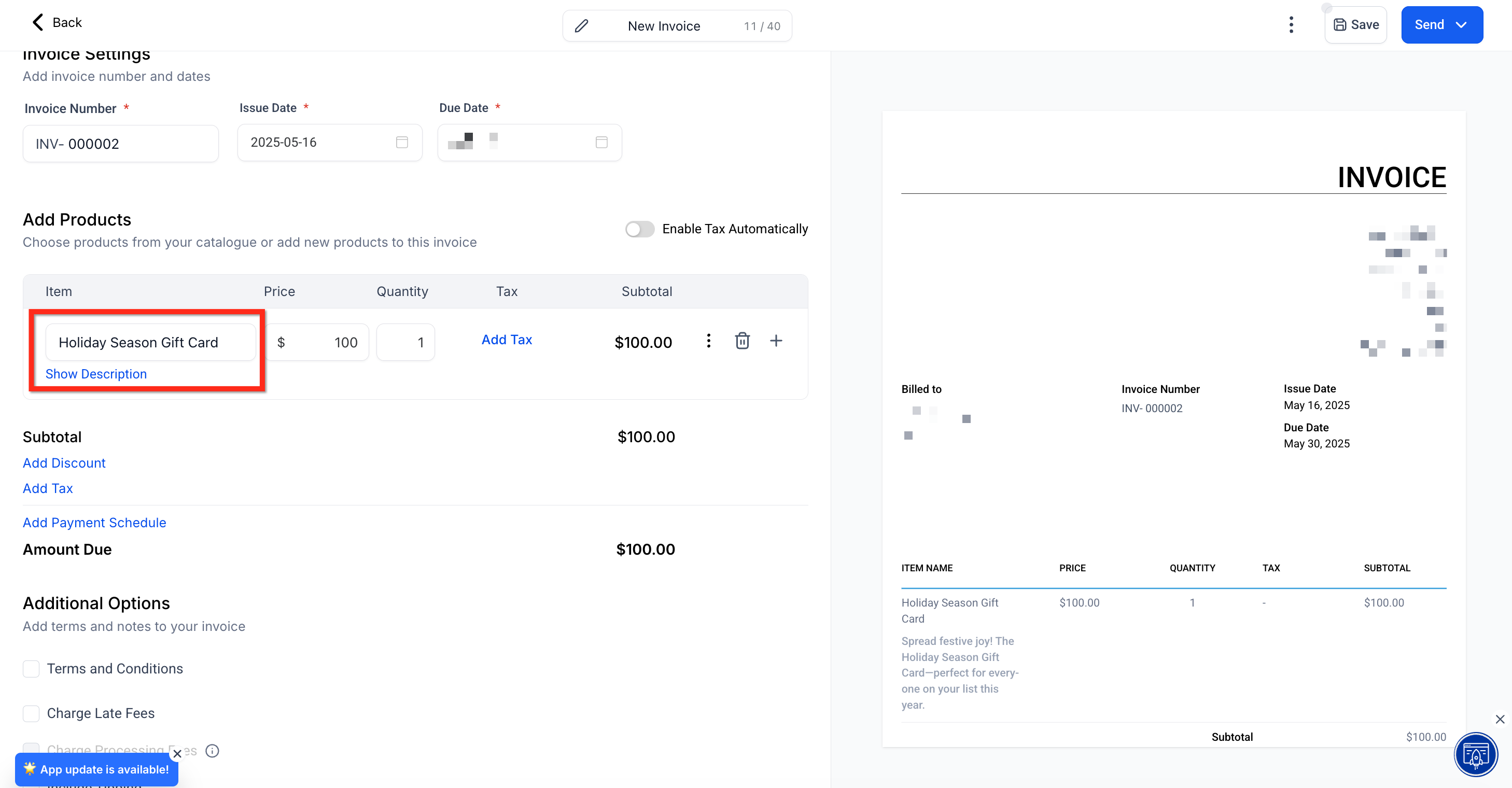
Step 2: Add the Gift Card Product
- Find Add Products.
- Select the Gift Card Product or Products to include.
- Complete the remaining invoice information.
- Click Send to send the invoice to the customer.
Step 3: Delivery Upon Payment
After the invoice is paid, the system creates the Gift Card Order and delivers the gift card to the buyer.
Selling Through Calendars
Calendars that support product-based payments can use a configured payment form to sell gift cards during the appointment booking process.
Create the form containing the Gift Card Product before configuring it in the calendar. See Selling Through Forms for the form setup instructions.
Step 1: Open Calendar Settings
- Open Calendar Settings.
- Find the calendar you want to configure.
- Click Edit.

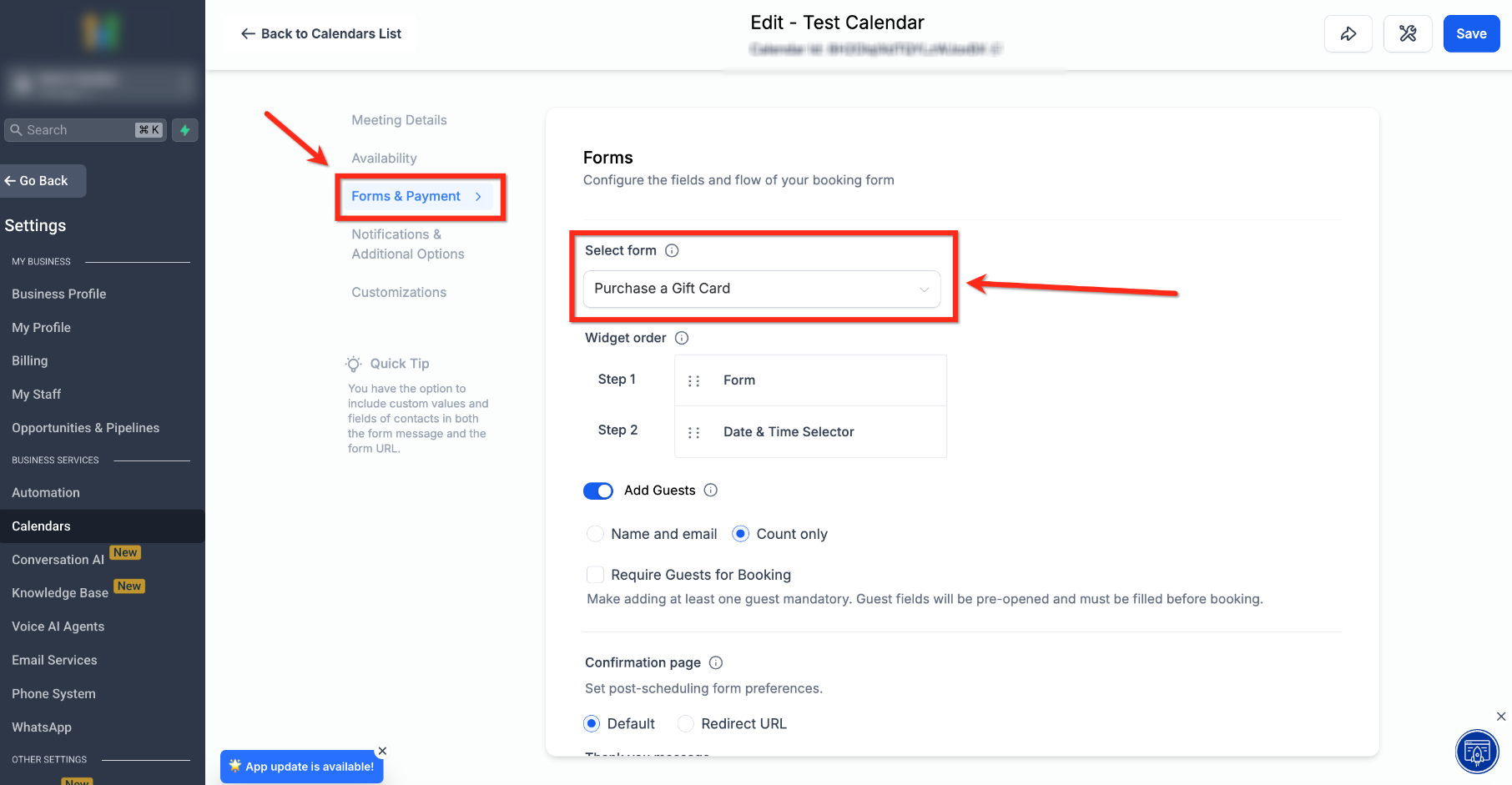
Step 2: Select the Form
- Open the Forms & Payments tab.
- Find Select Form.
- Choose the form previously configured to sell gift cards.
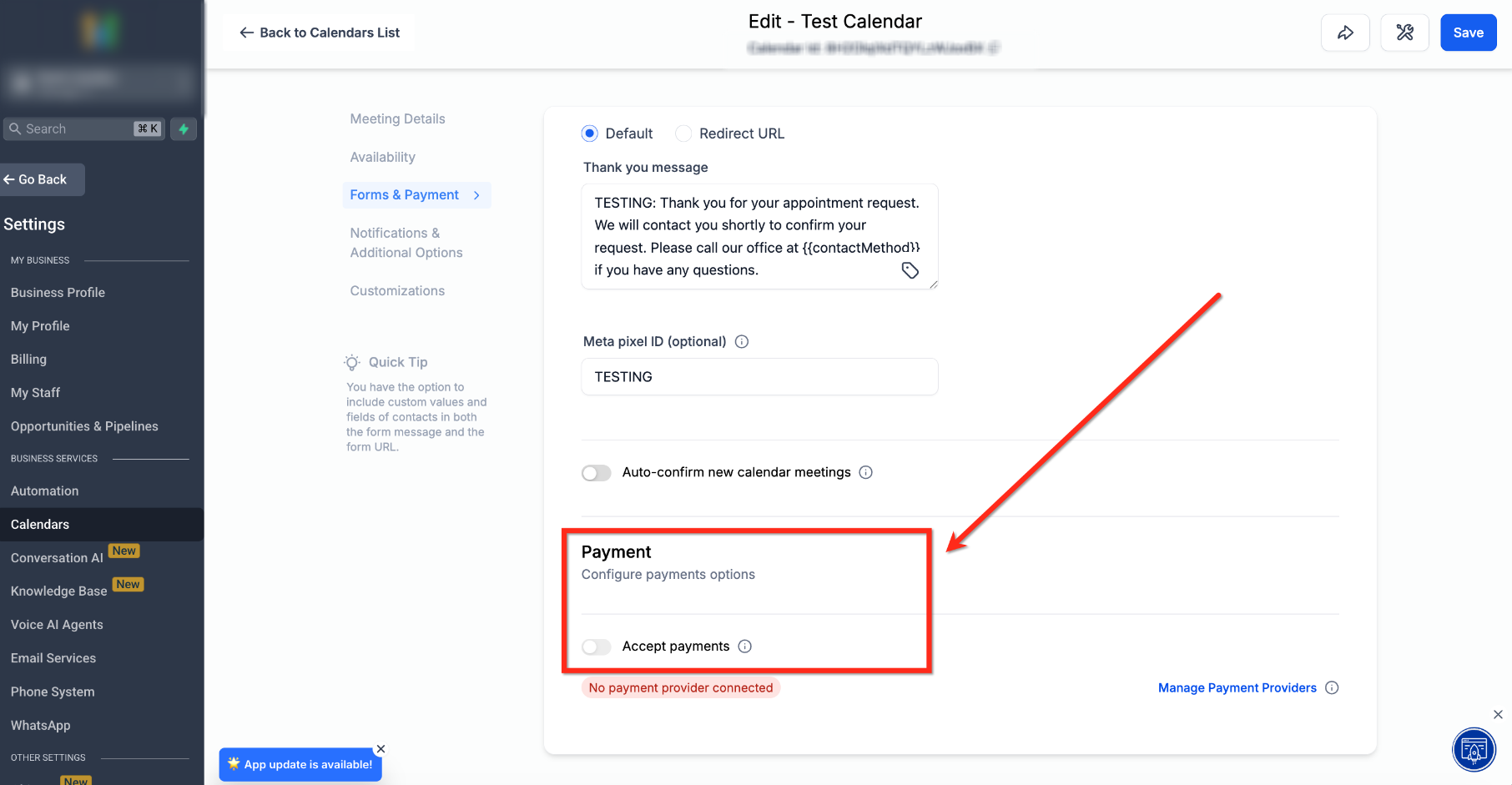
Step 3: Enable Payments
- Find the Payments section.
- Turn on Accept Payments.
- Click Save.
Frequently Asked Questions
Q: Can I sell the same gift card through multiple channels simultaneously?
Yes. A Gift Card Product can be offered through its dedicated link, QR code, embed code, and supported existing checkouts. When inventory is configured, purchases reduce the available inventory.
Q: What happens if a Gift Card Product is deactivated?
Deactivation stops the dedicated Sell flow, makes its checkout link invalid, and prevents the product from being purchased through Stores. Existing checkouts where the product was previously added may continue offering it. Remove the deactivated Gift Card Product manually from those other checkouts.
Q: Can I sell Gift Card Products through different payment providers?
Gift Cards can be sold through supported default checkout payment providers. Redemption compatibility varies. Stripe, NMI, Authorize.net, and Square support the full documented redemption scenarios.
Q: Can customers use one gift card to buy another gift card?
No. Gift card balances cannot be used to purchase another Gift Card Product.
Q: Can customers purchase a gift card for someone else?
Yes. The dedicated checkout provides a Someone Else option. The buyer can enter the recipient's details and choose supported delivery options.
Q: Can a scheduled gift card be redeemed before delivery?
Yes. Scheduling determines when the gift card is delivered to the recipient. If someone obtains a valid gift card code before the scheduled delivery, it may still be redeemable at a supported checkout.
Q: Can Test Mode gift cards be redeemed in Live Mode?
No. Gift cards purchased in Test Mode are redeemable only in Test Mode. Live Mode gift cards are redeemable only in Live Mode.
Q: When is a gift card issued through an invoice?
After the invoice is paid, the system creates a Gift Card Order and delivers the gift card to the buyer.
Need Help?
If a Gift Card Product cannot be purchased or delivered as expected, review the product status, payment connection, checkout configuration, and delivery information.
- Gift Card Product Is Missing: Confirm that the Gift Card Product has been created and is Active.
- Checkout Link Does Not Work: Confirm that the product is active and that you are using the correct Test or Live checkout link.
- Gift Card Is Not Available in a Store: Open the store's Products tab and confirm that the product is included.
- Gift Card Is Missing from a Form: Review the Sell Products element and confirm that the gift card has been added.
- Funnel Cannot Sell the Gift Card: Confirm that the funnel uses the form configured with the Gift Card Product.
- Gift Card Is Missing from a Payment Link or Invoice: Review the products selected in that checkout.
- Calendar Checkout Does Not Accept Payment: Review the selected form and the Accept Payments setting.
- Gift Card Cannot Be Redeemed: Confirm that the checkout, payment provider, purchase type, and Test or Live Mode support the intended redemption.
- Scheduled Delivery Is Unexpected: Review the selected delivery schedule and the Gift Card Order details.
- Deactivated Gift Card Is Still Available: Check existing checkouts and remove the product manually where necessary.
If the issue continues, contact support with the Gift Card Product, selling channel, expected result, actual behavior, and relevant screenshots or error messages. Do not share complete gift card codes or private payment credentials.