
Sending Gift Cards lets businesses issue gift cards directly to customers without requiring a purchase or payment from the recipient. You can select a recipient, add a personal message, choose a delivery method, and send the card immediately or schedule it for a later date. Available delivery methods include email, SMS, PDF, and QR code. This guide explains how to send gift cards, manage delivery settings, review issued cards, and understand important redemption behavior.
TABLE OF CONTENTS
- What Is Sending Gift Cards?
- Key Benefits of Sending Gift Cards
- Use Cases for Sending Gift Cards
- Prerequisites for Sending Gift Cards
- How to Send a Gift Card
- Delivery Methods Explained
- What Happens After a Gift Card Is Sent
- Key Behaviors and Limitations
- Frequently Asked Questions
- Related Articles
- Need Help?
What Is Sending Gift Cards?
Sending a gift card creates a prepaid credit that can be delivered to a selected recipient without requiring that recipient to complete a purchase. The Send flow supports email, SMS, PDF, and QR-code delivery options.
You can use directly sent gift cards for customer appreciation, service recovery, promotions, rewards, and internal redemption testing.
Recipients can redeem the gift card at supported checkouts that accept gift cards. The card can be applied toward an eligible purchase using the gift card code or redemption link.
The direct Send flow currently works in Live Mode only. It does not create a test-mode gift card through this process.
Key Benefits of Sending Gift Cards
Direct gift card sending provides a way to distribute gift cards without asking recipients to complete checkout. It also lets you choose how and when the gift card is delivered.
- One-to-One Issuing: Send a gift card to an individual recipient immediately or on a scheduled date.
- No Checkout Required: Issue prepaid gift card value without collecting payment from the recipient through the Send flow.
- Flexible Delivery: Choose email, SMS, PDF, or QR code based on the recipient's contact information and your delivery needs.
- Convenient Redemption: Recipients can use their gift card code or link at supported checkouts that accept gift cards.
- Operational Visibility: Track issued cards, denominations, remaining balances, delivery information, and status under Gift Card Orders.
- Customer Service Recovery: Send a gift card as a gesture of appreciation or compensation after a service issue.
Use Cases for Sending Gift Cards
Direct sending is useful when you want to provide a gift card to a customer without requiring a separate purchase. Choose the appropriate product, denomination, and delivery date for each recipient.
- Loyalty and Rewards: Reward customers for milestones, referrals, or continued engagement.
- Customer Support Compensation: Send a gift card as a service recovery gesture or an alternative to offering a manual credit.
- Promotions: Distribute gift cards for giveaways, seasonal promotions, influencer campaigns, or targeted customer rewards.
- Internal Testing: Allow authorized team members to test supported redemption experiences using issued gift cards.
- Individual Gift Distribution: Send gift cards to VIP customers or event attendees by completing a separate Send flow for each recipient.
Note: Direct sending is a one-recipient-at-a-time process. The Send flow does not provide bulk gift card distribution.
Prerequisites for Sending Gift Cards
Before sending a gift card, confirm that an active Gift Card Product exists and that the recipient has the contact information needed for the selected delivery method.
- A Gift Card Product exists.
Create a Gift Card Product if you do not already have one available.
- The Gift Card Product is Active.
Use an active product rather than one that has been deactivated or archived.
- The recipient has valid contact information.
The recipient must have at least one of the following:
- A valid email address for email-based delivery.
- A valid phone number for SMS delivery.
Only delivery methods supported by the recipient's available contact information are enabled in the Send flow.
How to Send a Gift Card
Use the Send flow to select a Gift Card Product, choose the recipient and denomination, configure delivery, and review the communication before issuing the card.
Step 1: Navigate to Gift Cards
Open the Gift Cards area to select the active Gift Card Product you want to send.
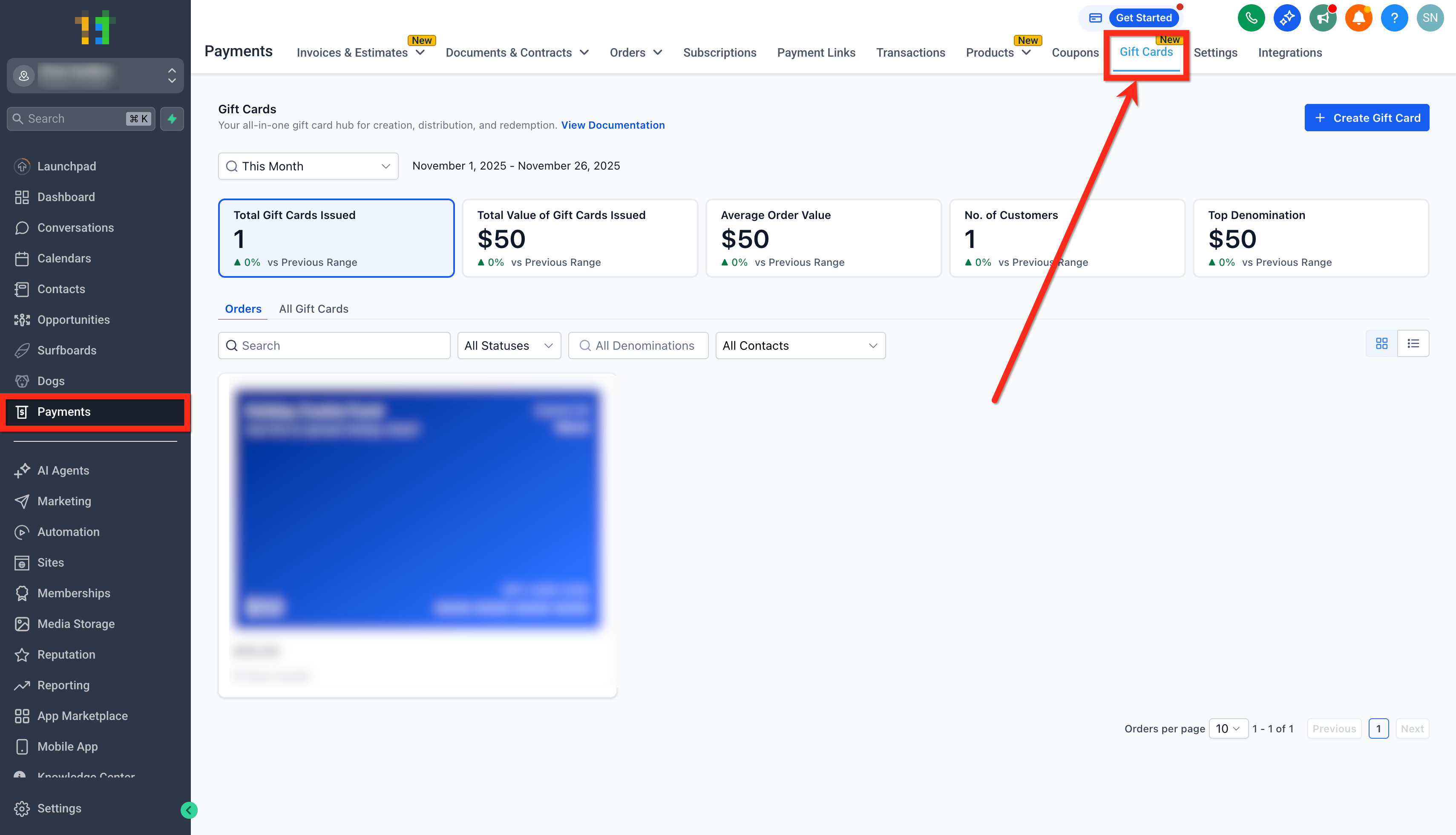
- Click Payments in the main navigation.
- Select Gift Cards to open the Gift Cards dashboard.
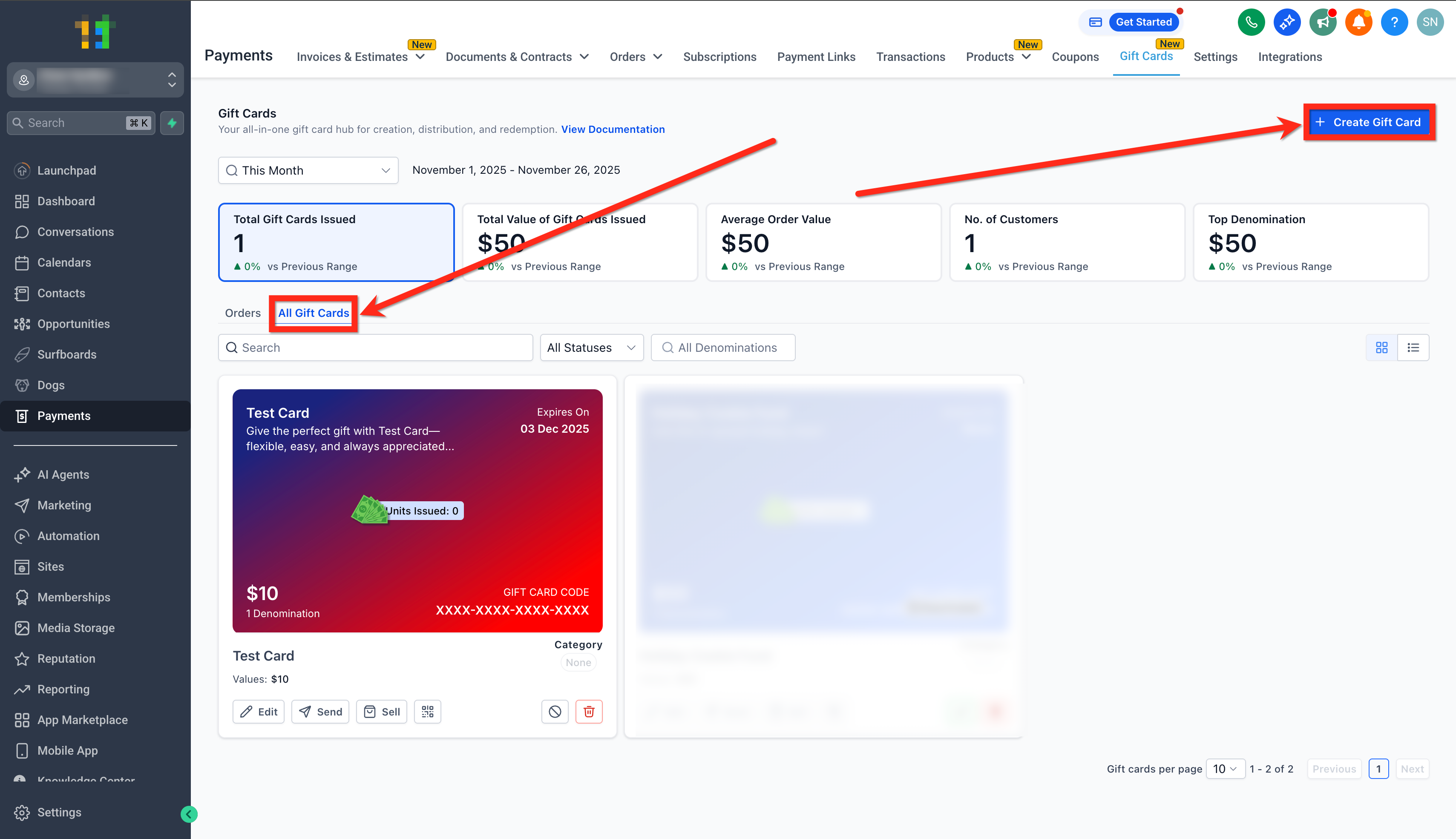
- Open All Gift Cards.
- Create a Gift Card Product if needed, or select an existing active Gift Card Product.
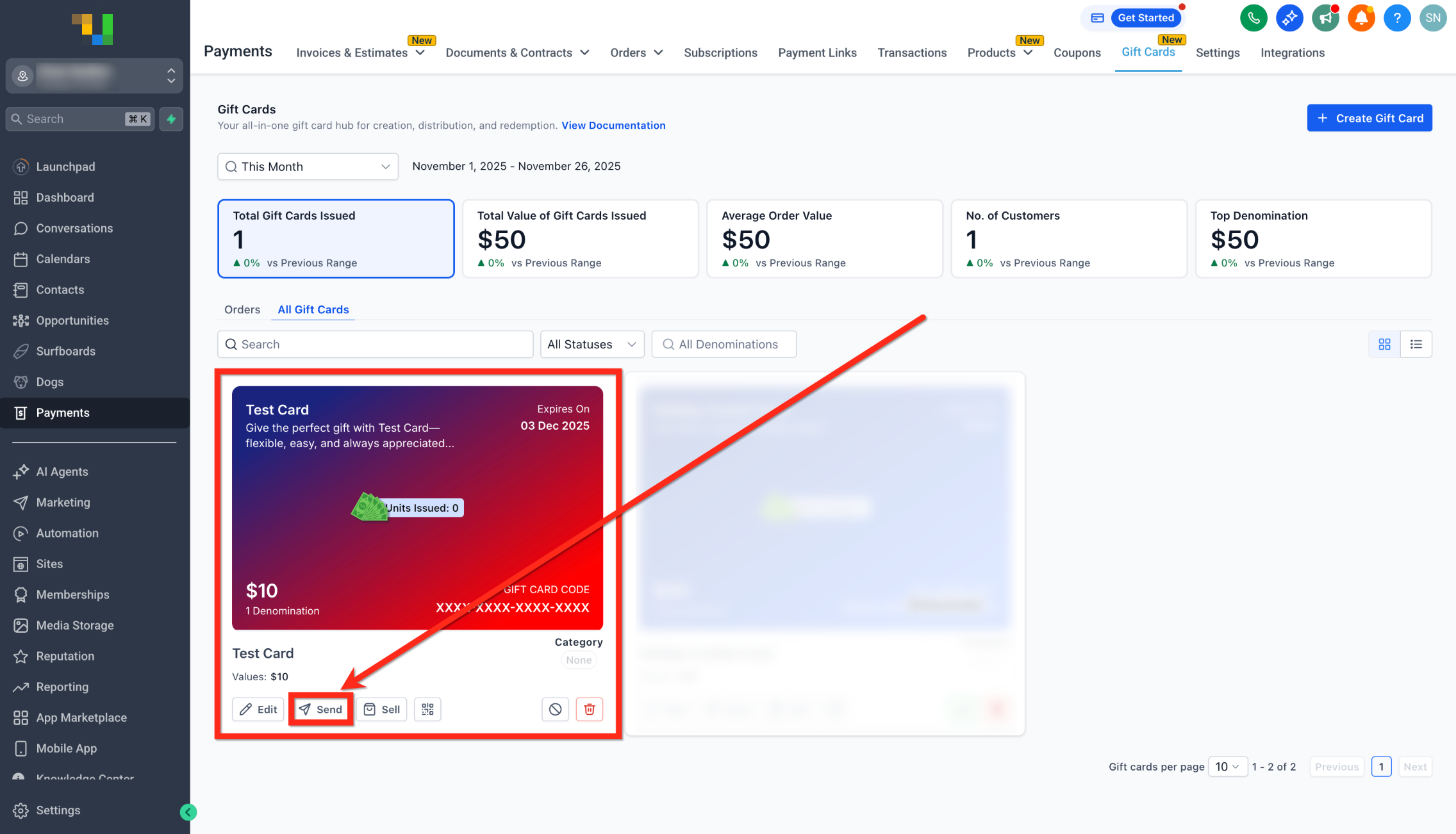
- On the Gift Card Product you want to issue, click Send.
The Send flow opens so you can configure the recipient and delivery details.
Step 2: Choose a Customer or Contact
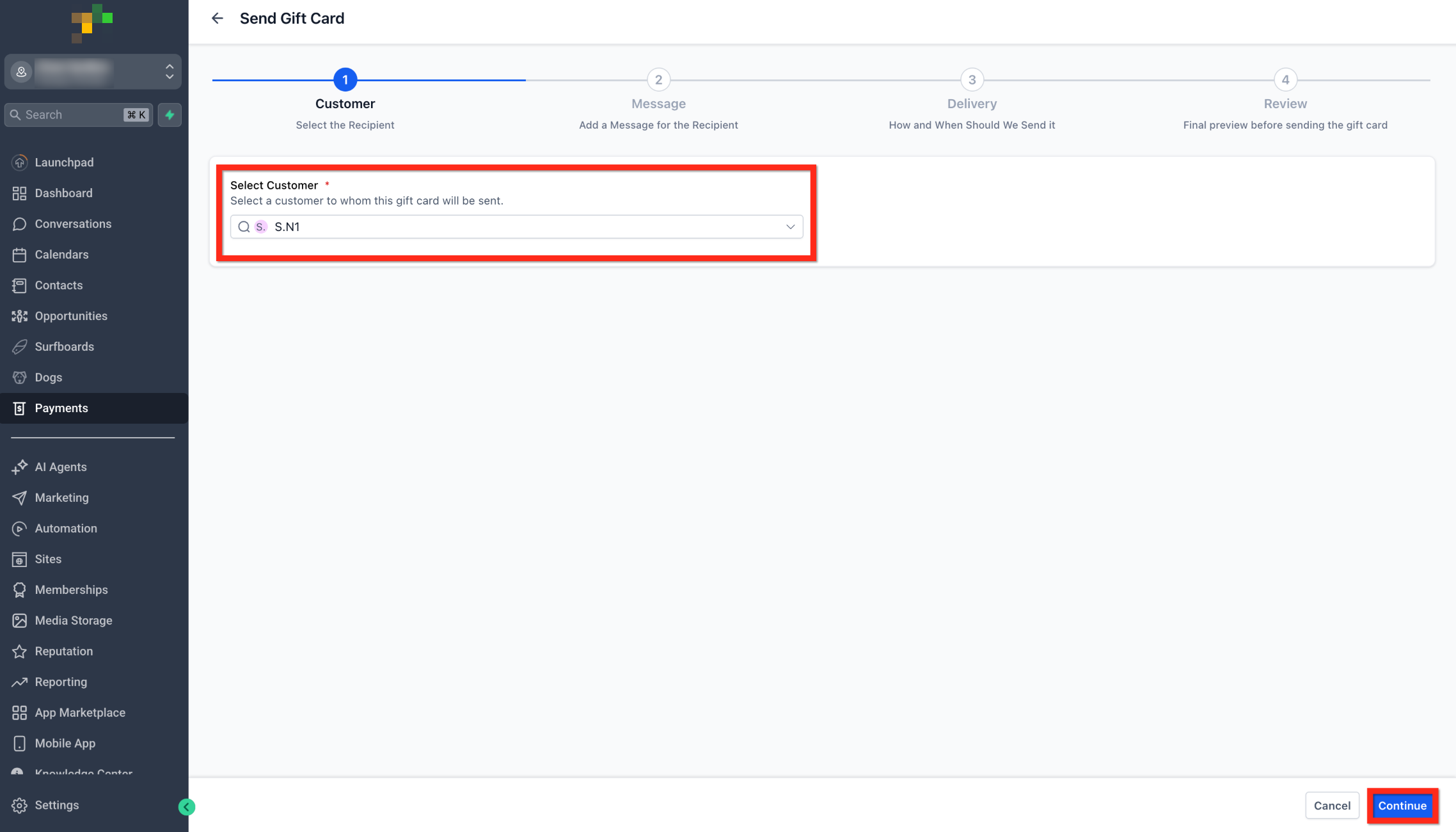
Select the recipient who will receive the gift card. You can use an existing contact record or add a new contact before continuing.
- Choose an existing customer or contact from the available list.
- If the recipient is not listed, select Add a Contact and enter the required information.
- Confirm that the contact has the email address or phone number required for delivery.
- Click Continue.
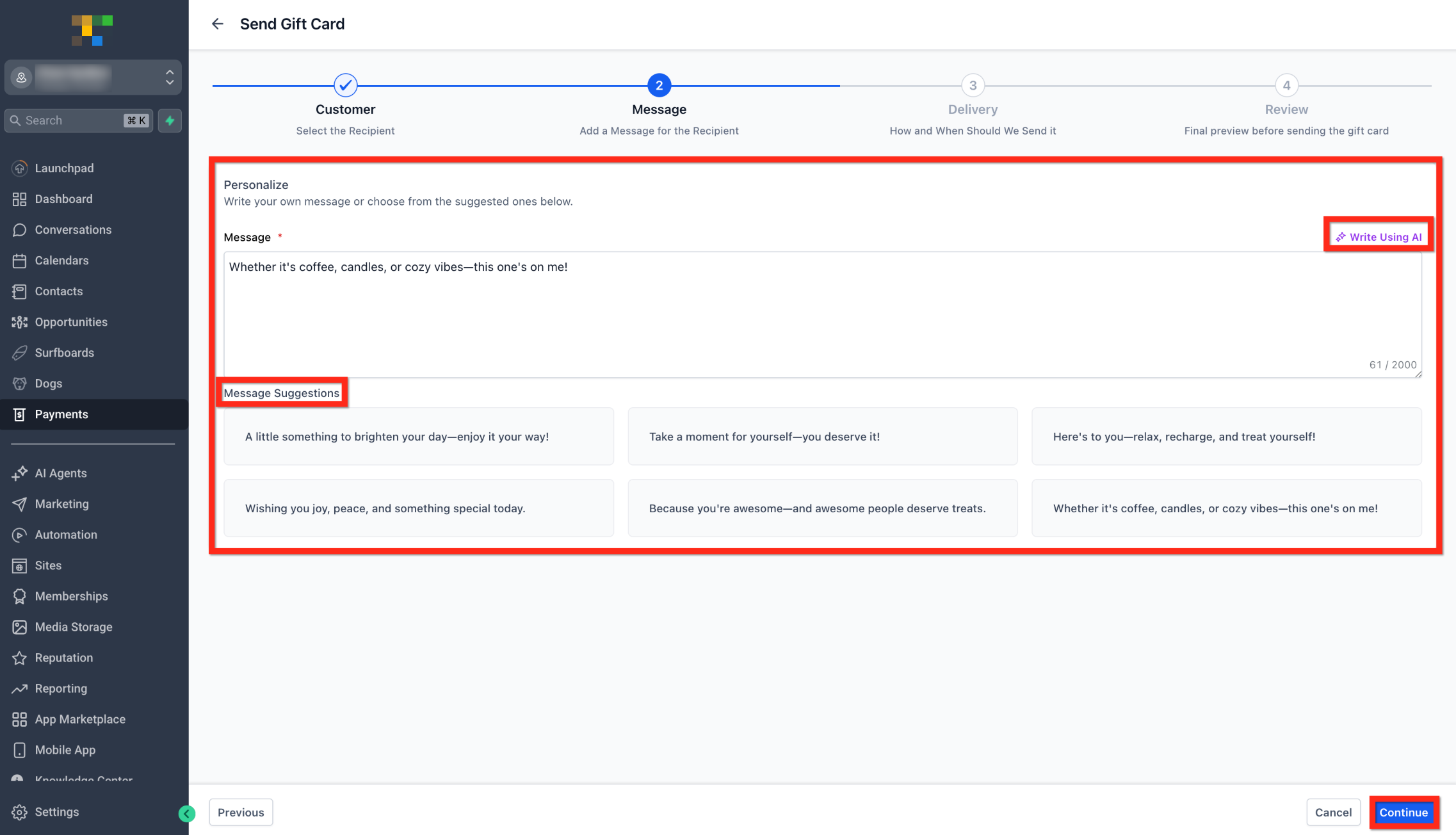
Step 3: Add a Personal Message
A personal message gives context to the gift card and helps the recipient understand why it was sent. You can write a message, select a prepared message, or use the available AI writing option.
- Open the message selection area in the Send flow.
- Choose one of the available approaches:
- Custom Message: Write a greeting, appreciation note, or special instructions.
- Prepopulated Message: Choose one of the available prepared messages.
- Write with AI: Generate a message using the available AI writing feature.
- Custom Message: Write a greeting, appreciation note, or special instructions.
- Review the message for accuracy and tone.
- Click Continue.
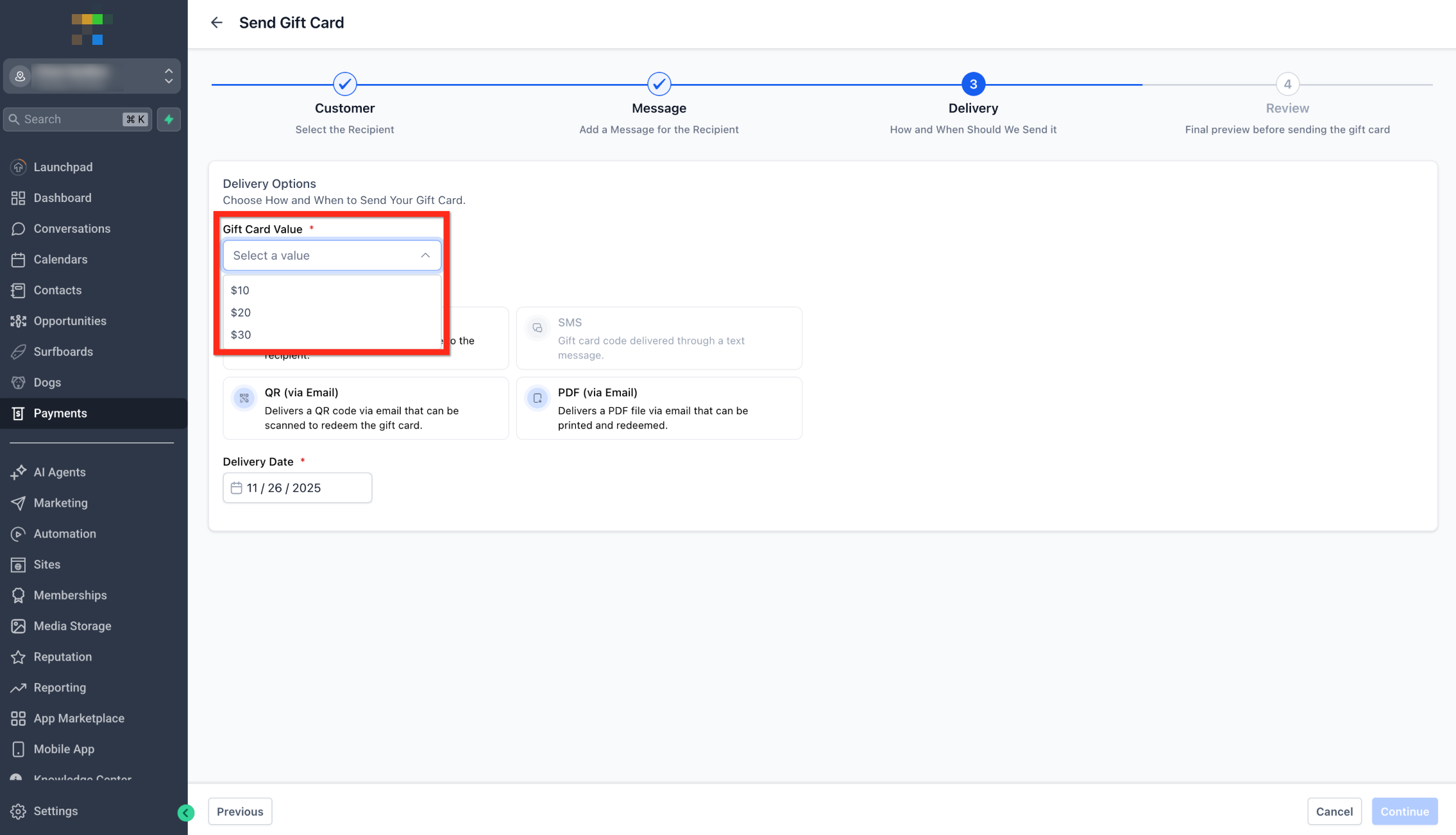
Step 4: Select a Denomination
Each Gift Card Product can have preset denominations. Select the amount that should be issued to the recipient.
- Review the available denominations.
- Select one of the preset denominations configured for the Gift Card Product.
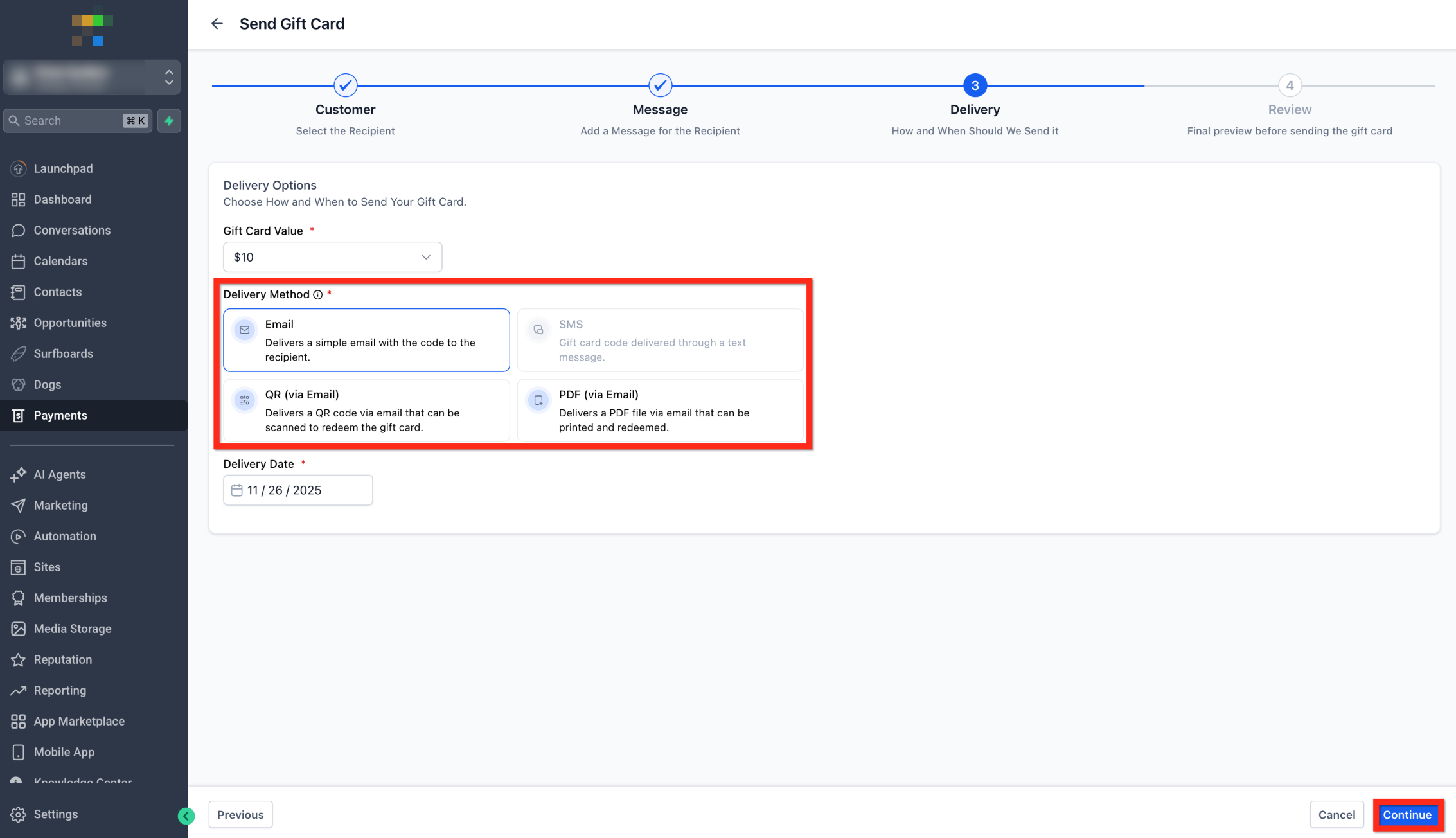
Step 5: Choose a Delivery Method
The delivery method determines how the recipient receives the gift card. The available options depend on whether the contact has a valid email address or phone number.
Note: Only methods supported by the recipient's available contact information are enabled.
- Review the available delivery methods.
- Select one of the following:
- SMS
- QR Code (via Email)
- PDF (via Email)
Select one delivery method for the current Send flow. PDF and QR-code delivery use email.
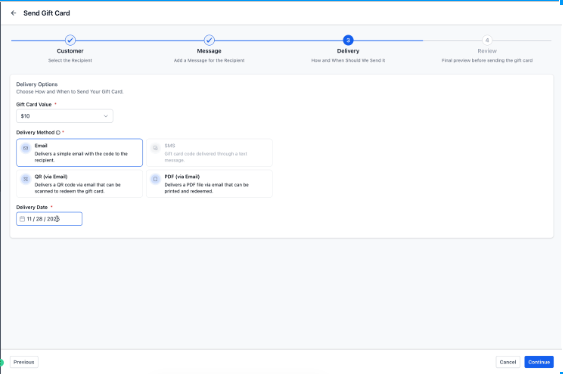
Step 6: Choose a Delivery Date
Choose whether the gift card should be delivered immediately or on a future date. The available scheduling dates depend on the Gift Card Product's expiry settings.
Important: If the gift card has an expiry date, the selected delivery date must be between the current date and the expiry date. If the gift card has no expiry date, the Send flow allows a future delivery date without that expiry restriction.
- Open the delivery-date options.
- Choose a preset:
- Immediately
- Tomorrow
- After One Week
- Alternatively, choose Future Date and select the intended delivery date.
- Review the selected date against the gift card's expiry settings.
- Click Continue.
Note: A scheduled gift card remains valid before the scheduled delivery occurs. If someone already has its gift card code, they may be able to redeem it before the delivery date.
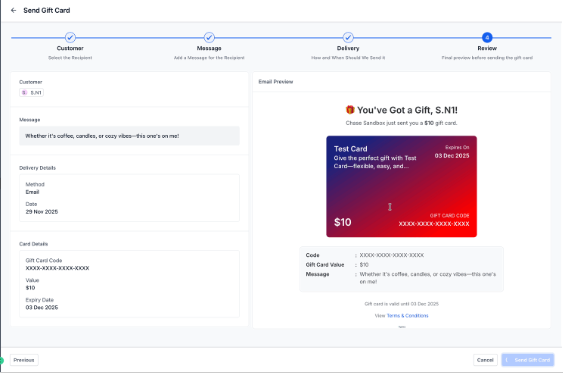
Step 7: Review and Send
Review the gift card details and recipient communication before sending. This step helps confirm that the correct amount, message, delivery information, and communication language are selected.
Review the Communication Language
Supported gift card recipient emails and SMS notifications can display localized communication text based on the selected locale.
Communication previews reflect the selected language. Email previews can show translated communication text alongside sample or actual gift card information.
Confirm that the preview uses the intended language before sending the gift card.
Review the Gift Card Preview
- Open the automatically generated email or SMS preview.
- Review the following information:
- Gift Card Amount: Confirm the selected denomination.
- Custom Message: Check the personal message.
- Expiry Date: Review the expiry information when applicable.
- Redemption Instructions: Confirm that the recipient can understand how to use the card.
- Artwork: Review the card design when included in the selected delivery format.
- Gift Card Amount: Confirm the selected denomination.
- Confirm that the communication preview displays the intended language.
- Review the recipient and delivery date.
- Click Send Gift Card.
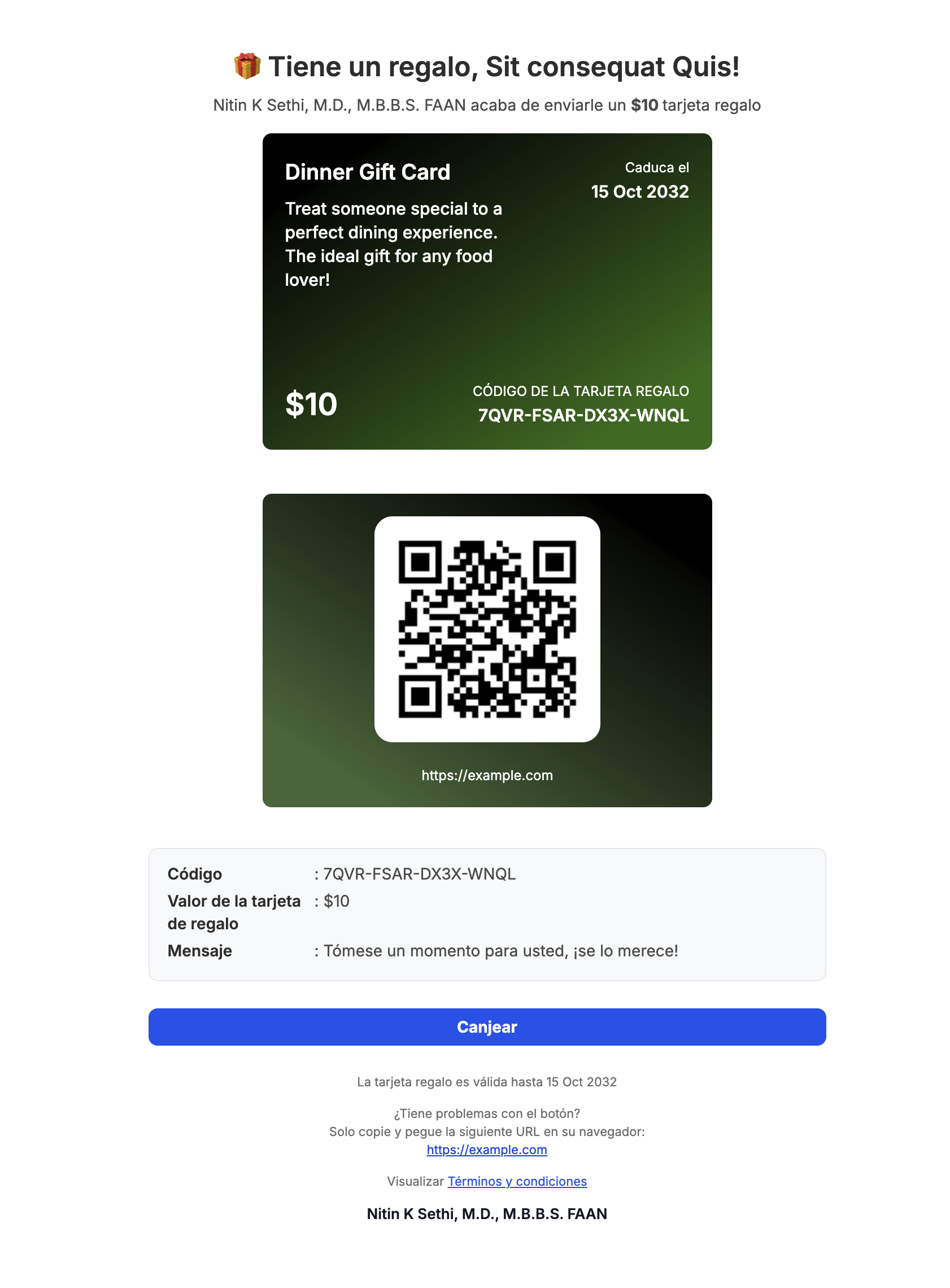
Example of a gift card email with localized Spanish communication text.
Delivery Methods Explained
Gift cards can be delivered in different formats depending on the recipient's available contact information. Choose the format that best matches how the recipient should receive and use the card.
Email delivery provides a visual gift card that the recipient can open and use at supported checkouts.
- Includes the gift card artwork.
- Includes relevant expiry information.
- Shows the gift card balance.
- Provides a redemption link.
- Is suitable for most standard gift card deliveries.
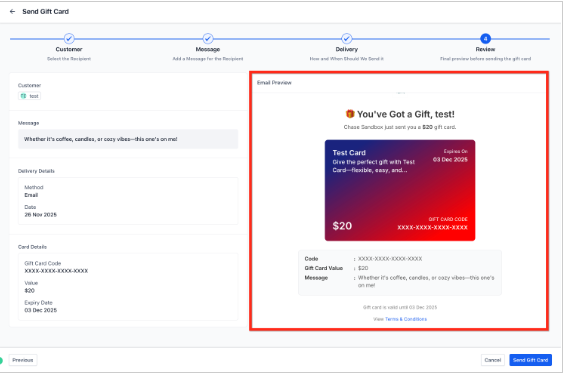
Example of a Spanish-language gift card email with card artwork, a QR code, redemption instructions, and a Terms & Conditions link.
SMS
SMS delivery sends the recipient a text message containing the gift card information and redemption link.
- Provides a gift card link through SMS.
- Does not include the full card artwork in the SMS message.
- Requires a valid phone number for the recipient.
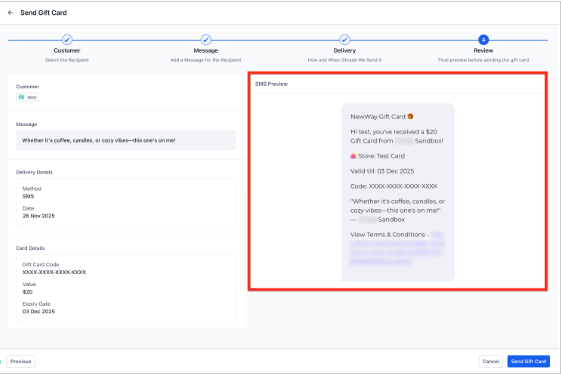

Example of a Spanish-language gift card SMS notification containing gift card details and a redemption link.
PDF (via Email)
PDF delivery provides a downloadable and printable gift card through email. This format is useful when the recipient wants a physical copy.
- Sends a printable PDF by email.
- Allows the recipient to download the gift card.
- Is useful for in-store gifting, physical wrapping, and events.
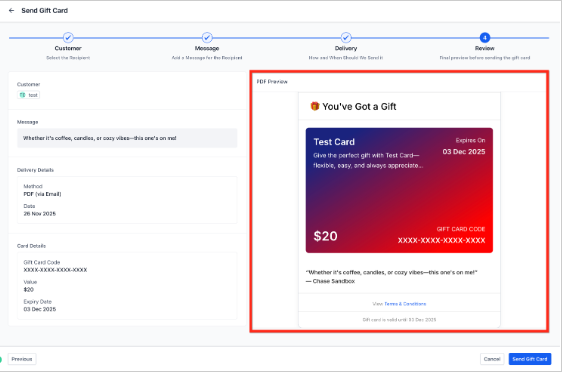
QR Code (via Email)
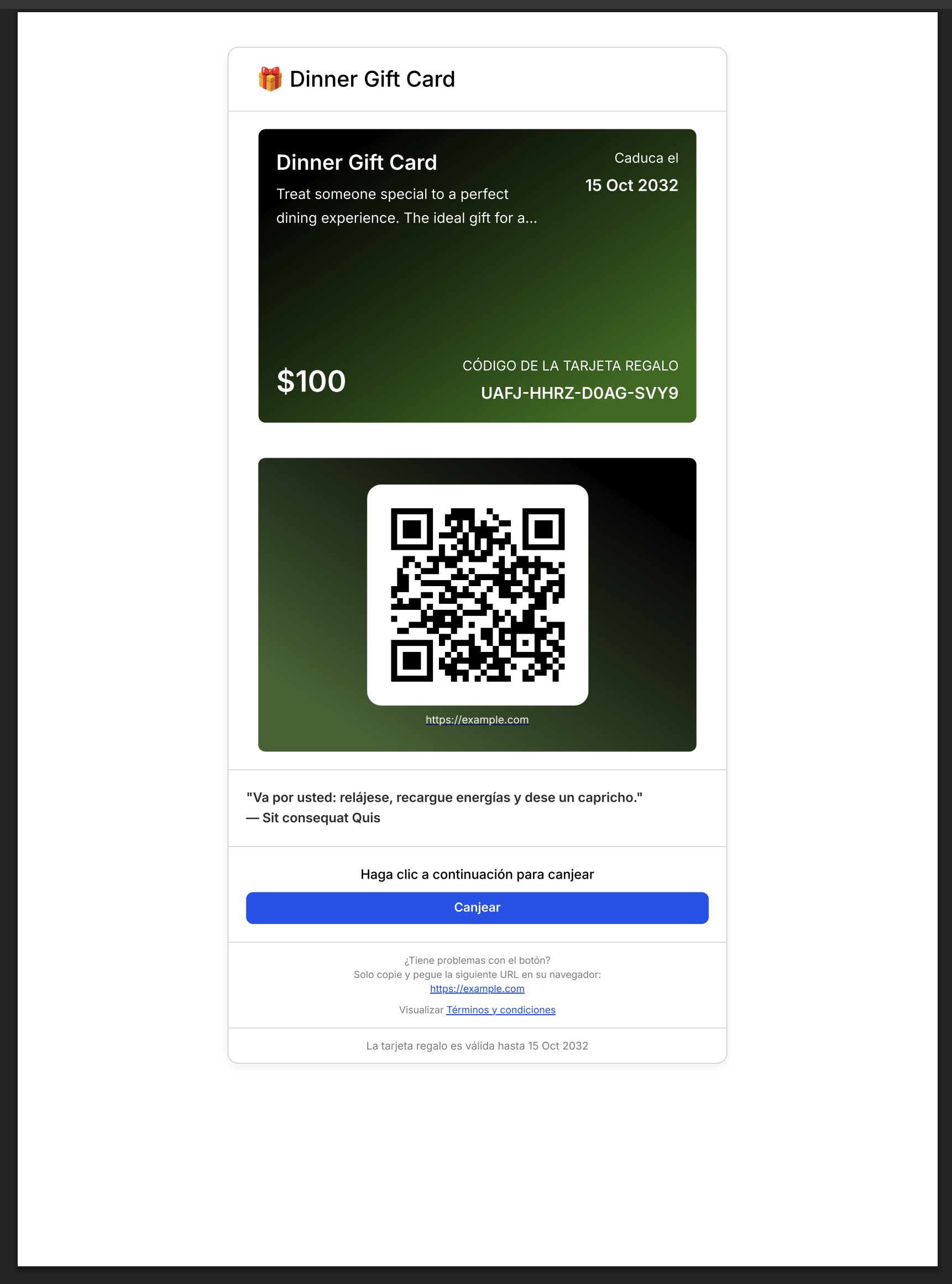
QR-code delivery provides a scannable code that opens the gift card. It is useful when the recipient wants to present or share the card in person.
- Delivers a scannable QR code by email.
- Opens the gift card when scanned.
- Can be useful for in-person gifting or event redemption.
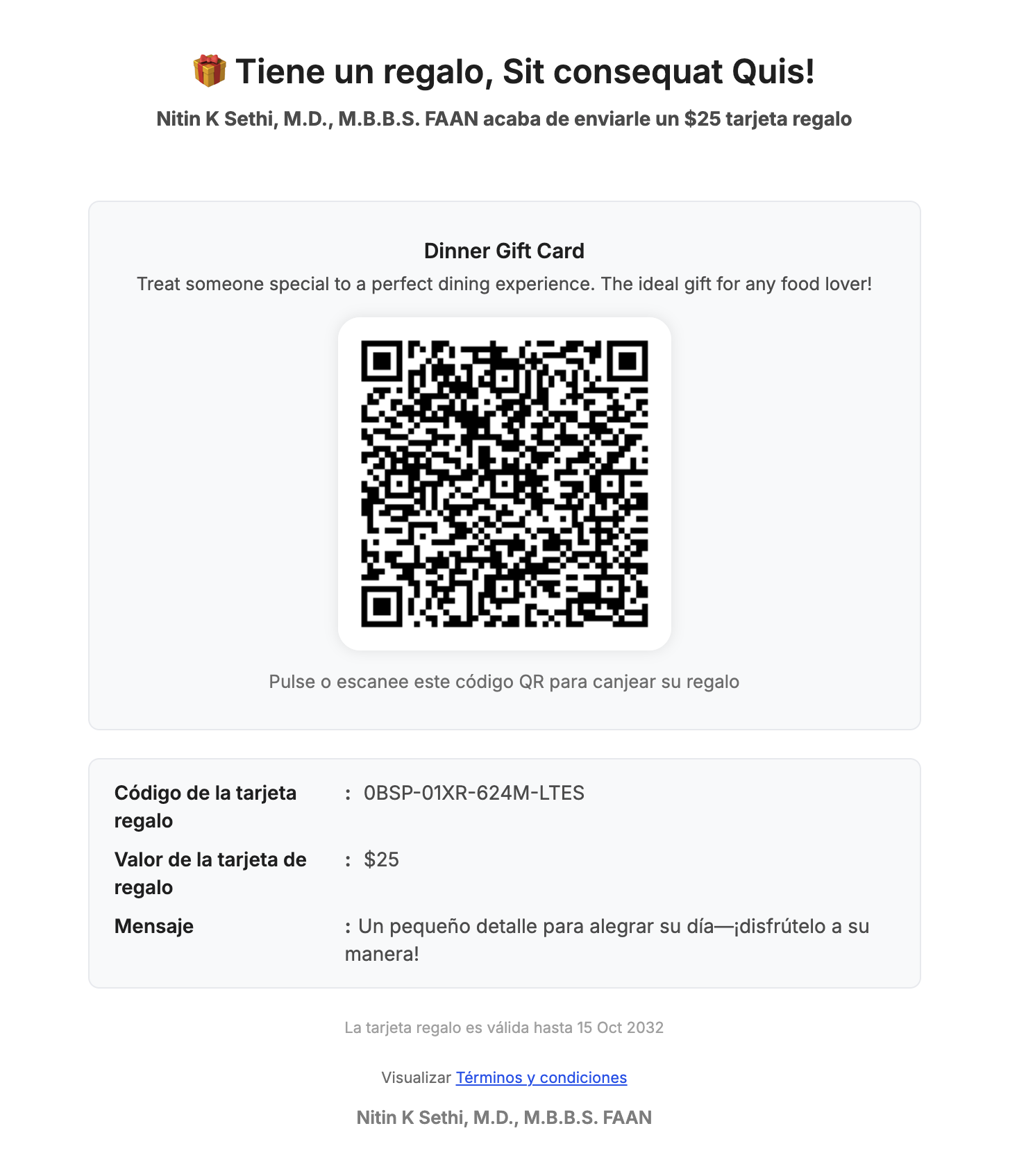
Example of a recipient-facing QR-code gift card view with Spanish redemption instructions and card details.
What Happens After a Gift Card Is Sent
Gift cards issued through the Send flow are tracked in Gift Card Orders, even though no payment is collected. This provides a way to review delivery details, balances, expiry information, and current status.
Find the Gift Card Order
Use the Gift Card Orders page to find the issued gift card and review its details.
- Click Payments.
- Select Gift Cards.
- Open Gift Card Orders.
- Select the relevant gift card to open its order details.
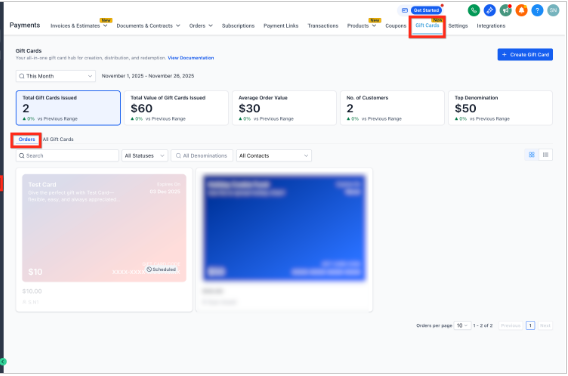
Gift Card Order Details
The Gift Card Order Details page shows information about the issued card and its current delivery or redemption status.
Available details include:
- Recipient Details: The customer or contact receiving the card.
- Delivery Method: Email, SMS, PDF, or QR-code delivery.
- Delivery Timestamp: The relevant delivery timing information.
- Denomination: The value of the issued gift card.
- Expiry: The gift card's expiry date, when applicable.
- Remaining Balance: The unredeemed balance.
- Status: Scheduled, Active, or Inactive.
- Gift Card Code: The code associated with the issued card, hidden in the order information.
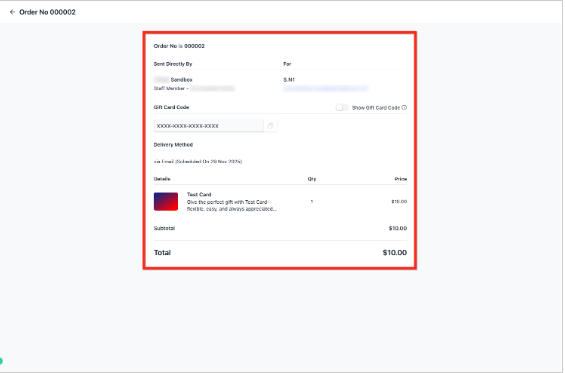
Important: A gift card sent directly without payment appears in Gift Card Orders, not in the regular Payments > Orders list. The regular Orders page records paid orders.
Key Behaviors and Limitations
Direct sending follows specific rules for delivery, payment collection, redemption, and tracking. Review these behaviors to understand what happens when a card is issued.
- Live Mode Only: The direct Send flow currently operates in Live Mode.
- One Recipient Per Send: You can issue one gift card to one customer or contact at a time.
- No Recipient Payment: The Send flow does not collect payment from the recipient.
- Separate Gift Card Tracking: Directly sent gift cards appear in Payments > Gift Cards > Gift Card Orders.
- No Regular Paid Order: Direct sends do not appear in Payments > Orders because they do not create a paid transaction.
- Supported Redemption: Gift cards issued through the Send flow support full or partial redemption at eligible checkouts that accept gift cards.
- Contact Information Required: The recipient must have a valid email address or phone number for the selected delivery method.
- Expiry-Aware Scheduling: A gift card with an expiry date must have a scheduled delivery date that falls within the supported date range.
- Scheduled Delivery Is Not an Activation Delay: A scheduled card can be valid before its delivery date. Someone with its code may be able to redeem it early.
- System-Generated Templates: The email and SMS delivery templates are generated by the system and are not directly editable through this Send flow.
Frequently Asked Questions
Q: When will a scheduled gift card be delivered?
A scheduled gift card is sent at 12:00 AM (midnight) on the selected delivery date, according to the documented scheduling behavior.
Q: Can I send gift cards in Test Mode?
No. The direct Send flow currently supports Live Mode only. Test Mode gift cards can be created through supported test checkout experiences, which are separate from the direct Send flow.
Q: Why can't I send a gift card to some customers?
The recipient must have a valid email address or phone number. If neither is available, no supported delivery method can be selected.
Q: Can I send multiple gift cards at once?
No. The Send flow issues one gift card to one customer at a time. Repeat the process for each additional recipient.
Q: Are sent gift cards redeemable everywhere?
Gift cards can be redeemed at supported checkouts that accept gift cards, including:
- Funnels
- Forms
- Invoices
- Stores
- Payment Links
- Calendars where supported products and gift card redemption are available
Redemption support depends on the checkout and applicable payment integration. Gift cards are not guaranteed to work in every payment experience.
Q: What happens to a scheduled gift card before its delivery time?
Until the selected delivery time, the gift card remains in a Scheduled state. However, the gift card can still be active and valid for redemption.
Q: Can a scheduled gift card be used before its delivery time?
Yes. If someone has the gift card code before the scheduled delivery time, the code can be used at a supported checkout that accepts the gift card.
Q: Can I edit the email or SMS template before sending?
No. The recipient email and SMS templates in the Send flow are system-generated and are not directly editable. You can choose or write the personal message provided during the Send flow.
Q: Do sent gift cards appear under Orders in Payments?
No. Directly sent gift cards appear under Payments > Gift Cards > Gift Card Orders. The regular Payments > Orders page records paid orders.
Q: Can I send a gift card anonymously?
No. The recipient communication includes the sender's configured business information. The direct Send flow does not provide an anonymous-sending option.
Need Help?
If you cannot send a gift card or the recipient does not receive it as expected, review the product, recipient information, delivery method, and scheduling settings.
- Gift Card Cannot Be Selected: Confirm that the Gift Card Product exists and is Active.
- Send Option Is Unavailable: Confirm that the product is active and that the Send flow is being used in Live Mode.
- Recipient Is Missing: Select an existing contact or use Add a Contact to create the recipient record.
- Delivery Method Is Unavailable: Confirm that the recipient has a valid email address or phone number for the selected delivery type.
- Delivery Date Cannot Be Selected: Review the Gift Card Product's expiry settings and choose a date within the supported range.
- Incorrect Message or Language: Review the personal message and communication preview before sending.
- Scheduled Gift Card Has Not Arrived: Confirm the selected delivery date and check its status under Gift Card Orders.
- Gift Card Is Missing from Regular Orders: Use Payments > Gift Cards > Gift Card Orders to find cards issued without payment.
- Gift Card Cannot Be Redeemed: Confirm that the card is valid and that the selected checkout supports gift card redemption.
If the issue continues, contact support with the Gift Card Product, recipient delivery method, expected result, actual behavior, and relevant screenshots or error messages. Avoid sharing complete gift card codes in public messages.