
Meta’s WhatsApp setup now uses Messaging accounts, WhatsApp accounts and conversation routing. The steps depend on where your number lives today, so start with Which setup is mine? and then follow only that section.
Already connected but getting “Unsupported post request. Object with ID … does not exist” when you send a message? Jump to the fix.
Table of Contents1Which setup is mine?2New number (Cloud API)3Number already connected to another partner (Wati, 360dialog, etc.)4WhatsApp Business app number (Coexistence)5WhatsApp Business app number already connected to another provider6Fix: “Unsupported post request. Object with ID … does not exist”Video WalkthroughStart hereWhich setup is mine?Answer the questions below to find your setup. Each setup has its own full steps and FAQs.
| Your situation | Choose | Good to know |
|---|---|---|
| I have a new number, or a number that isn’t on WhatsApp yet (landlines and virtual numbers work). | 1. New number (Cloud API) | The number can’t be used in the WhatsApp app afterwards. |
| My number is connected to another partner such as Wati or 360dialog (API only). | 2. Number already connected to another partner | You don’t need to disconnect from the other partner first. |
| I use the WhatsApp Business app on my phone and want to keep using it. | 3. WhatsApp Business app (Coexistence) | App and Link+ work side by side. Chats and contacts are imported. |
| My WhatsApp Business app number is already connected to another provider. | 4. Business app already connected to another provider | Disconnect from the other provider first, then connect here. |
- The number must be able to receive an SMS or a voice call for verification.
- Landlines and virtual numbers are supported.
- A number that is used on a personal WhatsApp account must be deleted from WhatsApp first (see below).
In WhatsApp on your phone, go to Settings > Account > Delete my account and confirm. Wait a few minutes before you continue.
ImportantDeleting the account removes that number’s chats from the personal WhatsApp app. If you want to keep using the app with the number, use setup 3 (Coexistence) instead (WhatsApp Business app only).Setup stepsStep 1Start the signupIn Link+, go to Settings > WhatsApp and click Create a new WhatsApp business account. Step 2Log in with FacebookClick Continue with Facebook and log in with the Facebook account that manages your business.
 Step 3Choose or create your business portfolioSelect an existing business portfolio, or choose Create a business portfolio and follow Meta’s prompts.
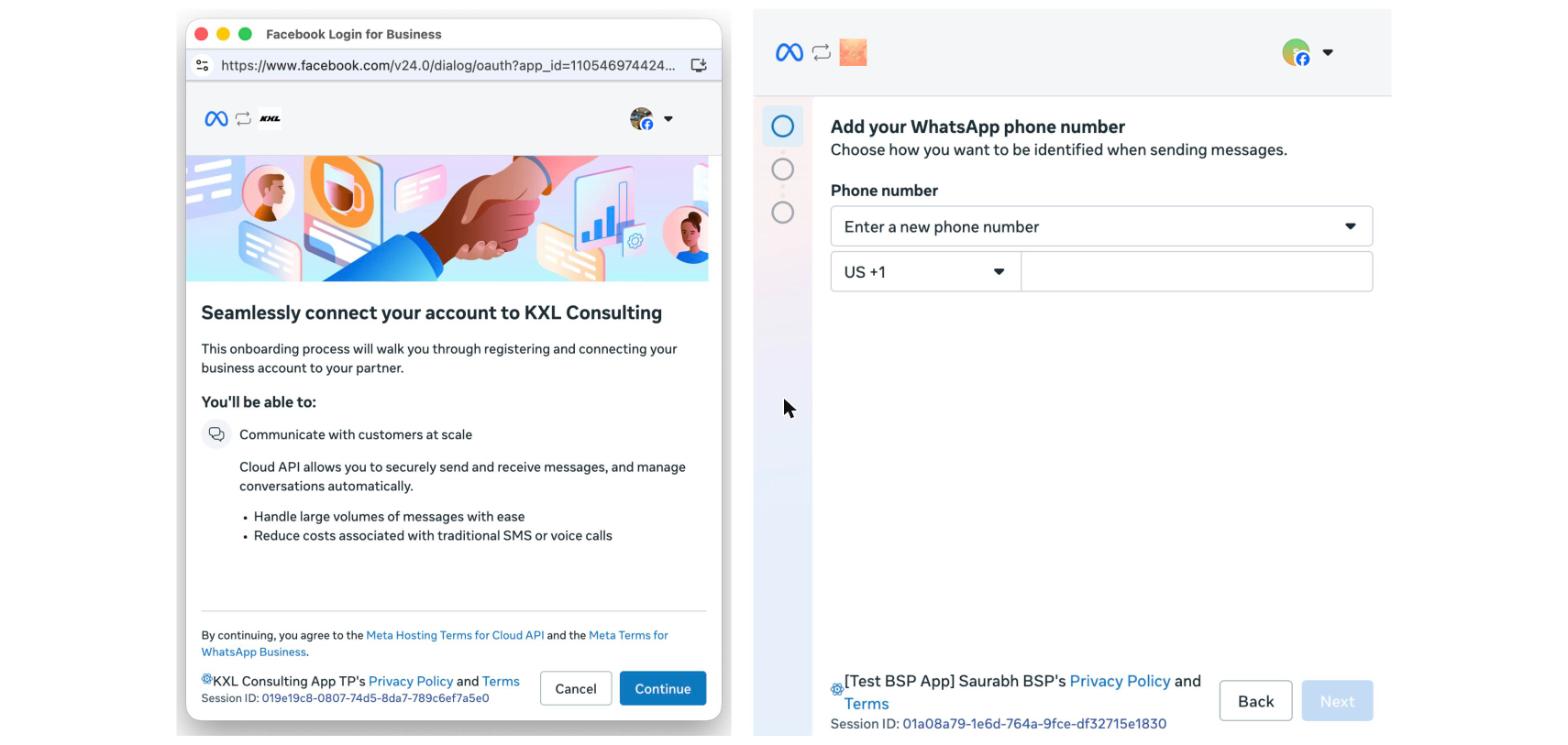
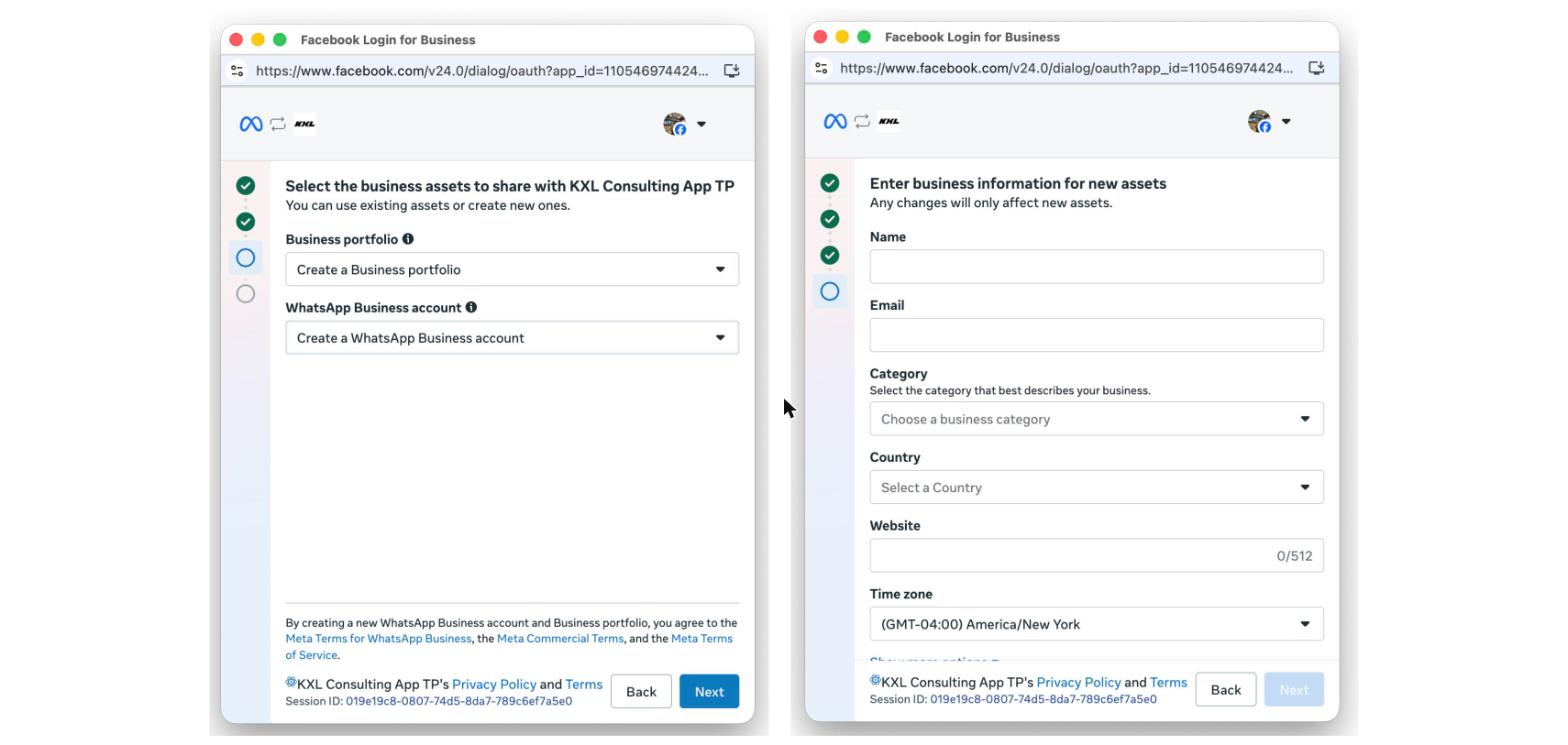 Step 4Choose or create your WhatsApp accountSelect an existing WhatsApp account, or choose Create a WhatsApp account.Step 5Enter your business detailsFill in the business name, WhatsApp display name, category and website, then click Next.
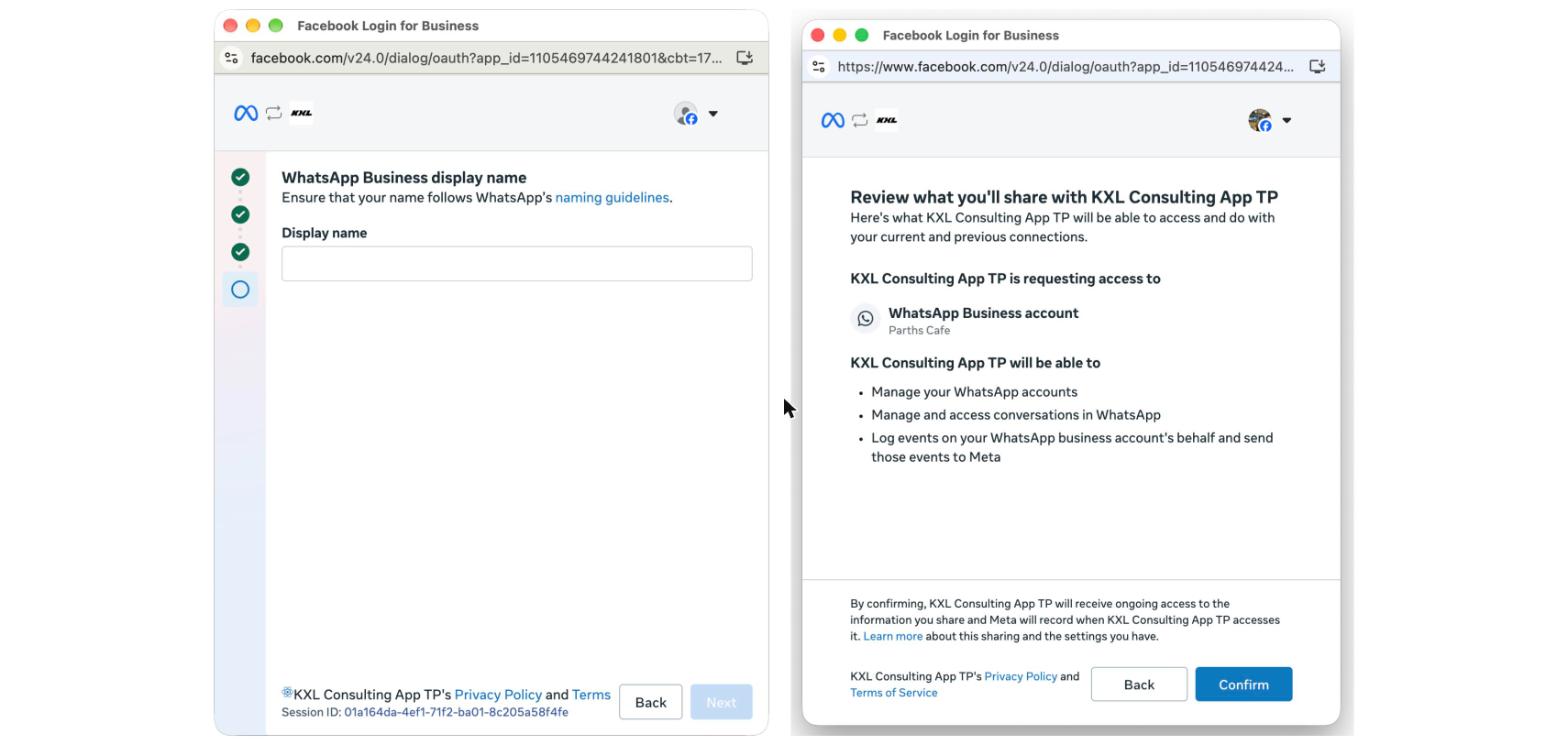 Step 6Add your phone numberEnter the number you want to use, choose Text message or Phone call, and click Next.Step 7Verify with the codeEnter the 6-digit code you receive, then click Next.
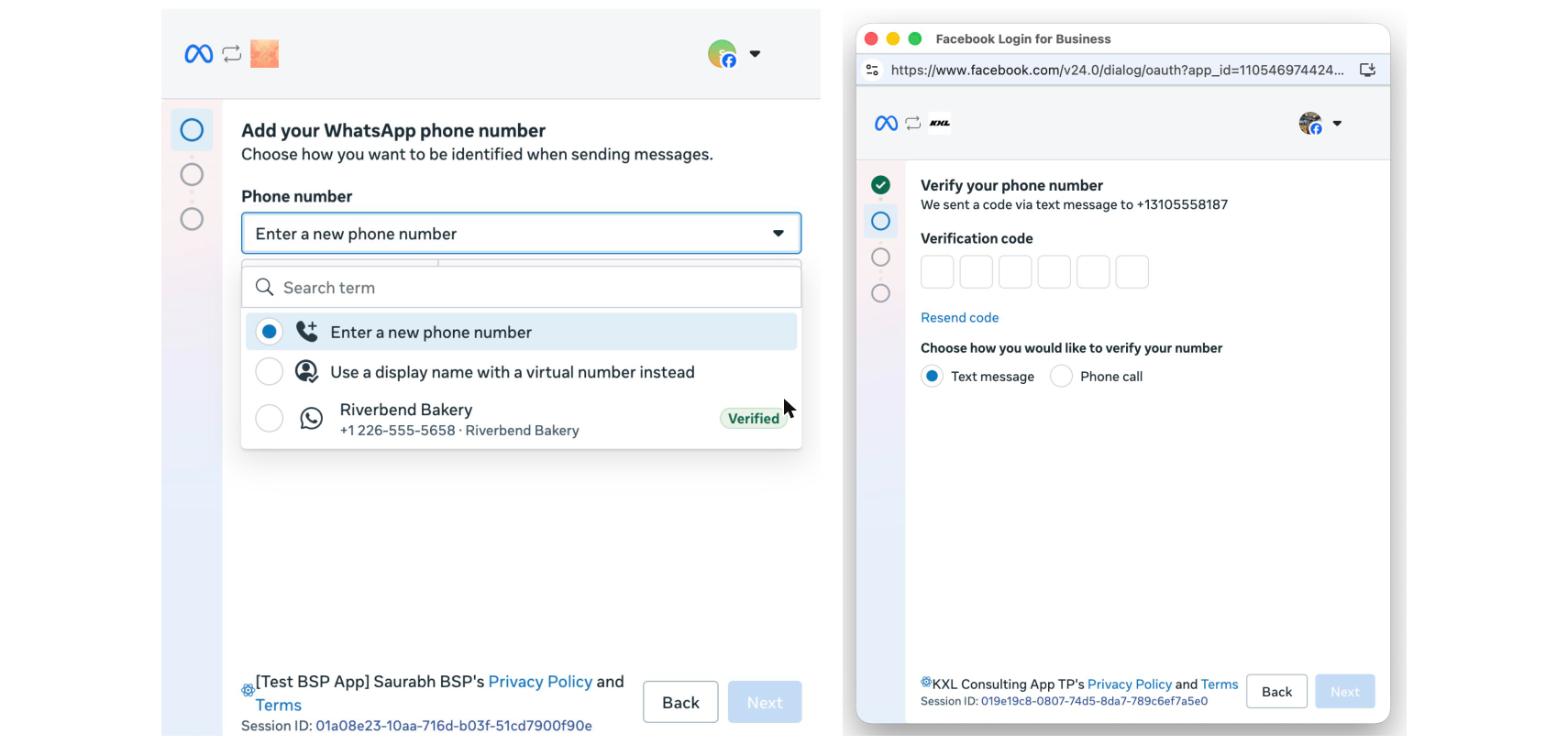 Step 8Review permissionsReview what Link+ can access and click Continue.Step 9FinishClick Finish. You’re taken back to Link+, where the number now appears in Settings > WhatsApp.
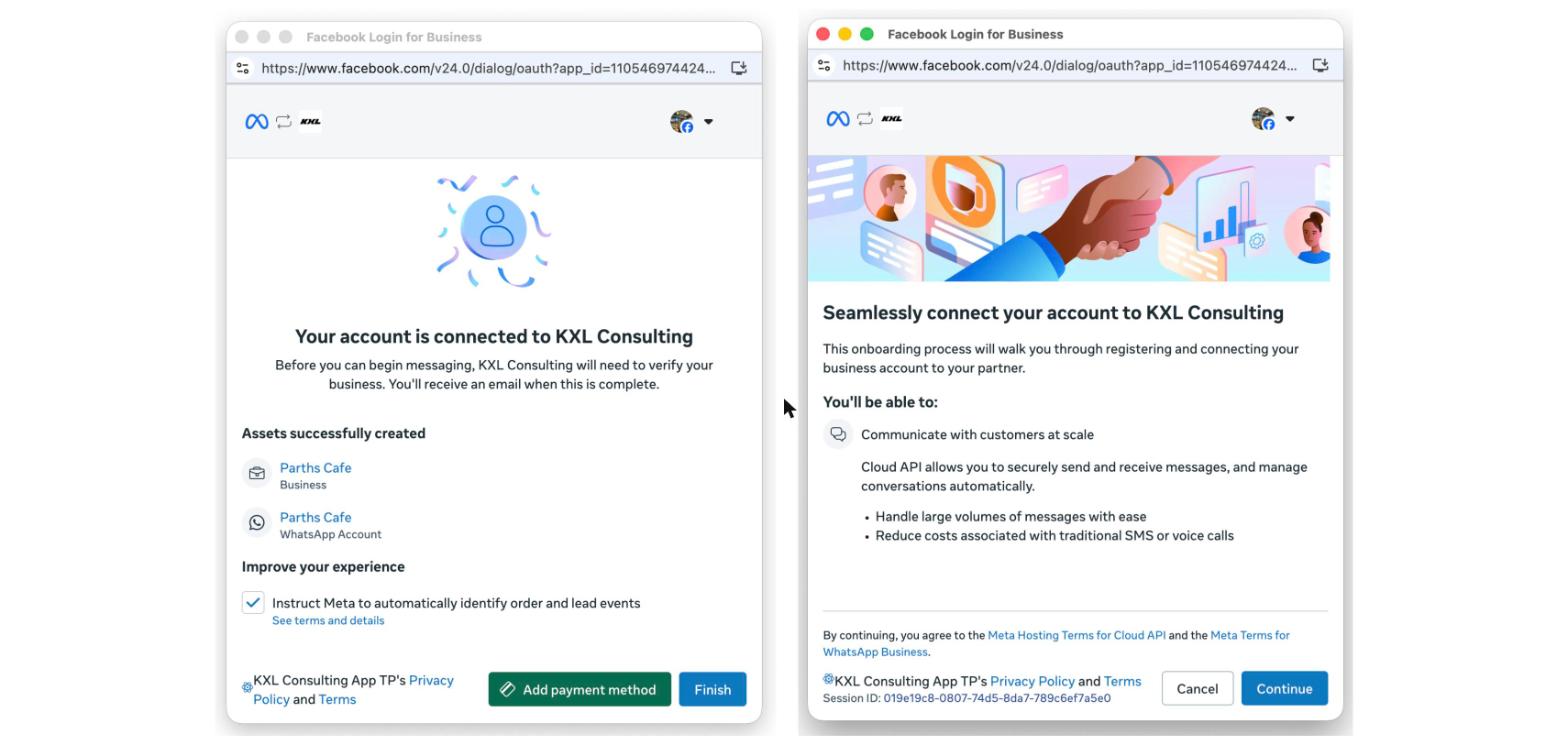 What happens after you connect
| What | What to expect |
|---|---|
| Display name review | Meta reviews your WhatsApp display name. This can take from a few minutes to a couple of days. You can start messaging with limits while it’s reviewed. |
| Business verification | Complete business verification in Meta Business Suite to raise your messaging limits and unlock more features. |
| “Pending” number | A number shown as Pending hasn’t finished Meta’s checks yet (display name review or verification). It becomes active automatically once Meta approves it. No action is needed unless Meta asks for something. |
Step 2Log in with FacebookClick Continue with Facebook and log in with the Facebook account that manages your business.Step 3Choose your business portfolioSelect the business portfolio that owns the WhatsApp account.Step 4Choose the WhatsApp account that already has the numberSelect the existing WhatsApp account that holds the number connected to your other partner. Do not create a new one.Step 5Confirm your business detailsCheck the business details and click Next.Step 6Select the numberChoose the number that is connected to your other partner and click Next. If asked, verify it with a text message or phone call.Step 7Verify with the codeEnter the code you receive and click Next.Step 8Review permissionsReview what Link+ can access and click Continue.Step 9FinishClick Finish. The number now appears in Link+, and your previous partner stays connected.Set Link+ to receive messages (conversation routing)After setup, Meta keeps sending incoming messages to the partner that connected first. To receive them in Link+, change the conversation routing settings in Meta Business Suite so that Link+ is the partner that receives and replies to messages.
- Open Meta Business Suite > Settings > WhatsApp accounts and select the account that holds your number.
- Open the conversation routing settings for the number.
- Choose Link+ as the partner that receives incoming messages, then save.
You may see a message that a payment method is already attached to the WhatsApp account. This appears when your previous partner’s credit line is still shared with the account.
How to resolve it:
- Ask your previous partner to stop sharing (revoke) their credit line on the WhatsApp account, or
- In Meta Business Suite > WhatsApp Manager > Payment settings, set up your own payment method for the account.
- Return to Link+ and retry the connection.
- WhatsApp Business app version 2.24.17 or later installed on your phone.
- The phone with the Business app and the number nearby. You’ll need it to receive a message and scan a QR code.
 Step 2Log in with FacebookClick Continue with Facebook and log in with the Facebook account that manages your business.
 Step 3Choose your business portfolio and WhatsApp accountSelect your business portfolio and WhatsApp account, or create new ones, then click Next.
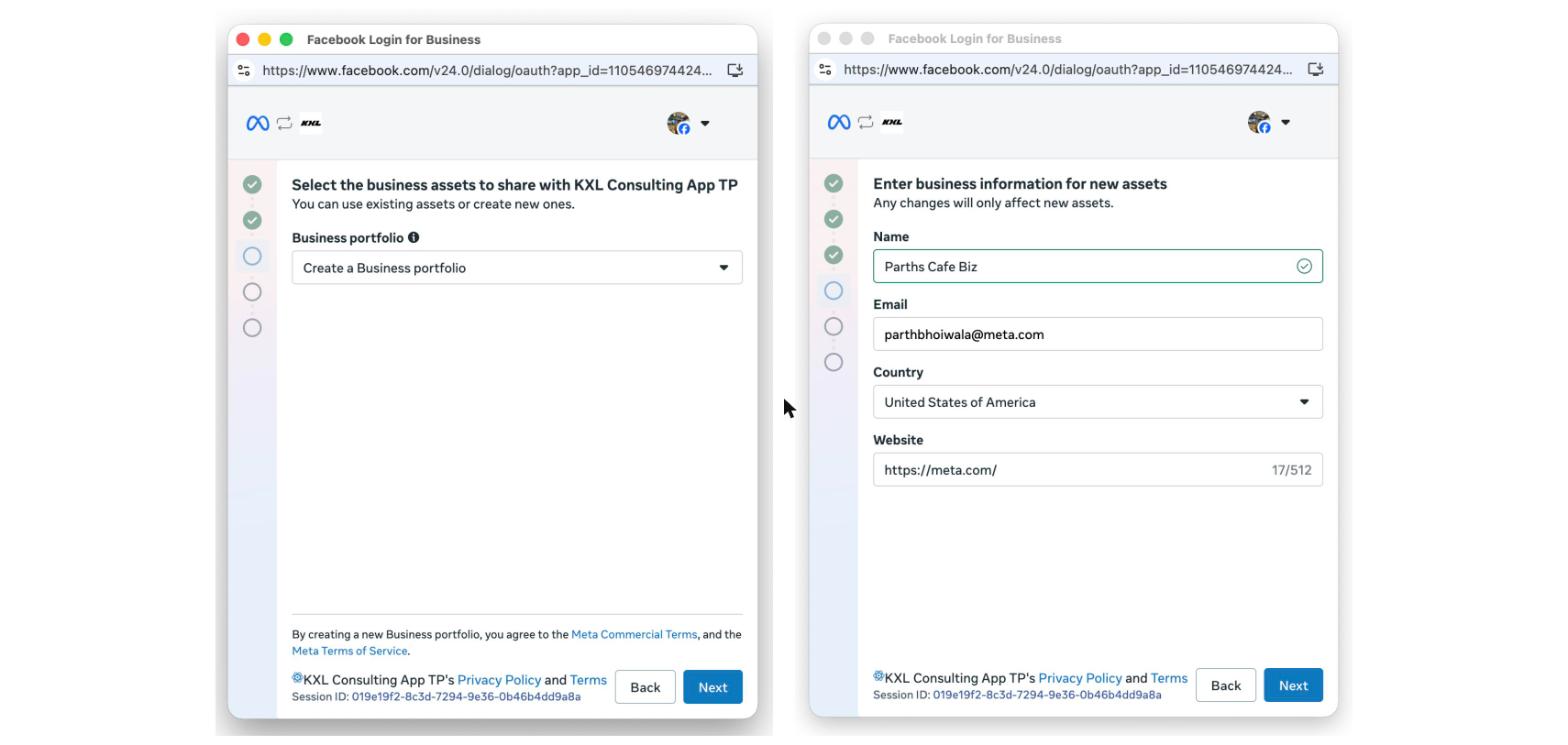 Step 4Enter your Business app numberEnter the phone number you use in the WhatsApp Business app and click Next.
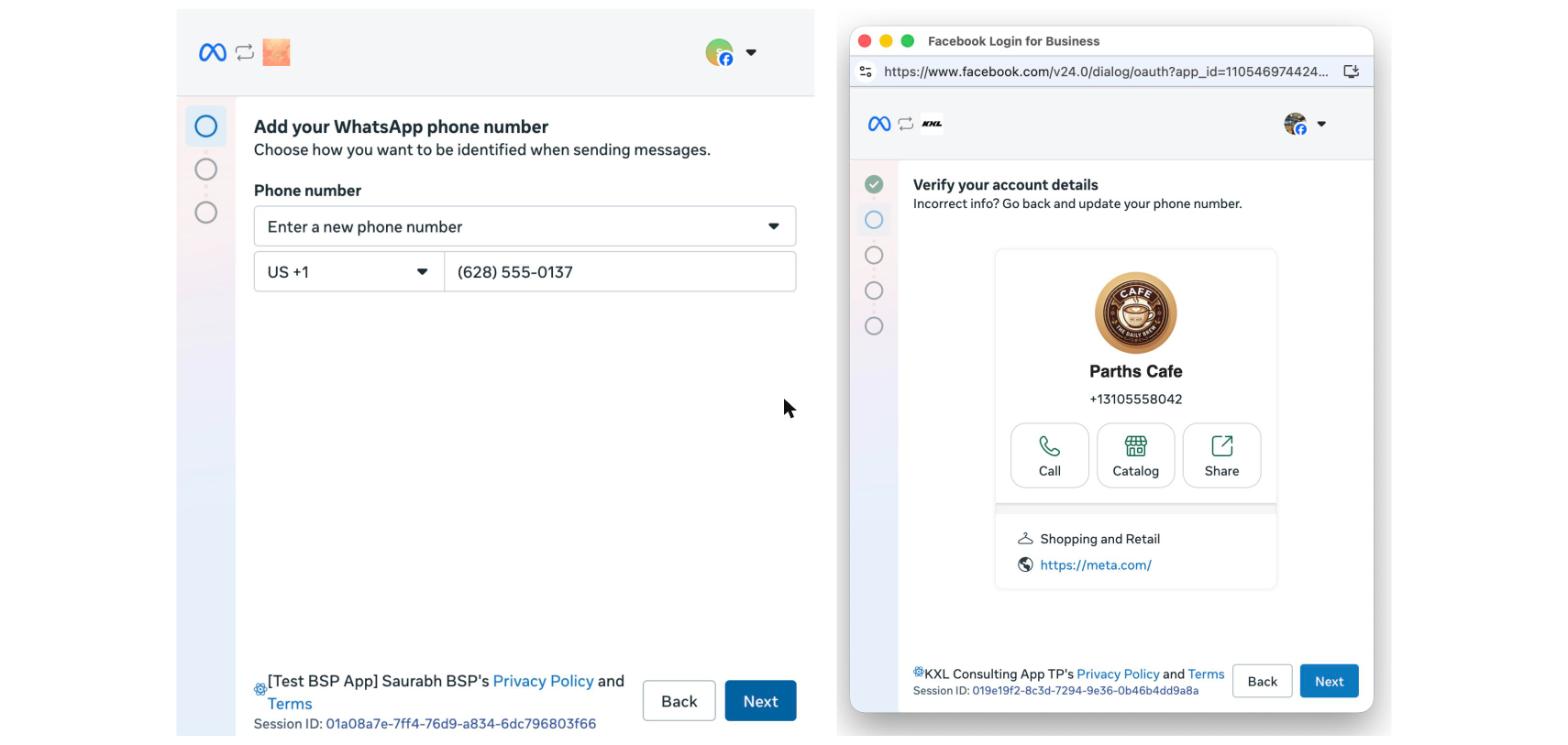 Step 5Open the message from Facebook BusinessOn your phone, open the WhatsApp Business app and look for the message from the official Facebook Business account.
 Step 6Scan the QR codeTap the link in the message, then scan the QR code shown on your computer screen with your phone.
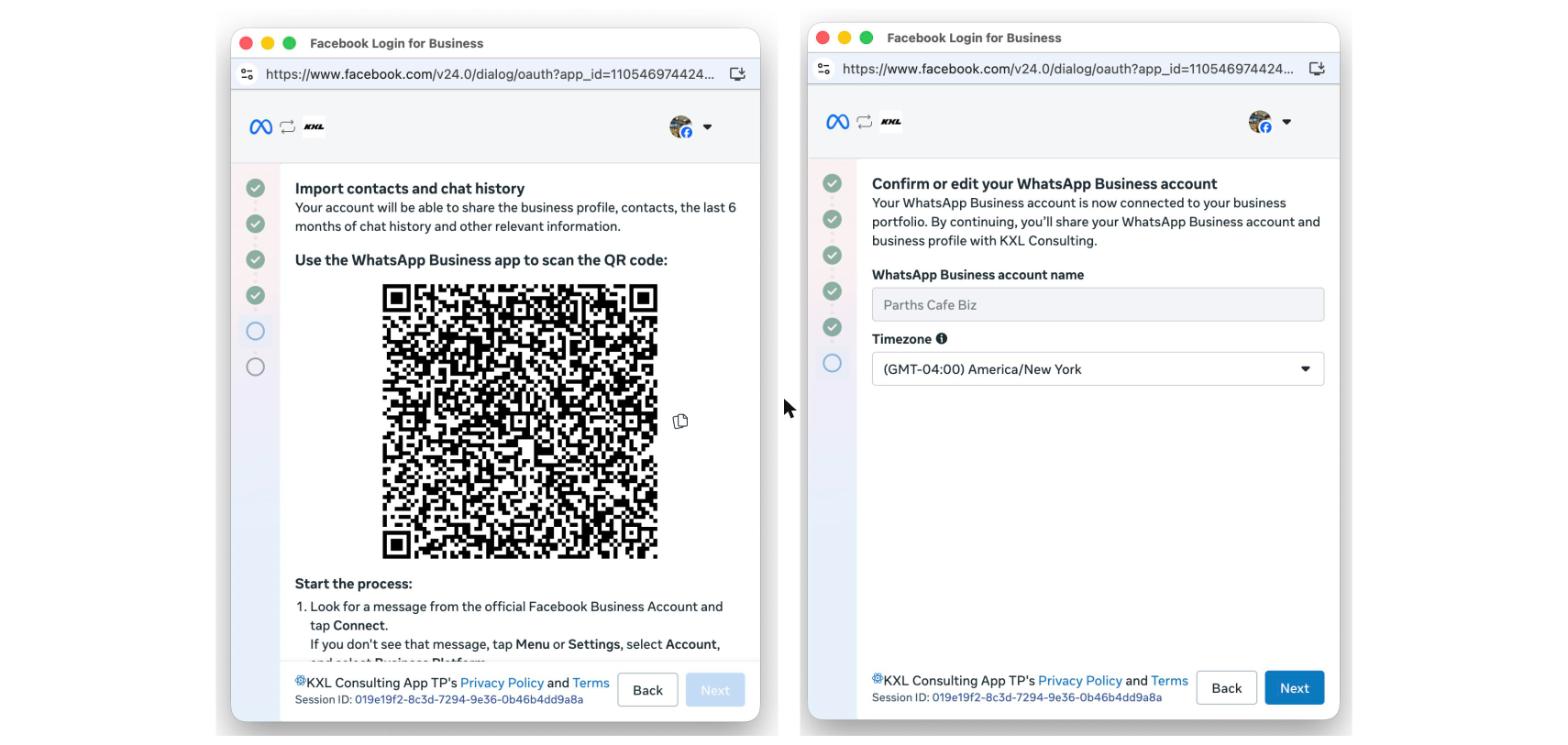
 Step 7Choose whether to share chat historyChoose whether to share your chat history and contacts with Link+, then continue.
 Step 8FinishClick Finish. Your Business app is now connected. Keep the app open while chats import.
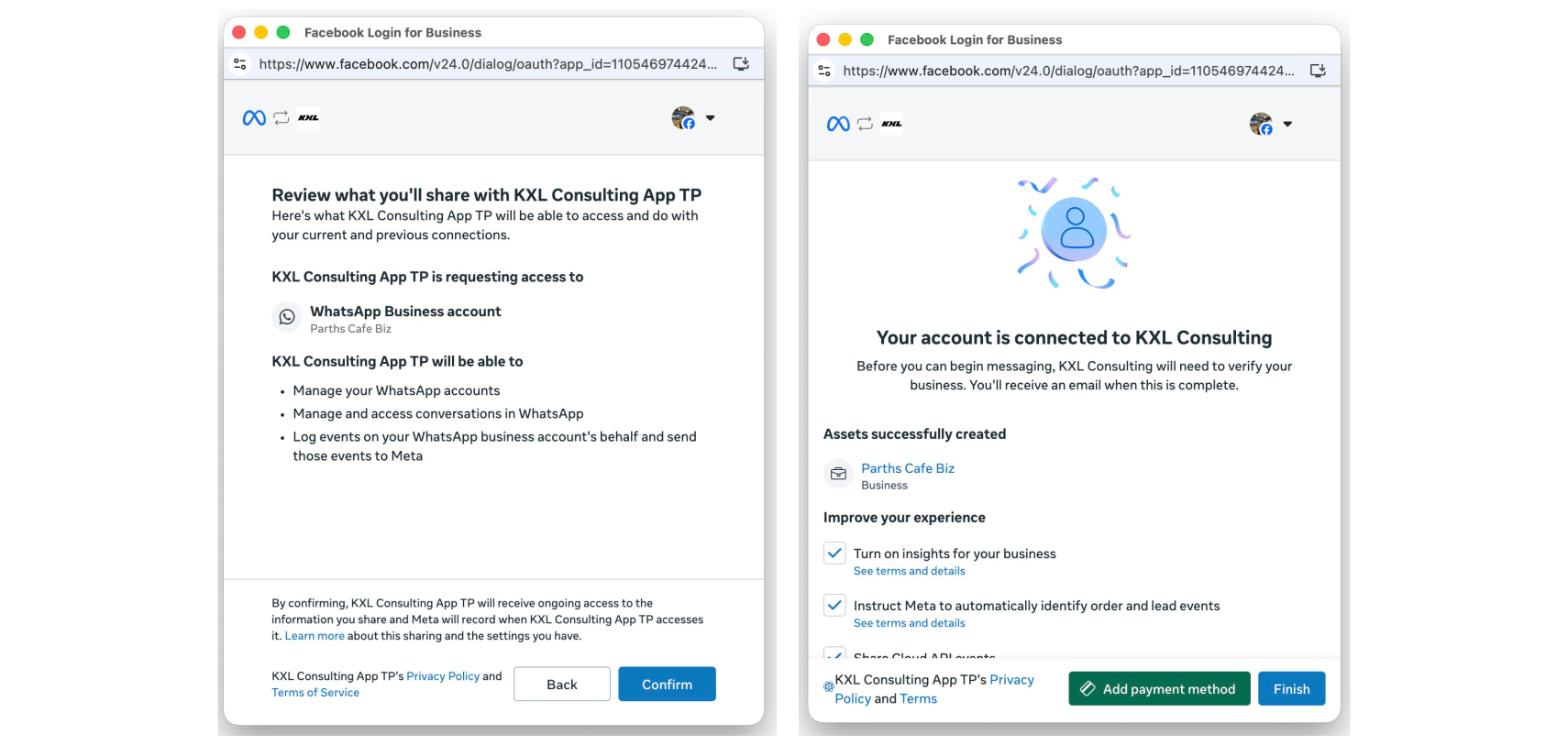
 What comes over
- Up to 6 months of one-to-one chats and your contacts.
- Group chats don’t come over.
- Photos and files only from the last 14 days.
- WhatsApp on linked devices (web, desktop, tablet) is logged out and needs to be linked again. Messages sent from WhatsApp for Windows and Wear OS don’t show up in Link+.
- Broadcast lists become read-only.
- Disappearing messages, view once and live location are turned off.
2. You manage your WhatsApp profile from the WhatsApp Business app, not the CRM.
3. You can have a maximum of one phone number under Coexistence.Disconnect WhatsApp Coexistence
The sub-account doesn’t show an option to disable or delete a Coexistence number from the CRM. Disconnect it from the WhatsApp Business app on the phone:
Step 1Open the WhatsApp Business appOpen the app on the phone linked to the Coexistence number.Step 2Go to Business PlatformGo to Settings > Account > Business Platform.Step 3DisconnectUnder Link+, tap Disconnect and confirm. DisconnectedThe number is no longer connected to Link+. You can keep using it in the WhatsApp Business app as usual. Related: Delete Phone Number Connected to WhatsApp Coexistence.FAQs for this setupQ: Can I keep using the WhatsApp Business app?Yes. The app and Link+ work side by side on the same number.Q: Will my old chats show up in Link+?If you choose to share chat history, up to 6 months of one-to-one chats and your contacts are imported. Group chats don’t come over, and photos and files only from the last 14 days.Q: Why can’t I send messages from a Coexistence number?If you see “Unsupported post request. Object with ID … does not exist”, see the fix below.Q: My linked devices were logged out.This is expected after connecting. Link your web, desktop or tablet devices again from the WhatsApp Business app.Q: How do I stay connected?Open the WhatsApp Business app on your phone at least once every 14 days.Setup 4WhatsApp Business app number already connected to another providerHeads upA Coexistence number can be connected to only one provider at a time. Disconnect it from your current provider first, then connect it here.Disconnect from the other providerStep 1Open the WhatsApp Business appOpen the app on the phone that holds the number.Step 2Go to Business PlatformGo to Settings > Account > Business Platform.Step 3DisconnectTap Disconnect next to the other provider and confirm.Connect it to Link+
Once the number is disconnected, follow the steps in setup 3 (Coexistence) to connect it here.
FAQs for this setupQ: Can I connect to two providers at once?No. A Coexistence number connects to only one provider at a time.Q: Will I lose my chats?Your chats stay in the WhatsApp Business app. After connecting here, you can choose to share up to 6 months of chat history with LeadConnector.FixFix: “Unsupported post request. Object with ID … does not exist”When it appearsSending a message from a Coexistence number fails with: “Unsupported post request. Object with ID … does not exist”.Why this happensMeta removes Link+’s connection to the WhatsApp account when the WhatsApp Business app hasn’t been opened on the main phone for 14 days, or a linked device has been inactive for 30 days. The number then shows as Offline.
What to doStep 1Delete the Coexistence number in LeadConnectorFollow Delete Phone Number Connected to WhatsApp Coexistence.Step 2Connect it againConnect the number again through Embedded Signup, using the steps in setup 3.How to stay connectedOpen the WhatsApp Business app on your phone at least every 14 days.