
Are you looking for an easy way to connect with your website visitors and convert them into customers? Link+ Webchat for Shopify is the perfect solution for you!
In this article, we'll walk you through the steps to start with Link+ Webchat for Shopify.
How to obtain the embed code for web chat for the website:
Copy the embed code from Sites > Chat Widget > Get Code
Here are detailed steps on how to add a custom chat widget to a Shopify website using different methods:
- Log in to your Shopify account: Go to your Shopify account and log in.
- Navigate to the "Online Store" section: From your Shopify dashboard, navigate to the "Online Store" section.
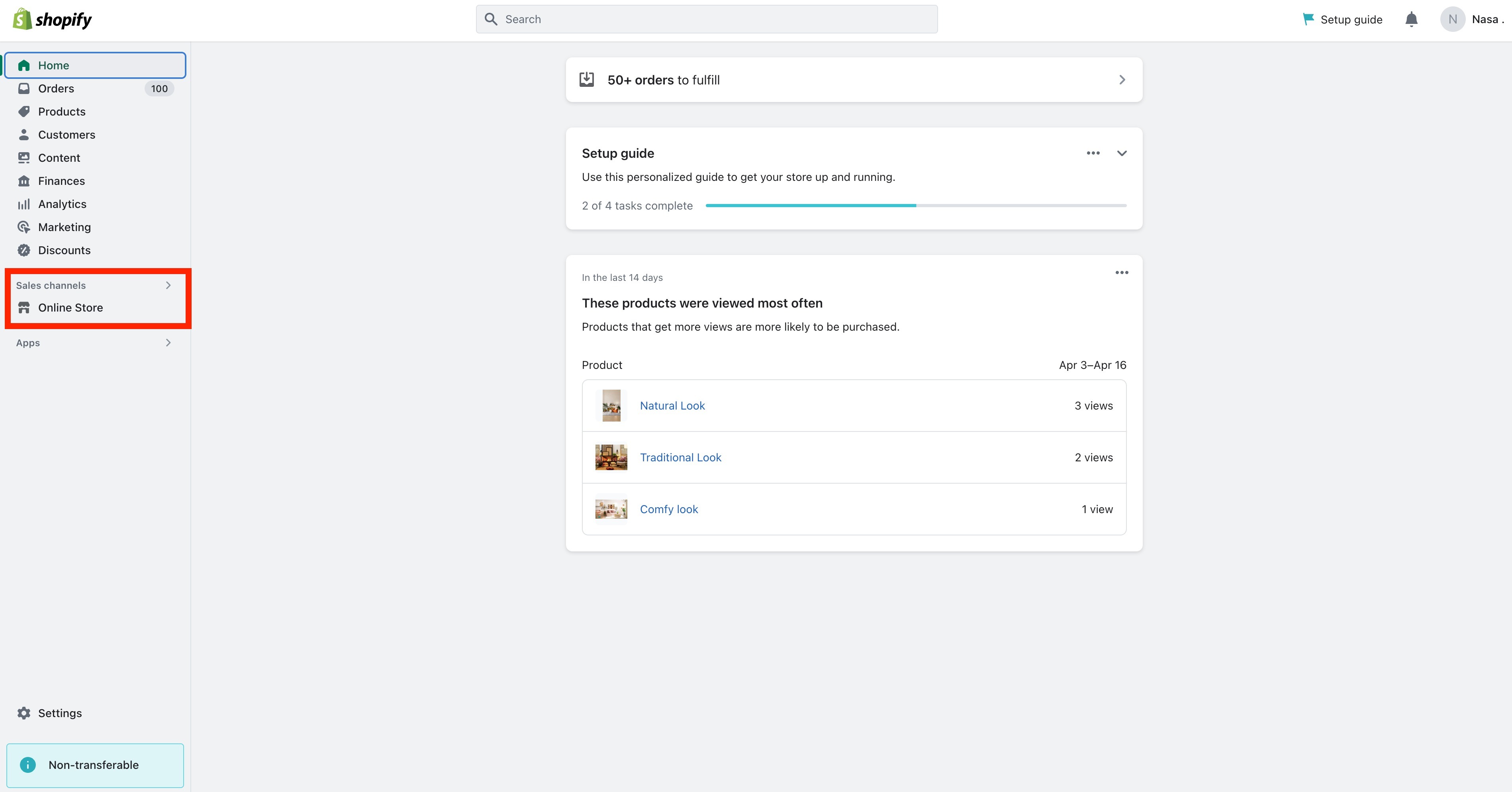
- Edit your website's theme: Select the theme you want to edit and click the "Actions" button. Choose "Edit code" from the drop-down menu.


- Open your theme's theme.liquid file: In the list of files that appears, select the "Layout" folder and then select the "theme.liquid" file.
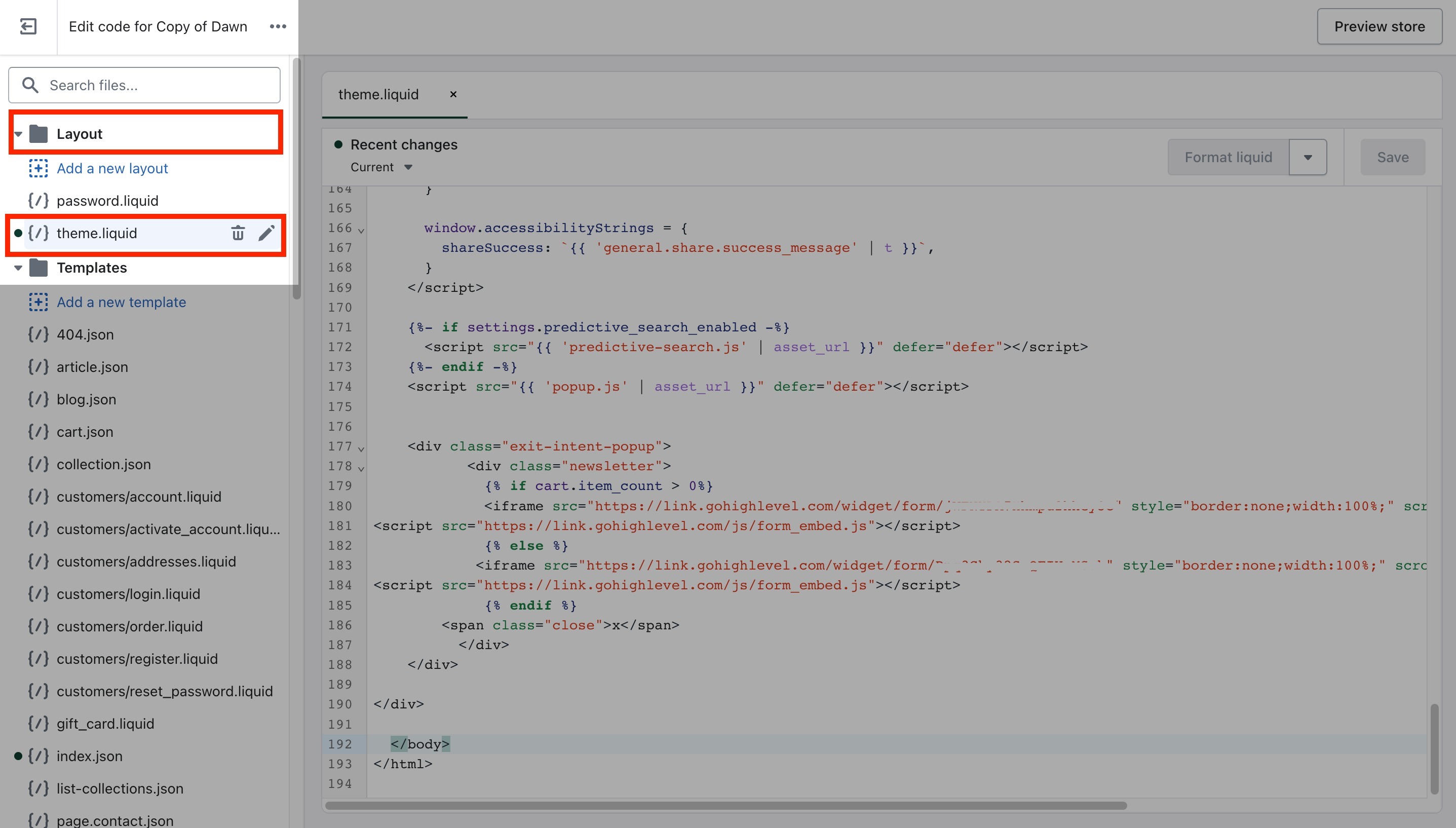
- Paste the embed code: Locate
</body>tag within theme.liquid then add embed code above it.

- Save the changes: After adding the embed code, hit the save button.

- Preview the chat widget: Go to your website and refresh the page. The chat widget should now be visible on your website.
- Please test it out to make sure it's working correctly.