

Claim or create your Google Business Profile today, complete verification, fill in every core field, and route profile leads straight into your follow-up workflow. A verified, optimized profile is a free local-intent lead channel: searchers who find you this way are already looking for an agent, so treat every call, message, or direction request as a lead and respond within minutes.
TL;DR:
- Search Google Maps and Google Search for your name, address, and phone number before creating a profile, because duplicates divide reviews and confuse ranking signals.
- Google generally requires customer contact in person during stated hours; video verification lets agents working from home show local presence without filming a residence.
- Use the business name shown on signage and licenses, keep phone and website details consistent, and list specific services rather than broad categories.
- Request a review within 24 hours of a completed enrollment or bound policy, and prompt clients to mention the specific service they received.
- Connect profile calls, messages, and bookings to your CRM, then automate an SMS and email response within minutes to reduce manual follow up.
Table of Contents
- How to claim or create a profile for an insurance agent or agency
- Verification options and eligibility rules for agents
- Profile fundamentals: name, categories, contact, hours, and services
- Photos, video, and media: what to upload and how often
- Reviews and reputation: collecting, responding, and using review text strategically
- Using posts, Q&A, messaging, and booking to capture leads
- Managing users, business groups, and vendor access
- Measuring performance with Google Business Profile insights
- How an insurance-focused CRM turns profile leads into bound policies
- What to prioritize in month one
- CallBack CRM: turning profile visits into booked appointments
- FAQ
- Sources
- Official Google help pages and client resources
How to claim or create a profile for an insurance agent or agency
Before building anything new, search Google for your business name and address to check whether a profile already exists, since duplicates split your reviews and confuse ranking signals.
- Search Google Maps and Google Search for your name, address, and phone number to rule out an existing listing.
- If one exists, request ownership through the “claim this business” prompt and begin verification.
- If none exists, create a new profile and choose between an individual practitioner profile (for solo agents working from one location or as a service-area business) and an agency location profile (for multi-agent offices with a public storefront).
- Pick a primary category such as “Insurance agency” or “Insurance broker,” then add secondary categories and a services list using the exact terms clients search, like “Medicare agent” or “life insurance quotes.”
Verification options and eligibility rules for agents
Not every business qualifies for a profile. Google generally requires that a business make in-person contact with customers during its stated hours to meet its eligibility guidelines, which matters for agents who work entirely by phone or video.
- Postcard verification mails a code to your listed address and works best for agents with a public office.
- Phone or email verification is faster but only available for certain business categories and account histories.
- Video verification asks you to film your location, signage, and proof that you manage the business, and it is the most practical option for service-area and home-based agents who want to prove local presence without filming a residential address.
Before recording, gather your license or E&O certificate, a branded business card, and any exterior signage you can legally show.
Pro Tip: Film your verification video in one steady take showing a street sign, your signage or vehicle branding, and a document with your business name, then narrate what the viewer is seeing.

Profile fundamentals: name, categories, contact, hours, and services
Consistency across every field is what lets Google and searchers trust the listing. Use one phone number and one website everywhere you list your business, since mismatched contact details across directories can get a profile flagged under Google’s ownership and contact guidelines.
- List your legal or commonly used business name exactly as it appears on your signage and license.
- Choose one precise primary category, then add every relevant service (“Medicare Advantage enrollment,” “final expense insurance,” “commercial auto insurance”) so niche searches match your local SEO profile.
- Set accurate hours, including seasonal changes during open enrollment, and update them before holidays.
- Add a booking link or appointment scheduler so a searcher can set time with you without placing a call first.
A profile that lists five vague services ranks worse for specific searches than one that lists fifteen precise ones, because Google matches search terms against your stated services page by page.
Photos, video, and media: what to upload and how often
Profiles with current photos and video read as active businesses, which helps both verification and local ranking.
- Upload your logo, a clear exterior shot with visible signage, an interior shot of your office or meeting space, and a staff photo so clients recognize you on arrival.
- Add a 15 to 30 second video showing your office or a short introduction, which doubles as useful material if you later need to verify by video.
- Post at least one new photo or update weekly during enrollment season to signal an active, trustworthy profile, as Google’s own guidance for getting listed recommends keeping information and media current.
Pro Tip: Name image files with your city and service before uploading, like “austin-medicare-agent-office.jpg,” and add a one-line caption using the same terms.
Reviews and reputation: collecting, responding, and using review text strategically
Review volume, recency, and specific wording all affect whether your profile surfaces for a given search and how Google’s AI summaries describe your business, according to Google’s guidelines for representing your business.
- Ask every client for a review within 24 hours of a bound policy or completed enrollment, while the experience is fresh.
- Request specific language in the ask, such as “mention what we helped you with, like Medicare Part D enrollment or a life insurance quote,” which strengthens how your profile matches similar searches.
- Respond to every review within a few days: thank positive reviewers by name and restate the service, and respond to negative reviews calmly, offer to resolve the issue off-platform, and never argue in public.
A notable percentage of U.S. consumers prioritize businesses rated 4 to 4.5 stars or higher, according to Google’s business representation guidelines, which means a thin or stale review base can quietly cost you leads before a client ever calls.
Using posts, Q&A, messaging, and booking to capture leads
Google Posts, Q&A, and messaging turn a static listing into an active lead channel.
- Post enrollment event invites, limited-time offers, and short educational notes (what Medicare Annual Enrollment means, when open enrollment closes) with a clear call to action like “book a free review.”
- Turn on messaging and booking, and use a short qualifying question in your booking form, such as asking which type of coverage the visitor needs.
- Seed the Q&A section yourself with common questions like “Do you offer Medicare Advantage plans?” and answer them before a stranger posts something inaccurate.
Managing users, business groups, and vendor access
Assign roles carefully. Owners have full control, managers can edit most fields and respond to reviews, and site managers have the narrowest access, all defined in Google’s guide to editing your profile.
- Invite team members as managers rather than owners unless they need full control, and remove access immediately when someone leaves.
- Agencies running multiple locations should use business groups for bulk edits, which keeps hours, categories, and contact details consistent across every agent’s listing.
- If you work with an outside marketer or vendor, add them as a manager rather than sharing your login, and review their access periodically.
Measuring performance with Google Business Profile insights
Your profile’s built-in insights show calls, direction requests, website clicks, booking actions, and the search terms that led people to find you.
- Track which search terms drive calls versus website clicks, since that tells you which services to expand in your listing.
- Send every GBP contact into your CRM so you can measure time to first contact, number of follow-up touches, and conversion to appointment or bound policy.
- Run small tests: compare post types, vary your review request wording, and test booking call-to-action placement to see which version produces more completed appointments.
How an insurance-focused CRM turns profile leads into bound policies
A Google Business Profile only pays off when every call, message, or booking request gets a fast, consistent follow-up. A typical workflow looks like this: a lead calls or messages through your profile, the contact lands in your CRM automatically, an automated SMS and email sequence reaches them within minutes, the lead gets scored based on engagement, and an appointment gets scheduled without manual entry. This kind of routing and reputation management, the approach behind our lead generation tips for insurance agents, cuts the manual work of chasing leads and shortens the time between first contact and a booked appointment.
- In the first 30 days, test a unique tracking number on your profile so you can see which calls come from Google.
- Turn on an automated SMS and email response for the first 24 hours after any new contact.
- Add one automated review request after every bound policy or completed enrollment.
Pro Tip: Measure time-to-first-contact before and after turning on automation. A faster first response is the single biggest lever for turning a Google Business Profile click into a booked appointment.
What to prioritize in month one
Verification comes first, since an unverified profile barely shows up in search. After that, prioritize reviews, then core fields, then media, then automated follow-up, because a verified profile with no reviews and a one-line description still underperforms a thinner one that gets fresh reviews every week. Agents managing one location can handle setup themselves in a weekend; agencies with several locations or little spare time often do better handing verification and bulk fields to a vendor or marketer while keeping ownership. In your first 30 days: verify, request ten reviews with specific language, fill every field, add ten photos, and connect profile contacts to automated follow-up.
— Kyle
CallBack CRM: turning profile visits into booked appointments
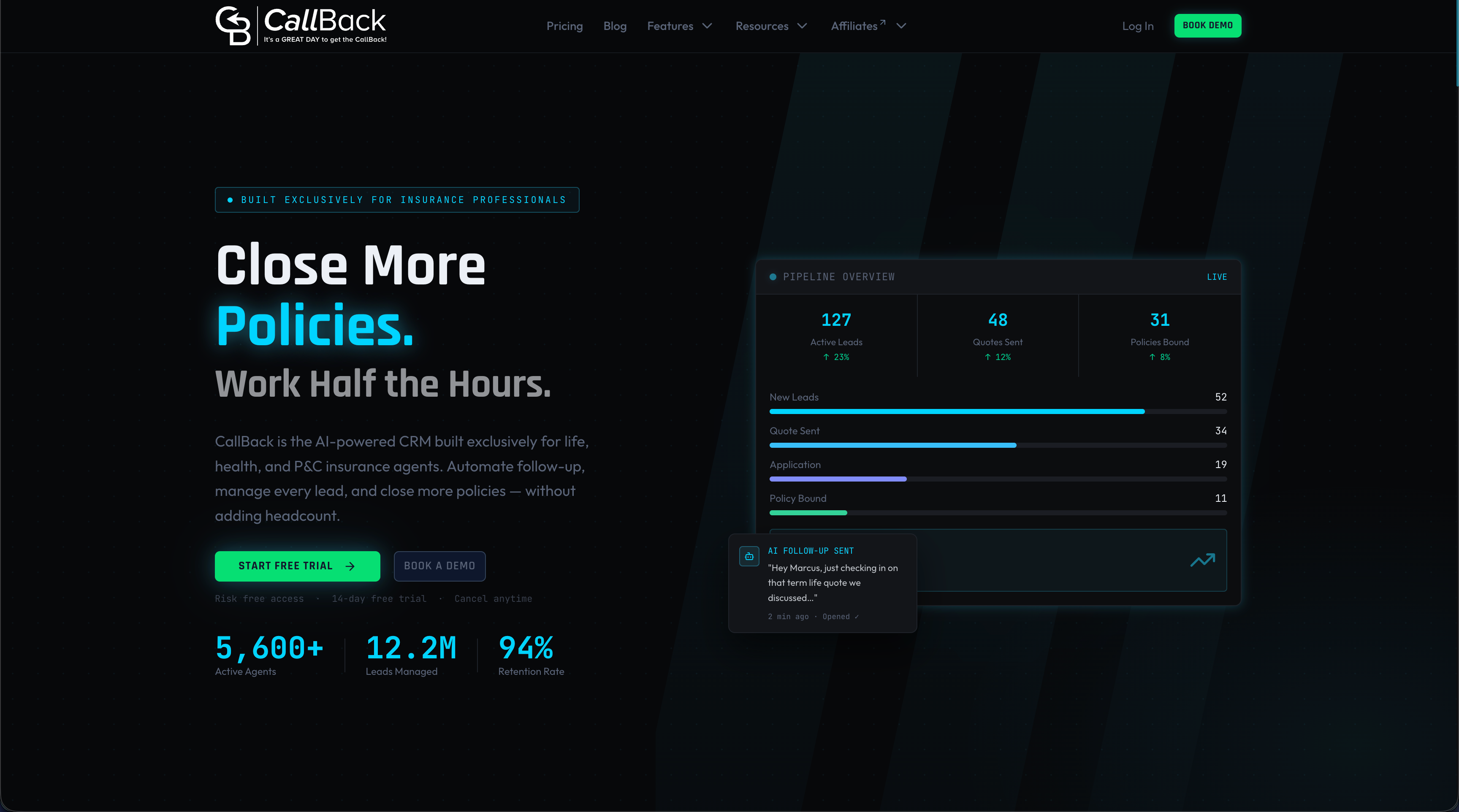
We built our platform around the exact workflow this article describes: a lead finds your Google Business Profile, calls or messages you, and needs a fast, automated response before they call the next agent on the list. Our automation routes that contact into an SMS, email, and voice follow-up sequence, scores the lead, and schedules the appointment, while our reputation tools help you request and manage reviews without manual tracking. Agencies managing multiple agents can add full CRM seats through our Enterprise plans, and solo agents can start with our Professional plan at $97 per month. Before reaching out, have your current phone number, website, and a list of the services you want highlighted ready, then start a trial to connect your profile leads to automated follow-up this week.
FAQ
How do I look up a Google Business Profile?
Search the business name and city on Google or Google Maps, and the profile will appear in the search results or as a map pin with the business’s hours, reviews, and contact details. You can also check directly through Google’s business tools if you manage the listing yourself.
Can a realtor have a Google Business Profile?
Yes, any business or professional that makes in-person or appointment-based contact with customers during stated hours generally meets Google’s eligibility guidelines, and this applies to real estate agents the same way it applies to insurance agents.
How do I introduce myself as an insurance agent on my profile?
Use your business description and services list to state your licensed lines (life, health, Medicare, property and casualty) and the areas you serve, then reinforce that with a short welcome post and a few client reviews mentioning specific services.
Who is eligible for a Google Business Profile?
Eligibility generally requires that the business make in-person contact with customers during its stated hours, whether at a fixed location or as a service-area business, according to Google’s eligibility and ownership guidelines. Businesses that exist only online with no customer-facing contact typically do not qualify.
What is the difference between an owner and a manager on a profile?
An owner has full control over the profile, including adding or removing other users, while a manager can edit most information and respond to reviews but cannot manage user access, as outlined in Google’s guide to editing your profile. Assign manager access to staff or vendors and reserve owner access for yourself or your agency’s primary account.
Sources
- Business eligibility and ownership guidelines - Google Business Profile Help
- Verify your business with a video recording - Google Business Profile Help
- Edit your profile on Google - Google Business Profile Help
- Get listed on Google - Google Business Profile
Official Google help pages and client resources
- Business eligibility and ownership guidelines
- Verify your business with a video recording
- Edit your profile on Google
- Get listed on Google
- Guidelines for representing your business on Google
- Agents: Turn Google Ads Leads Into Bound Policies
- Lead generation tips for insurance agents